Function is a combination of code, runtime, resources, and settings required to achieve a specific purpose. It is the minimum unit that can run independently. A function can be triggered by triggers and automatically schedule required resources and environments to achieve expected results.
An app groups functions as a service logic unit for easier management. You can create multiple functions under an app.
Editing Code Inline
FunctionGraph allows you to edit function code in the same way as managing a project. You can create and edit files and folders. After you upload a ZIP code package, you can view and edit the code on the console. Table 1 describes the menus of the inline editor.
Menu | Description |
|---|---|
File | Creates files and folders. You can create files, create folders based on templates, and close all files. |
Edit | Edits function code. You can perform the undo, edit, or comment operation. |
Find | Finds and replaces code. |
Go to | Goes to a certain location in the code. You can go to a specified line, brackets, or the next problematic line. |
View | Provides common functions. You can view the command palette and change the display theme. |
Test | Tests a function online, and displays the test result, digest, and logs. |
- Java is a compiled language, which does not support editing code inline. If your function does not use any third-party dependencies, you can upload a function JAR file. If your function uses third-party dependencies, compress the dependencies and the function JAR file into a ZIP file, and then upload the ZIP file.
- If you edit code in Go, compress the compiled file in ZIP format, and ensure that the name of the dynamic library file is consistent with the plug-in name of the handler. For example, if the name of the dynamic library file is function.so, set the handler to function.Handler according to Table 2.
- When creating a ZIP file, place the handler file under the root directory to ensure that your code can run normally after being decompressed.
Modifying Function Code
After a function is created, the default version is latest. Each function has the latest version. You can modify a function based only on its latest version.
- Log in to the FunctionGraph console, and choose Functions > Function List in the navigation pane.
- Click a function name.
- (Optional) On the function details page, select the latest version.
- On the Code or Configuration tab page, modify the code information according to Table 2 and Table 3.Table 2 Code information
Parameter
Description
Handler
- For a Node.js or Python function, the handler must be named in the format of [file name].[function name], which must contain a period (.). Enter myfunction.handler, which indicates that the file name is myfunction.js (myfunction.py for a Python function and myfunction.java for a Java function) and the function name is handler.
- For a Java function, the handler must be named in the format of [package name].[file name].[function name], for example, com.xxxxx.exp.Myfunction.myHandler.
- For a Go function, the handler must be named in the format of [plug-in name].[function name], for example, function.Handler. The function name must start with an uppercase letter and the handler name can contain a maximum of 128 characters.
- For a C# function, the handler must be named in the format of [.NET assembly file name]::[namespace and class of the handler function]::[handler function name], for example, HelloCsharp::Example.Hello::Handler.
- For a Cangjie function, the handler must be named in the format of [Dynamic dependency library name].so. The name can contain a maximum of 128 characters.
Example: libuser_func_test_success.so.
Initializer
You can enable function initialization on the Code tab page after creating a function. The initializer must be named in the same way as the handler. For example, for a Node.js or Python function, set an initializer name in the format of [file name].[initialization function name].
NOTE:This parameter is not required if function initialization is disabled. For details on how to create an initialization function, see Initializing the Function.
Dependencies
Third-party software packages required by the function. You can manage your dependencies by uploading them to FunctionGraph. If the dependencies are too large, upload them through OBS. For more information, see Dependent Libraries.
NOTE:Except your private dependencies, FunctionGraph provides some common dependencies, which you can choose when creating a function.
Code Entry Mode
Method of entering the function code. For details about the supported code entry modes, see Table 3.
Table 3 Code entry modesRuntime
Code Entry Mode
Description
Node.js
Edit code inline
Edit code in the code box. For more information, see Table 4.
Upload ZIP file
Click Select File and upload a local code package to FunctionGraph. The size of the ZIP file to be uploaded cannot exceed 50 MB. If it exceeds 50 MB, upload the ZIP file using an OBS bucket.
Upload file from OBS
Paste the link URL of the OBS bucket storing a code ZIP file.
Python
Edit code inline
Edit code in the code box. For more information, see Table 4.
Upload ZIP file
Click Select File and upload a local code package to FunctionGraph. The size of the ZIP file to be uploaded cannot exceed 50 MB. If it exceeds 50 MB, upload the ZIP file using an OBS bucket.
Upload file from OBS
Paste the link URL of the OBS bucket storing a code ZIP file.
Java
Upload ZIP file
Click Select File and upload a local code package to FunctionGraph. The size of the ZIP file to be uploaded cannot exceed 50 MB. If it exceeds 50 MB, upload the ZIP file using an OBS bucket.
Upload JAR file
Click Select File and upload a local JAR file to FunctionGraph. The size of the JAR file to be uploaded cannot exceed 50 MB. If it exceeds 50 MB, convert it into a ZIP file, and upload the ZIP file to OBS.
Upload file from OBS
Paste the link URL of the OBS bucket storing a code ZIP file.
Go
Upload ZIP file
Click Select File and upload a local code package to FunctionGraph. The size of the ZIP file to be uploaded cannot exceed 50 MB. If it exceeds 50 MB, upload the ZIP file using an OBS bucket.
Upload file from OBS
Paste the link URL of the OBS bucket storing a code ZIP file.
C#(.NET Core)
Upload ZIP file
Click Select File and upload a local code package to FunctionGraph. The size of the ZIP file to be uploaded cannot exceed 50 MB. If it exceeds 50 MB, upload the ZIP file using an OBS bucket.
Upload file from OBS
Paste the link URL of the OBS bucket storing a code ZIP file.
PHP
Upload ZIP file
Click Select File and upload a local code package to FunctionGraph. The size of the ZIP file to be uploaded cannot exceed 50 MB. If it exceeds 50 MB, upload the ZIP file using an OBS bucket.
Upload file from OBS
Paste the link URL of the OBS bucket storing a code ZIP file.
Custom
Edit code inline
Edit code in the code box. For more information, see Table 1.
Upload ZIP file
Click Select File and upload a local code package to FunctionGraph. The size of the ZIP file to be uploaded cannot exceed 50 MB. If it exceeds 50 MB, upload the ZIP file using an OBS bucket.
Upload file from OBS
Paste the link URL of the OBS bucket storing a code ZIP file.
Cangjie
Upload ZIP file
Click Select File and upload a local code package to FunctionGraph. The size of the ZIP file to be uploaded cannot exceed 50 MB. If it exceeds 50 MB, upload the ZIP file using an OBS bucket.
Upload file from OBS
Paste the link URL of the OBS bucket storing a code ZIP file.
Notice- When you write code in Python, do not name your package with the same suffix as a standard Python library, such as json, lib, and os. Otherwise, an error indicating a module loading failure will be reported.
- If the code to be uploaded contains sensitive information (such as account passwords), encrypt the sensitive information to prevent leakage.
Table 4 Menu description of the inline editorMenu
Description
File
Creates files and folders. You can create files, file templates, and Python modules, and close all files.
Edit
Edits function code. You can undo or redo your editing, delete or join lines, add comments, fold and unfold lines, and sort lines in ascending or descending order.
Find
Finds and replaces code.
Go to
Goes to a certain location in the code. You can go to a specified line, brackets, or the next problematic line.
View
Provides common functions. You can view the command palette and change the display theme.
Test
Tests a function online, and displays the test result, digest, and logs.
Note- Java is a compiled language, which does not support editing code inline. If your function does not use any third-party dependencies, you can upload a function JAR file. If your function uses third-party dependencies, compress the dependencies and the function JAR file into a ZIP file, and then upload the ZIP file.
- If you edit code in Go, compress the compiled file in ZIP format, and ensure that the name of the dynamic library file is consistent with the plug-in name of the handler. For example, if the name of the dynamic library file is function.so, set the handler to function.Handler according to Table 2.
- When creating a ZIP file, place the handler file under the root directory to ensure that your code can run normally after being decompressed.
- Click Save.
Exporting a Function
You can export the created functions and their code and configurations.
- Log in to the FunctionGraph console, and choose Functions > Function List in the navigation pane.
- Click a function name.
- On the displayed function details page, choose Operation > Export function in the upper right corner.Note
- A user can export only one function at a time.
- The exported function resource package cannot exceed 50 MB.
- The name of the exported function resource package is in the format of function name+MD5 value of function code.zip.
- The exported function resource package does not include alias information.
- If a function is disabled or enabled, all versions of the function will be disabled or enabled.
- Encrypted environment variables can be exported.
Importing a Function
You can import a ZIP file that contains configurations and code into FunctionGraph.
- Log in to the FunctionGraph console, and choose Functions > Function List in the navigation pane.
- Click Import Function in the upper right corner.
- On the displayed page, select an existing app or define a new app, and then upload a ZIP file.Notice
If the ZIP file to be uploaded contains sensitive information (such as account passwords), encrypt the sensitive information to prevent leakage.
- Click OK.Note
- You can import only one function at a time.
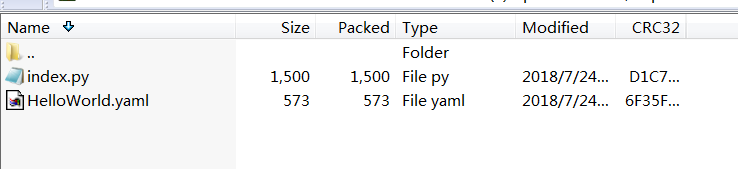
- The resource package to be imported must be a ZIP package that contains a YAML configuration file and code file, as shown in Figure 1. The package cannot exceed 10 MB.
Figure 1 Resource package
- The resource package must contain only one YAML configuration file.
- Fields in the YAML file must meet the same requirements as those configured when you create a function.
- The code file is located through the codeFilename field in the YAML file.
- For the Resource field in the YAML file, you can specify only one function.
- When a dependency package is used, if the code in this package can be pulled from OBS, the import is successful. Otherwise, the import fails.
- You can import an exported resource package again, but must specify a unique function name. The version of the imported function is latest by default.
The following shows an example YAML configuration file. The fields in this file are described in Table 5.
HcCrmTemplateVersion: v2Resources:HelloWorld:Type: HC::Serverless::FunctionProperties:Handler: index.handlerRuntime: Node.js6.10CodeType: inlineCodeFileName: index.jsDependencyPkg: ""Description: ""MemorySize: 128Timeout: 3Version: latestEnvironment:Variables: {}Table 5 YAML file descriptionParameter
Description
HcCrmTemplateVersion
Fixed value: v2.
Resources
Function details.
Type
Fixed value: HC::Serverless::Function.
Properties
Function information.
Handler
Handler of the function.
Runtime
Running environment.
CodeType
Code entry mode, which can be jar, zip, or inline.
CodeFileName
Code file name.
DependencyPkg
Dependency address.
Description
Description of the function.
MemorySize
Memory size.
Timeout
Function execution timeout.
Version
Function version.
Environment
Environment variables.
Disabling a Function
Disabled functions can no longer be executed.
- Log in to the FunctionGraph console, and choose Functions > Function List in the navigation pane.
- Click the name of the function you want to disable.
- On the displayed function details page, click Disable in the upper right corner.
- On the displayed page, click Yes. The function is disabled.Note
- Only functions of the latest version can be disabled.
- Versions published based on the disabled latest version of a function are also disabled and can never be enabled.
- After disabling a function, you can modify its code but cannot execute the function.
Enabling a Function
Disabled functions can be enabled again as required.
- Log in to the FunctionGraph console, and choose Functions > Function List in the navigation pane.
- Click the name of the function you want to enable.
- On the displayed function details page, click Enable in the upper right corner.
Deleting a Function
You can delete unused functions to release resources.
- Log in to the FunctionGraph console, and choose Functions > Function List in the navigation pane.
- In the Function List, locate the row that contains the target function and click Delete in the operation column. In the displayed dialog box, enter DELETE and click OK.