You can configure a lifecycle rule for a bucket or a set of objects to:
- Transition objects from Standard to Warm or Cold.
- Transition objects from Warm to Cold.
- Expire objects and then delete them.
Lifecycle rules do not transition Cold objects to other storage classes.
A lifecycle rule can transition the storage class of WORM-protected object versions within the retention period, but cannot delete such object versions.
Procedure
- In the bucket list of OBS Console, click the required bucket to go to the Objects page.
- In the navigation pane, choose Overview.
- In the navigation pane, choose Basic Configurations > Lifecycle Rules.
- Click Create.
Figure 1 Creating a lifecycle rule
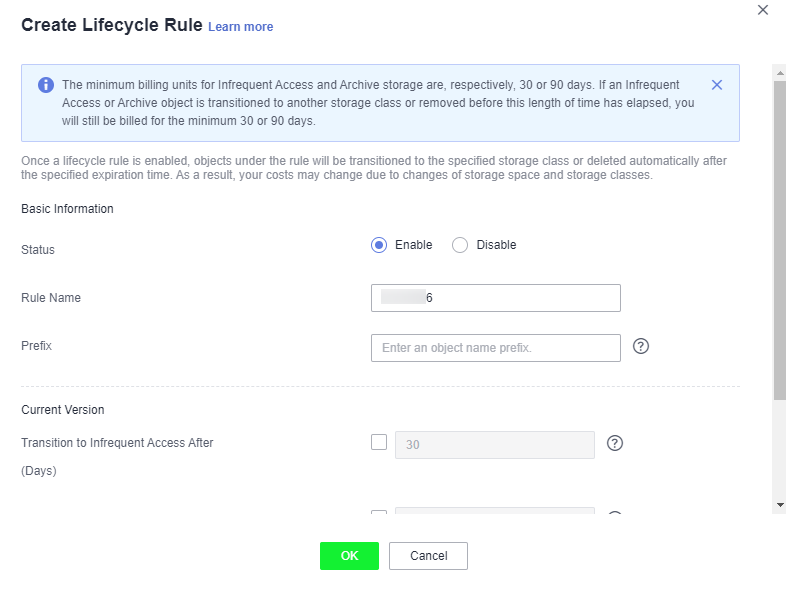
- Configure a lifecycle rule.
Basic Information:
- Status:
Select Enable to enable the lifecycle rule.
- Rule Name:
It identifies a lifecycle rule. A rule name can contain a maximum of 255 characters.
- Prefix: It is optional.
- If this field is configured, objects with the specified prefix will be managed by the lifecycle rule. The prefix cannot start with a slash (/) or contain two consecutive slashes (//), and cannot contain the following special characters: \ : * ? " < > |
- If this field is not configured, all objects in the bucket will be managed by the lifecycle rule.
Note- If the specified prefix overlaps with the prefix of an existing lifecycle rule, OBS regards these two rules as one and forbids you to configure the one you are configuring. For example, if there is already a rule with prefix abc in OBS, you cannot configure another rule whose prefix starts with abc.
- If there is already a lifecycle rule based on an object prefix, you are not allowed to configure another rule that is applied to the entire bucket.
- If a lifecycle rule has been configured for the entire bucket, no more rules that apply to object name prefix can be added.
Current Version or Historical Version:
- If Versioning is not enabled for a bucket, only Current Version can be configured and Historical Version is not displayed by default.
- If Versioning was ever enabled for a bucket, both Current Version and Historical Version can be configured.
Note- Current Version and Historical Version are two concepts for versioning. If versioning is enabled for a bucket, uploading objects with the same name to the bucket creates different object versions. The last uploaded object is called the current version, while those previously uploaded are called historical versions.
- You can configure either the Current Version or Historical Version, or both of them.
- Transition to Warm: After this number of days since the last update, objects meeting specified conditions will be transitioned to Warm. This number must be at least 30.
- Transition to Cold: After this number of days since the last update, objects meeting specified conditions will be transitioned to Cold. If you configure the lifecycle rule to transition objects first to Warm and then to Cold, the objects must remain in Warm for at least 30 days before they can be transitioned to Cold. If you choose to transition objects directly to Cold, no such restriction applies.
- Delete Objects After (Days): After this number of days since the last update, objects meeting certain conditions will be expired and then deleted. This number must be an integer larger than that specified for any of the transition operations.
- Delete Fragments After (Days): After this number of days since the fragment generation, OBS will automatically delete fragments in the bucket.
For example, on January 7, 2015, you saved the following files in OBS:
- log/test1.log
- log/test2.log
- doc/example.doc
- doc/good.txt
On January 10, 2015, you saved another four files:- log/clientlog.log
- log/serverlog.log
- doc/work.doc
- doc/travel.txt
On January 10, 2015, you set the objects prefixed with log to expire one day later. You might encounter the following situations:
- Objects log/test1.log and log/test2.log uploaded on January 7, 2015 might be deleted after the last system scan. The deletion could happen on January 10, 2015 or January 11, 2015, depending on the time of the last system scan.
- Objects log/clientlog.log and log/serverlog.log uploaded on January 10, 2015 might be deleted on January 11, 2015 or January 12, 2015, depending on whether they have been stored for over one day (since their last update) when the system scan happened.
On the day of operation, you can set the objects with the name prefix log to be transitioned to Warm 30 days later, transitioned to Cold 60 days later, and deleted 100 days later, then OBS will transition log/clientlog.log, log/serverlog.log, log/test1.log, and log/test2.log to Warm when their storage duration exceeds 30 days, transition them to Cold when their storage duration exceeds 60 days, and delete them when their storage duration exceeds 100 days, respectively.
NoteIn theory, it takes 24 hours at most to execute a lifecycle rule. After an object is updated, OBS calculates its lifecycle from the next 00:00 (UTC time), so there may be a delay of up to 48 hours in transitioning objects between storage classes or deleting expired objects. If you make changes to an existing lifecycle rule, the rule will take effect again.
- Status:
- Click OK to complete the lifecycle rule configuration.
Follow-up Procedure
You can click Edit, Delete, or Disable (or Enable) in the Operation column of a lifecycle rule to edit, delete, disable (or enable) the rule.
You can also select multiple lifecycle rules at a time and click Delete or Disable (or Enable) above the list to batch delete or disable (or enable) them.