This section describes how to create a bucket on OBS Console. A bucket is a container that stores objects in OBS. Before you can store data in OBS, you must create a bucket.
An account can create a maximum of 100 buckets and parallel file systems.
Procedure
- In the upper right corner of the OBS Console homepage, click Create Bucket. The Create Bucket page is displayed. For details, see Figure 1.
Figure 1 Creating a bucket
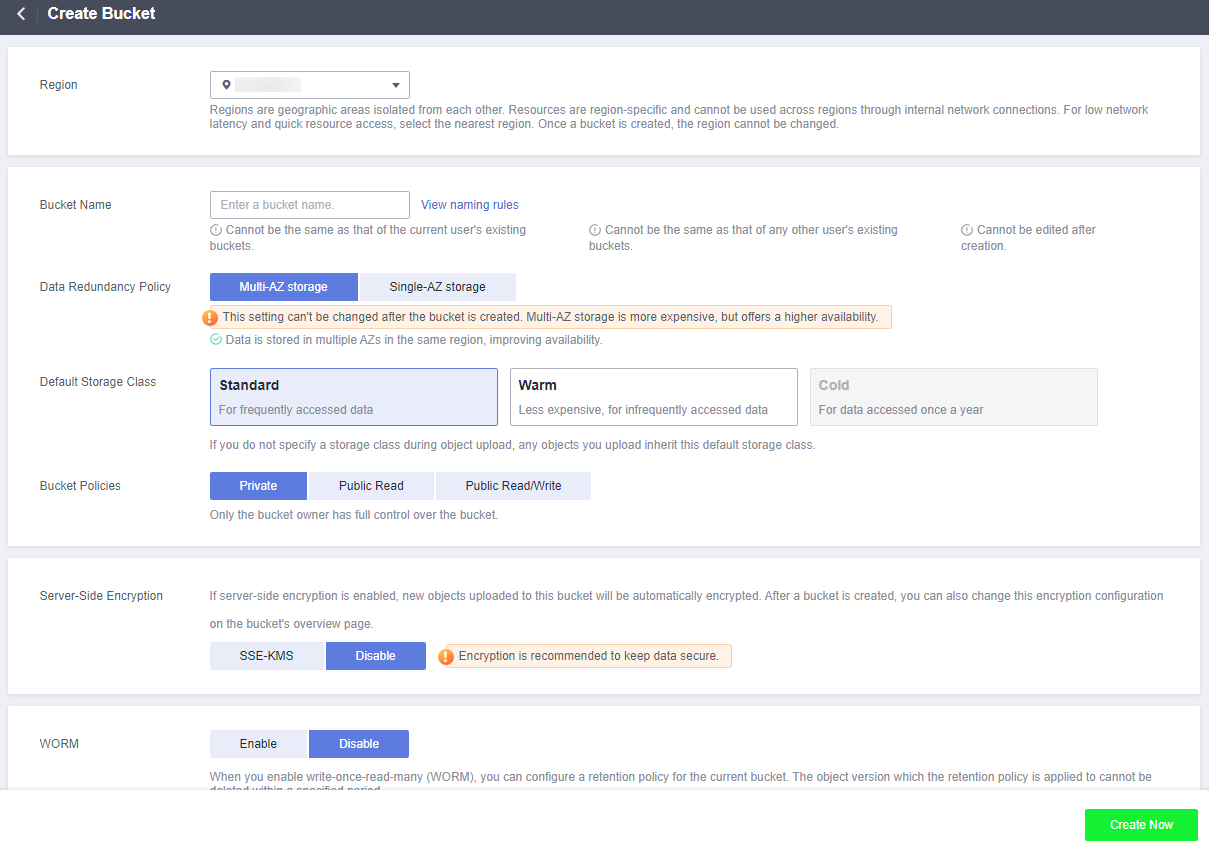
- Configure bucket parameters.
Table 1 Bucket parameters Parameter
Description
Region
Geographic area where a bucket resides. For low latency and faster access, select the region nearest to you. Once the bucket is created, its region cannot be changed.
Bucket Name
Name of the bucket. A bucket name must be unique across all accounts and regions. Once a bucket is created, its name cannot be changed.
According to the globally applied DNS naming rules, an OBS bucket name:
- Must be unique across all accounts and regions. The name of a deleted bucket can be reused for another bucket or a parallel file system at least 30 minutes after the deletion.
- Must be 3 to 63 characters long. Only lowercase letters, digits, hyphens (-), and periods (.) are allowed.
- Cannot start or end with a period (.) or hyphen (-), and cannot contain two consecutive periods (..) or contain a period (.) and a hyphen (-) adjacent to each other.
- Cannot be formatted as an IP address.NOTE:
When you access OBS through HTTPS using virtual hosted-style URLs, if the bucket name contains a period (.), the certificate verification will fail. To work around this issue, you are advised not to use periods (.) in bucket names.
Data Redundancy Policy
- Multi-AZ storage: Data is stored in multiple AZs to achieve higher reliability.
- Single-AZ storage: Data is stored in a single AZ, with lower costs.
Once a bucket is created, the data redundancy policy cannot be changed, so choose the policy that can meet your needs.
- Multi-AZ storage is not available for buckets in the Cold storage class.
Default Storage Class
Storage classes of a bucket. Different storage classes meet different requirements for storage performance and costs.
- The Standard storage class is for storing a large number of hot files or small files that are frequently accessed (multiple times per month on average) and require quick retrieval.
- The Warm storage class is for storing data that is less frequently accessed (less than 12 times per year on average) and requires quick retrieval.
- The Cold storage class is for archiving data that is rarely accessed (once a year on average) and has no requirements for quick retrieval.
For details, see Storage Classes.
Bucket Policy
Controls read and write permissions for buckets.
- Private: No access beyond the bucket ACL settings is granted.
- Public Read: Anyone can read objects in the bucket.
- Public Read/Write: Anyone can read, write, or delete objects in the bucket.
Enterprise Project
You can add a bucket to an enterprise project for unified management.
Create an enterprise project on the enterprise project page. The default enterprise project is named default.
On the Enterprise Project Management page, create an enterprise project, create a user group and add users to this group, and then add the user group to the enterprise project. By doing so, users in this user group obtain the operation permissions for the buckets and objects in the enterprise project.
NOTE:Only an enterprise account can configure enterprise projects.
OBS Viewer and OBS Operator are the fine-grained authorizations of the enterprise project user group in OBS.
Server-Side Encryption
Choose SSE-KMS. For the encryption key type, you can choose Default or Custom. If Default is chosen, the default key of the current region will be used to encrypt your objects. If there is no such a default key, OBS creates one the first time you upload an object. If Custom is chosen, you can choose a custom key you created on the DEW console to encrypt your objects. If no custom key is available, click Create KMS Key to create one.
After you enable server-side encryption for the bucket, any object you upload to it will inherit the KMS encryption from the bucket by default.
For more information, see Server-Side Encryption.
WORM
When you enable write-once-read-many (WORM), you can configure a retention policy for the current bucket. The object version which the retention policy is applied to cannot be deleted within a specified period. You can only enable WORM when you create a bucket. Once enabled for a bucket, WORM cannot be disabled. When you enable WORM, OBS automatically enables versioning for the bucket, and versioning cannot be suspended later for that bucket.
If you choose to enable WORM, configure the following:
- Default Retention: You can configure it when creating a bucket or after creating a bucket.
- Default Retention Mode: This parameter needs to be configured if Default Retention is set to Configure. Only the compliance retention mode is currently supported. In this mode, no users can delete protected object versions or change their retention mode during the specified retention period.
- Default Retention Period: This parameter needs to be configured if Default Retention is set to Configure. During the specified period, OBS prevents WORM-protected object versions from being deleted. You can configure a retention period in either days (from 1 to 36500) or years (from 1 to 100).
Tags
Optional. Tags are used to identify and classify buckets in OBS. Each tag is represented by a key-value pair.
For more information, see Tag Overview.
- Click Create Now.