Scenarios
On OBS Console, you can manually delete unneeded files or folders to release space and reduce costs.
Alternatively, you can configure lifecycle rules to periodically, automatically delete some or all of the files and folders from a bucket. For details, see Configuring a Lifecycle Rule.
In big data scenarios, parallel file systems usually have deep directory levels and each directory has a large number of files. In such case, deleting directories from parallel file systems may fail due to timeout. To address this problem, you are advised to delete directories in either of the following ways:
- On the Hadoop client that has OBSA, an OBS client plugin, embedded, run the hadoop fs - rmr obs://{Name of a parallel file system}/{Directory name} command.
- Configure a lifecycle rule for directories by following Configuring a Lifecycle Rule, so that they can be deleted in background based on the preset lifecycle rule.
Background Information
Object Deletion with Versioning Enabled
When versioning is enabled for a bucket, OBS works slightly different when deleting different objects.
- Deleting a file or folder: The file or folder is not permanently deleted, but is retained in the Deleted Objects list and marked with the Delete Marker. In Deleted Objects, click the object name. On the Versions tab, you can see that the latest object version has the delete marker.
Figure 1 Deleting a file or folder
- To permanently delete the file or folder, delete it again from the Deleted Objects list. For details, see Procedure.
- To recover the deleted file, undelete it from the Deleted Objects list. For details, see Undeleting an Object.
- Deleting an object version: The version will be permanently deleted and cannot be recovered. If the deleted version is the latest one, the next latest version becomes the latest version.
Figure 2 Deleting a version of an object

Procedure
- In the bucket list of OBS Console, click the required bucket to go to the Objects page.
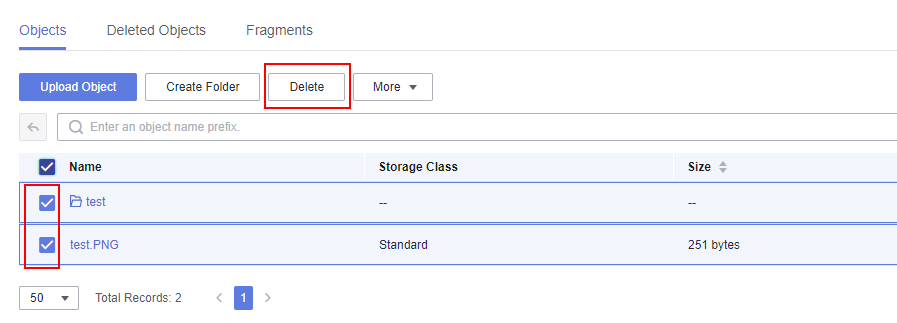
- Select the file or folder you want to delete and click Delete or choose More > Delete on the right.
You can select multiple files or folders and click Delete above the object list to batch delete them.
Figure 3 Deleting a file or folder
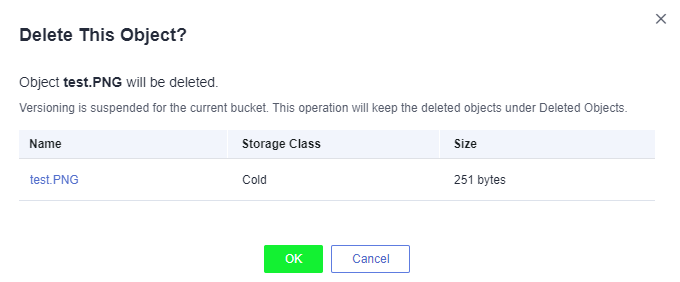
- Click OK to confirm the deletion.
Figure 4 Deleting objects
 Caution
If you delete an object from a bucket with versioning enabled, the object is not permanently deleted but retained in the Deleted Objects list. If you need to permanently delete the object to save space, complete the following steps:
- If versioning is enabled for the bucket, delete the files or folders again from the Deleted Objects list to permanently delete them.Note
In a bucket with WORM enabled, objects cannot be permanently deleted from the Deleted Objects list. To permanently delete an object, enable Historical Versions, select the desired object version, and click Permanently Delete above the search box. For details, see Related Operations or Configuring WORM Retention.
Likewise, folders cannot be permanently deleted from the Deleted Objects list either. To permanently delete a folder, you can only configure a lifecycle rule.
- Click Deleted Objects.
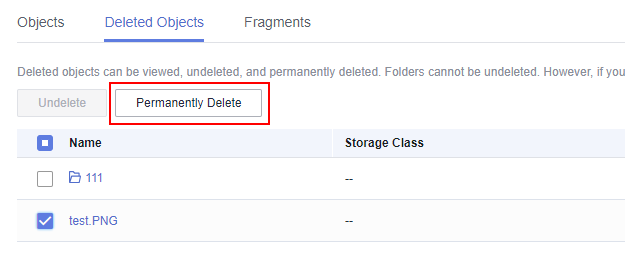
- In the Operation column of the file or folder to be deleted, click Permanently Delete.
You can also select multiple files or folders and click Permanently Delete above the object list to batch delete them.
Figure 5 Deleting a file or folder permanently
Related Operations
When versioning is enabled, files in the Deleted Objects list also have multiple versions. Note the following points when deleting different versions of files:
- Deleting a version with the Delete Marker actually recovers this version instead of permanently deleting it. For details, see Undeleting an Object.
- Deleting a version without the Delete Marker permanently deletes this version. This version will not be recovered even if the object is recovered later.