Scenarios
This section uses the example configurations below to describe how to use Disk Management Tool to initialize a Windows data disk. The initialization operations may vary depending on the server OS. Perform initialization operations based on your server OS.
Initialization Method | Partition Style | Example Configuration |
|---|---|---|
|
|
Prerequisites
The disk has been attached to a server. For how to attach disks, see Attaching an EVS Disk.
Constraints
- A disk created from a data source does not need to be initialized. Such a disk contains the source data in the beginning. Initializing the disk may clear the initial data on it. If you need to re-initialize the disk, you are advised to back up the disk data first. For how to back up data using CBR, see Backing Up EVS Disks. For how to back up data using snapshots, see Creating an EVS Snapshot.
- Initializing a disk does not delete the snapshots created for the disk, so you can still use snapshots to roll back data to the source disk after the disk is initialized.
Initializing a Data Disk
The following example shows you how to create a 100 GiB GPT partition with an NTFS file system on a server running Windows Server 2019.
- Log in to the server as user root.
For how to log in to an ECS, see the Elastic Cloud Server User Guide.
- On the server desktop, right-click
 and choose Disk Management from the shortcut menu.
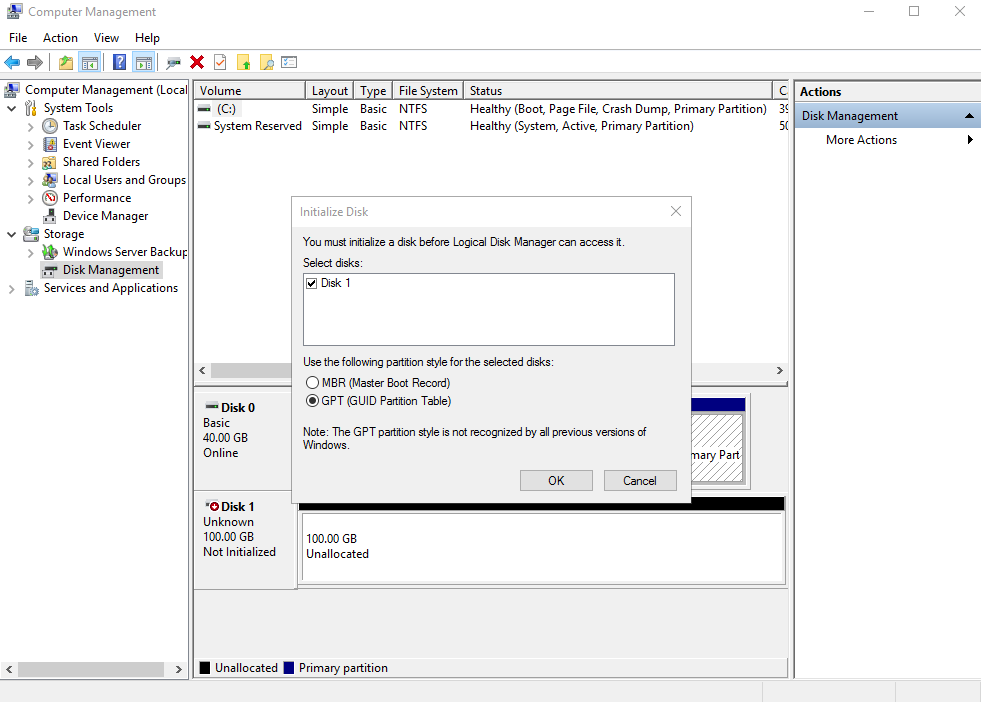
Disks are displayed in the right pane. If there is a disk that is not initialized, the system will prompt you with the Initialize Disk dialog box.
In the Initialize Disk dialog box, the to-be-initialized disk is selected. Select a partition style and click OK. In this example, GPT (GUID Partition Table) is selected.
NoticeThe maximum disk size supported by MBR is 2 TiB, and that supported by GPT is 18 EiB. Because an EVS data disk currently supports up to 32 TiB, use GPT if your disk size is greater than 2 TiB.
If the partition style of an in-use disk is changed, all data on the disk will be lost, so take care to select an appropriate partition style when initializing the disk. If you must change the partition style to GPT, it is recommended that you back up the disk data before the change.
Figure 1 Disk list
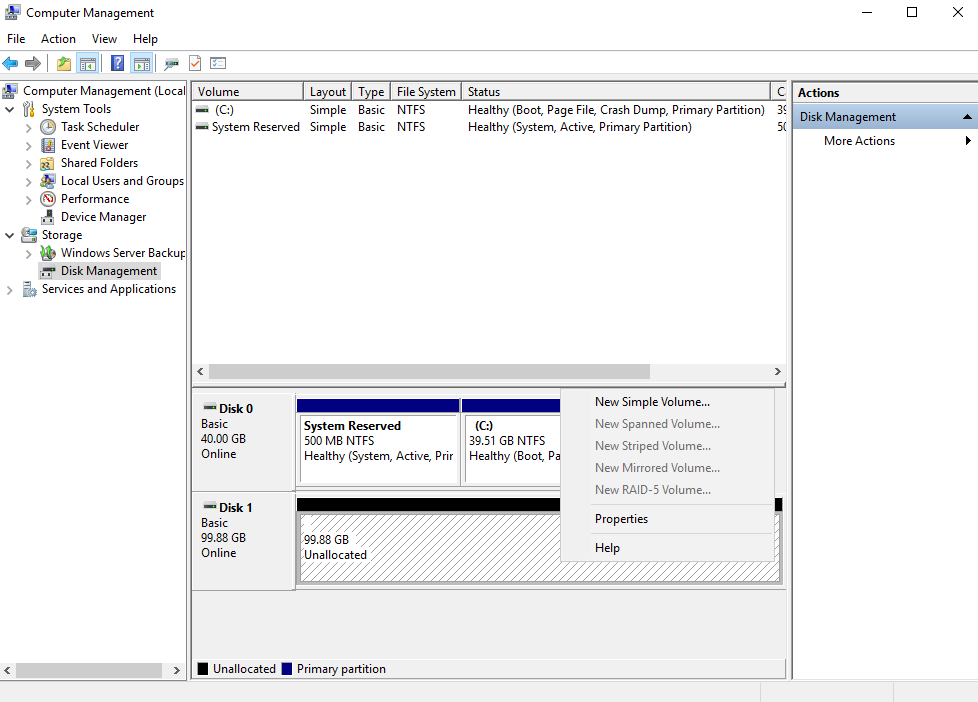
- In the Unallocated area of Disk 1, right-click the blank area and choose New Simple Volume.
Figure 2 Computer Management
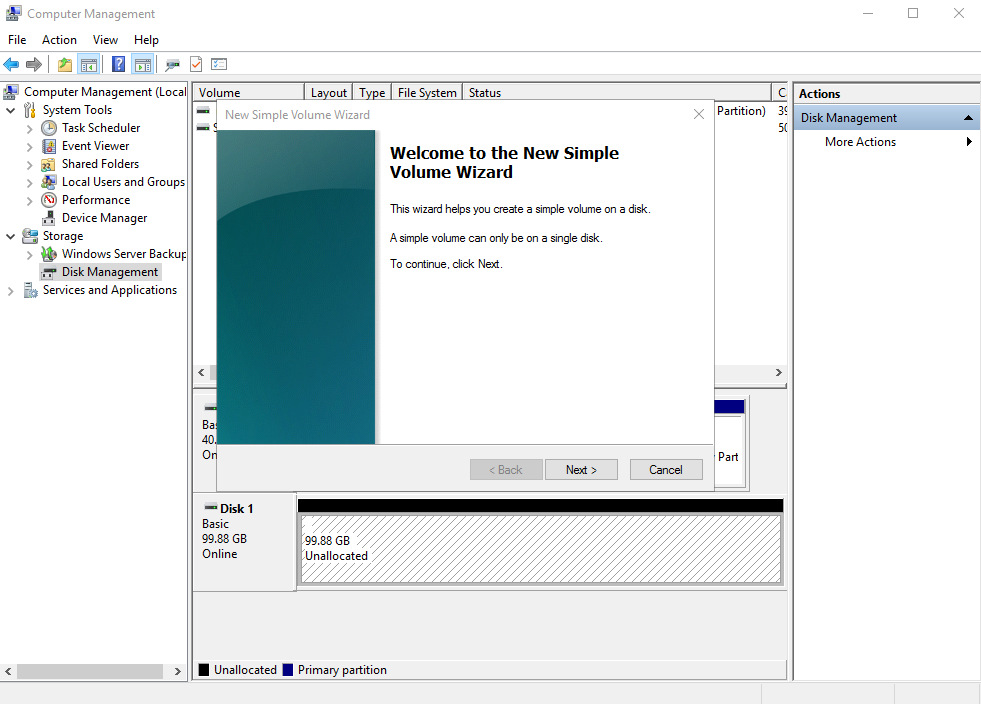
The New Simple Volume Wizard window is displayed.
Figure 3 New Simple Volume Wizard
- Click Next to go to the Specify Volume Size page.
Figure 4 Specify Volume Size
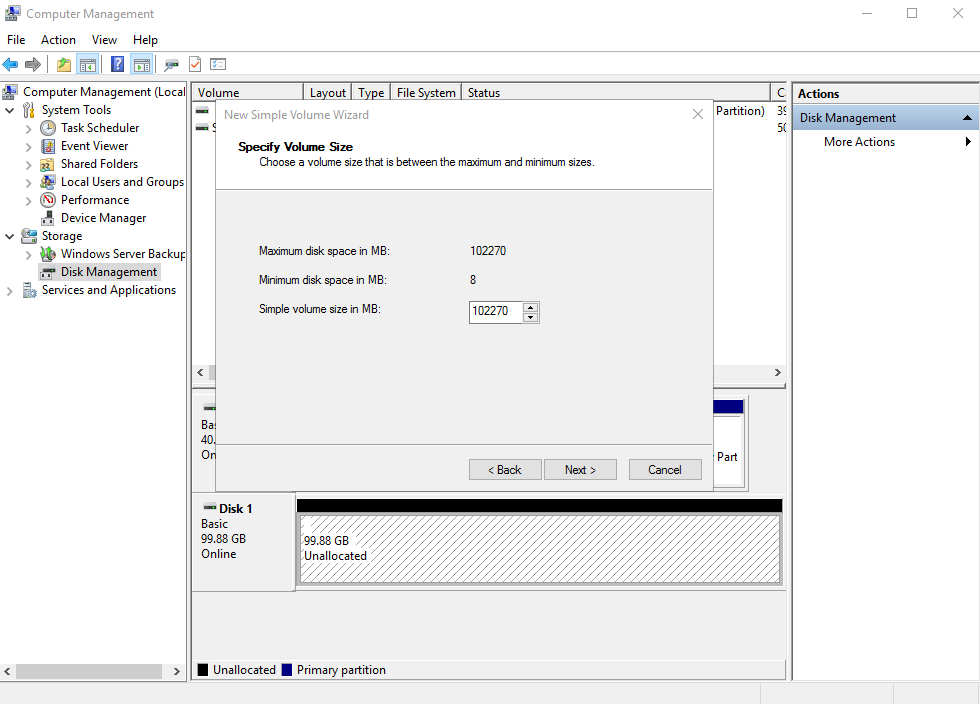
- Specify the volume size and click Next. The system selects the maximum volume size by default. You can specify the volume size as required. In this example, the default setting is used.
Figure 5 Assign Drive Letter or Path
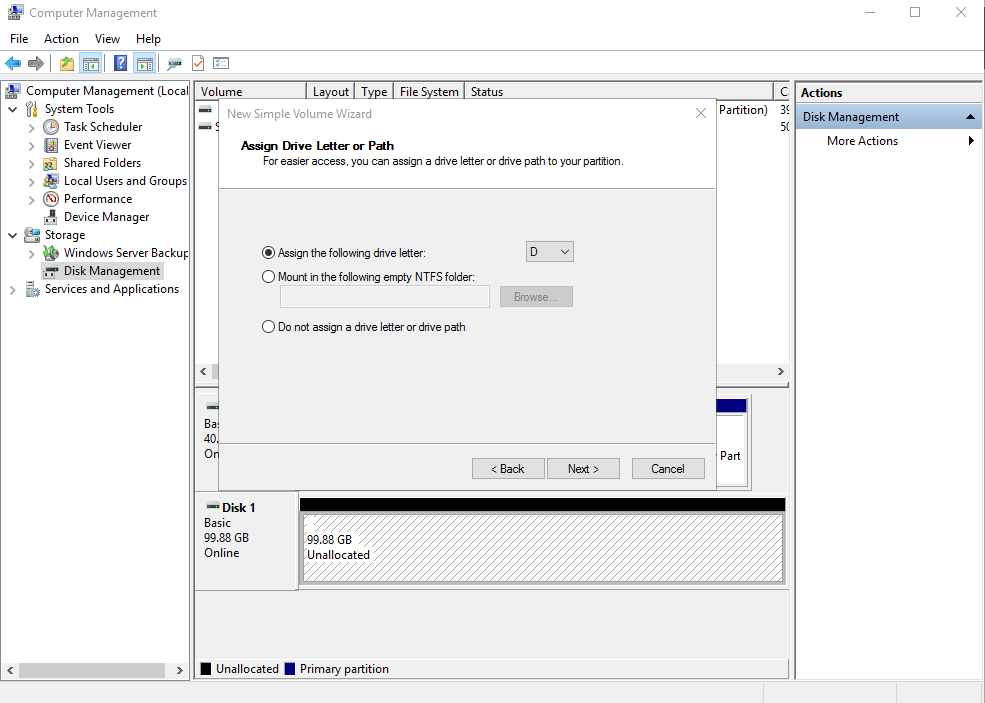
- Assign a drive letter or path to your partition and click Next. The system assigns drive letter D by default. In this example, the default setting is used.
Figure 6 Format Partition
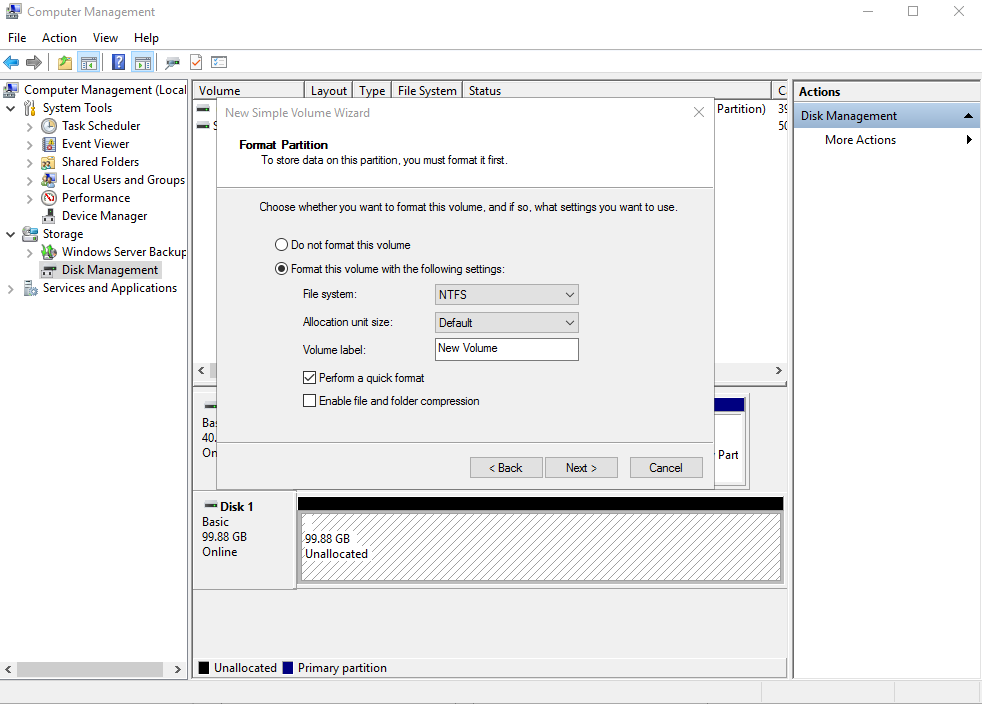
- Specify format settings and click Next. The system selects the NTFS file system by default. You can specify a file system format as required. In this example, the default setting is used.
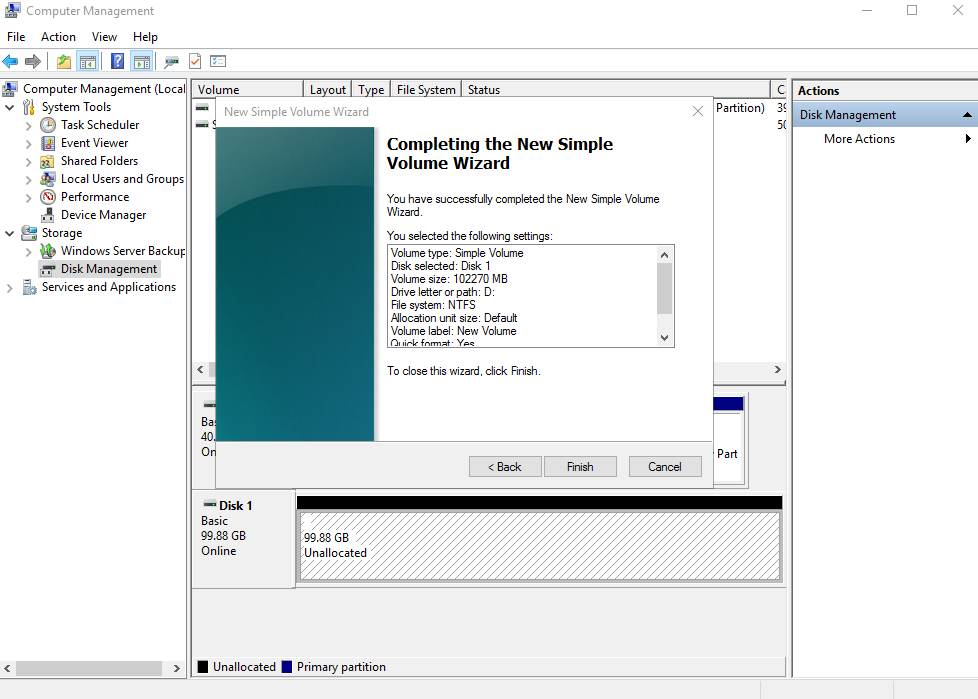
Figure 7 Completing the New Simple Volume Wizard
 Notice
The partition sizes supported by file systems vary. Choose an appropriate file system format based on your service requirements.
- Click Finish.
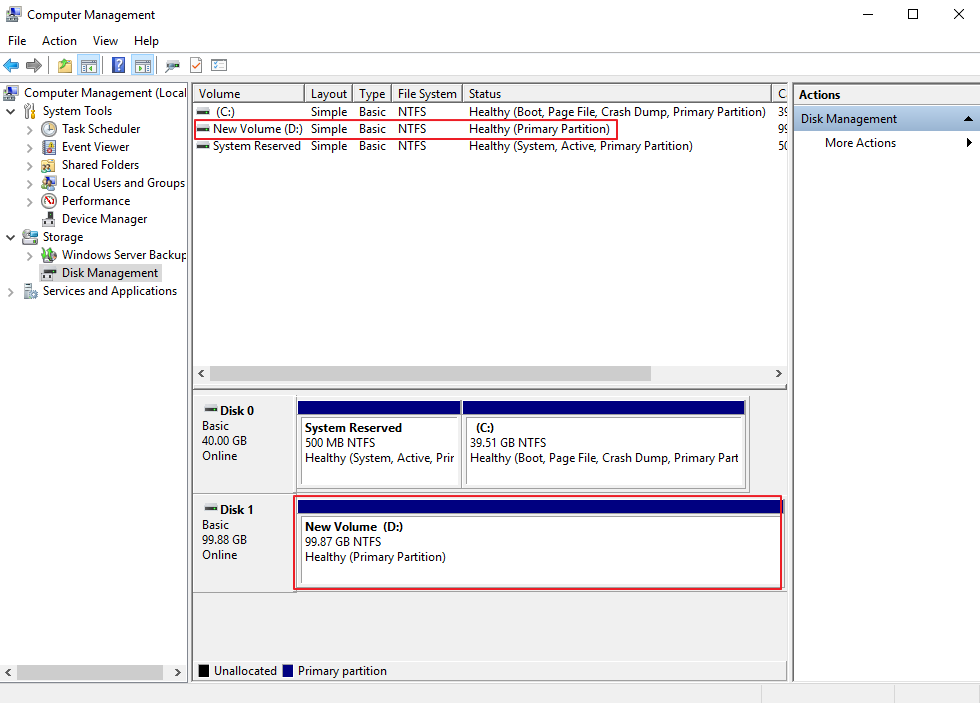
Wait for the initialization to complete. When the volume status changes to Healthy, the initialization has succeeded.
Figure 8 Disk initialized
- After the volume is created, click
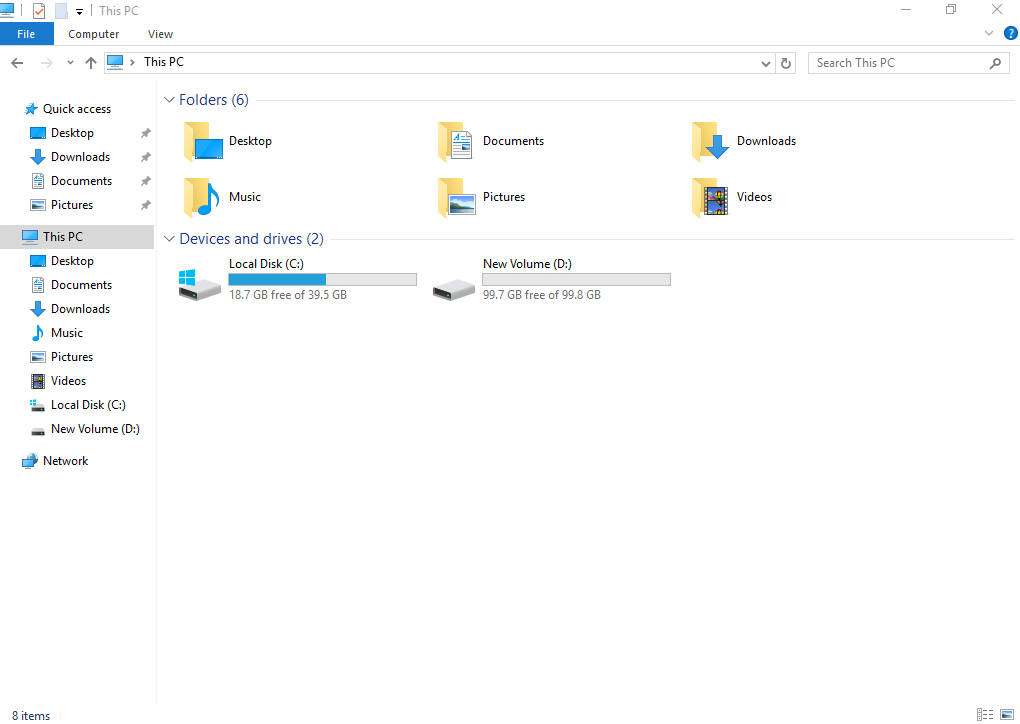
 on the task bar and check whether a new volume appears in the File Explorer. In this example, New Volume (D:) is the new volume.
If New Volume (D:) appears, the disk is successfully initialized and no further action is required.
Figure 9 File Explorer