Scenarios
To use graphics acceleration, such as OpenGL, DirectX, or Vulkan, install a GRID driver and separately purchase and configure a GRID license. The GRID driver with a vDWS license also supports CUDA for both computing and graphics acceleration.
- A graphics-accelerated (G series) ECS created using a public image has had a GRID driver of a specified version installed by default, but the GRID license must be configured separately.
- If a GPU-accelerated ECS is created using a private image, install a GRID driver and separately configure a GRID license.
This section describes how to install a GRID driver, apply for a GRID license, and configure the license server.
Process of installing a GRID driver:
- NVIDIA allows you to apply for a 90-day trial license.
- For details about GPU-accelerated ECSs with different specifications and application scenarios, see GPU-accelerated ECSs.
Configuring a GRID License
- Configure an official license.
To obtain an official license, contact NVIDIA or their NVIDIA agent in your local country or region.
- Apply for a trial license.
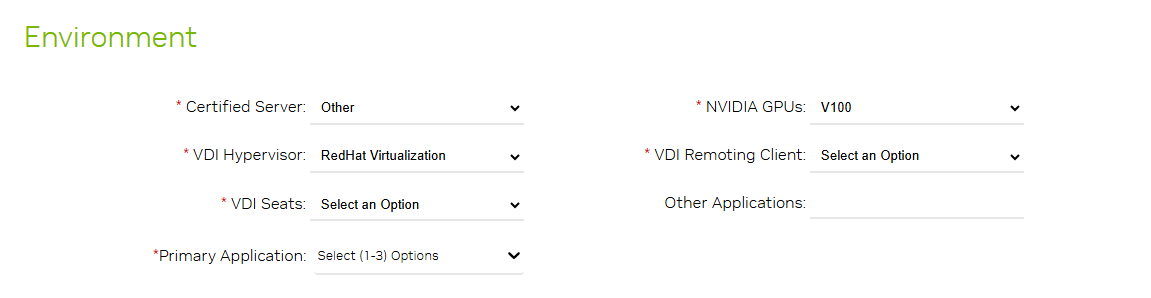
Log in to the official NVIDIA website and enter desired information.
For details about how to sign up for an account and apply for a trial license, see the official NVIDIA help page.
NoteThe method of using a trial license is the same as that of using an official license. You can use an official license to activate an account with a trial license to prevent repetitive registration. The trial license has a validity period of 90 days. After the trial license expires, it cannot be used anymore. Configure an official license then.
Figure 1 Applying for a trial license
Downloading GRID Driver and Software License Packages
- Obtain the driver installation package required for an OS. For details, see Table 1.
For more information about the GRID driver, see NVIDIA vGPU Software Documentation.
NoteFor a GPU passthrough ECS, select a GRID driver version as required.
For a GPU virtualization ECS, select a driver version based on the following table.
Table 1 GRID driver versions supported by GPU-accelerated ECSsECS Type
GPU Attachment
OS
Driver Version
CPU Architecture
P2s
GPU passthrough
- Windows Server 2016 Standard 64bit
Select a version as needed.
x86_64
- After the registration is complete, log in to the official NVIDIA website and enter the account.
- Check whether NVIDIA is used for the first time.
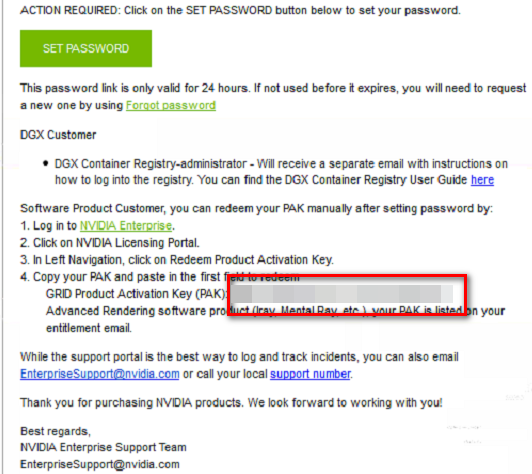
- Refer to Figure 2 to obtain the Product Activation Key (PAK) from the email indicating successful registration with NVIDIA.
Figure 2 PAK
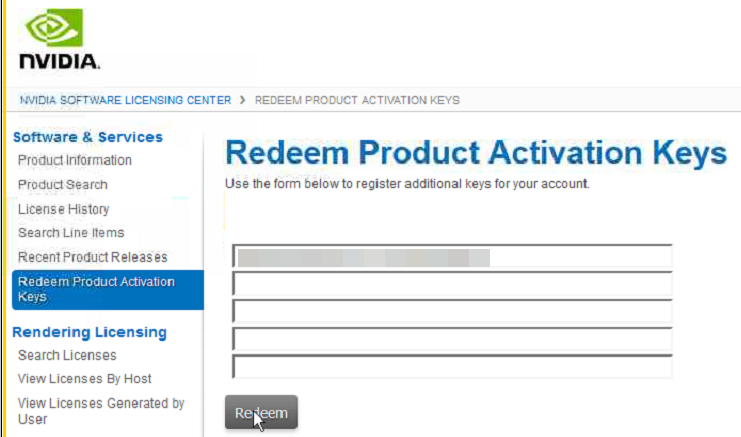
- Enter the PAK obtained in step 4 on the Redeem Product Activation Keys page and click Redeem.
Figure 3 Redeem Product Activation Keys
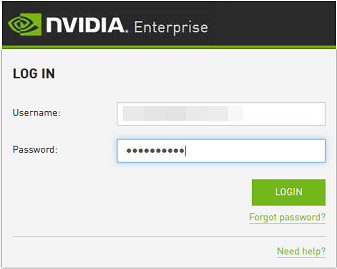
- Specify Username and Password and click LOGIN.
Figure 4 Logging in to the official NVIDIA website
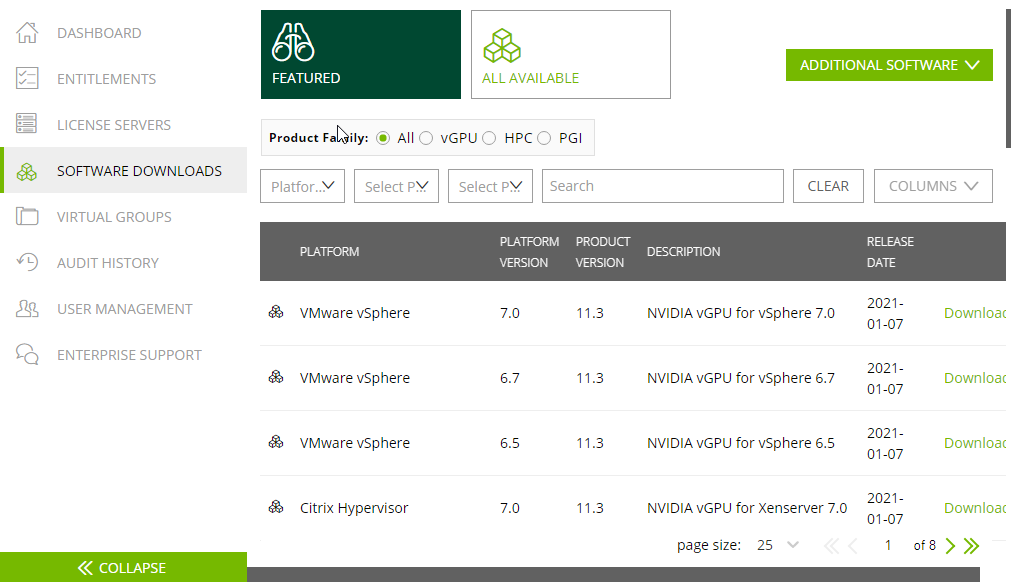
- Log in to the official NVIDIA website as prompted and select SOFTWARE DOWNLOADS.
Figure 5 SOFTWARE DOWNLOADS page
- Download the GRID driver of the required version. For details, see Table 1.
- Decompress the GRID driver installation package and install the driver that matches your ECS OS.
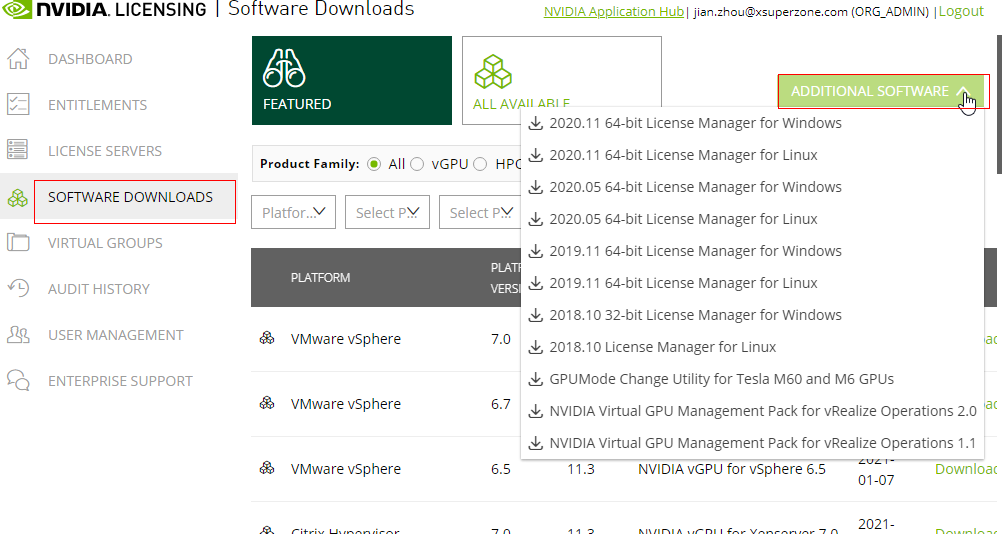
- On the SOFTWARE DOWNLOADS page, click ADDITIONAL SOFTWARE to download the license software package.
Figure 6 ADDITIONAL SOFTWARE
Deploying and Configuring the License Server
The following uses an ECS running CentOS 7.5 as an example to describe how to deploy and configure the license server on the ECS.
- The target ECS must have at least 2 vCPUs and 4 GiB of memory.
- Ensure that the MAC address of the target ECS has been recorded.
- If the license server is used in the production environment, deploy it in high availability mode. For details, see official NVIDIA documentation for license server high availability.
- Configure the network.
- If the license server is to be accessed using the VPC, ensure that the license server and the GPU-accelerated ECS with the GRID driver installed are in the same VPC subnet.
- If the license server is to be accessed using a public IP address, configure the security group which the license server belongs to and add inbound rules for TCP 7070 and TCP 8080.
- Install the license server.
- Run the following command to decompress the installation package. The Installer.zip in the command indicates the name of the software package obtained in step 10.
unzip Installer.zip
- Run the following command to assign execution permissions to the installer:
chmod +x setup.bin
- Run the installer as user root:
sudo ./setup.bin -i console
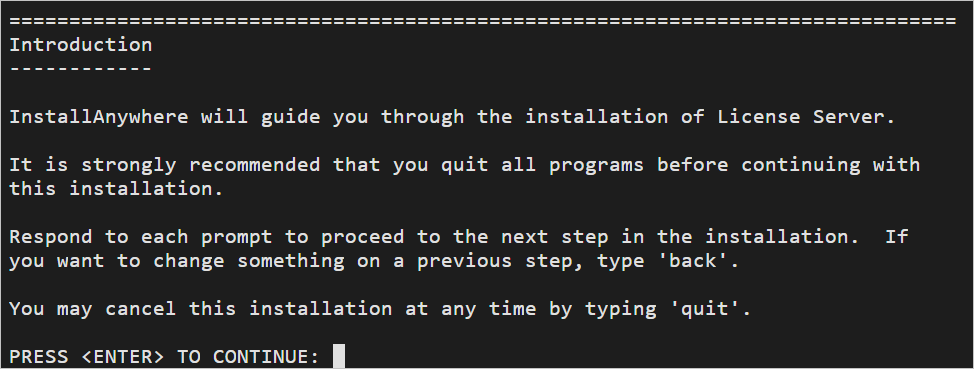
- In the Introduction section, press Enter to continue.
- In the License Agreement section, press Enter to turn to last pages and accept the license agreement.
Enter Y and press Enter.

- In the Choose Install Folder section, press Enter to retain the default path for installing the License Server software.
- In the Choose Local Tomcat Server Path section, enter the Tomcat's local path in the "/var/lib/Tomcat version" format, for example, /var/lib/tomcat8.
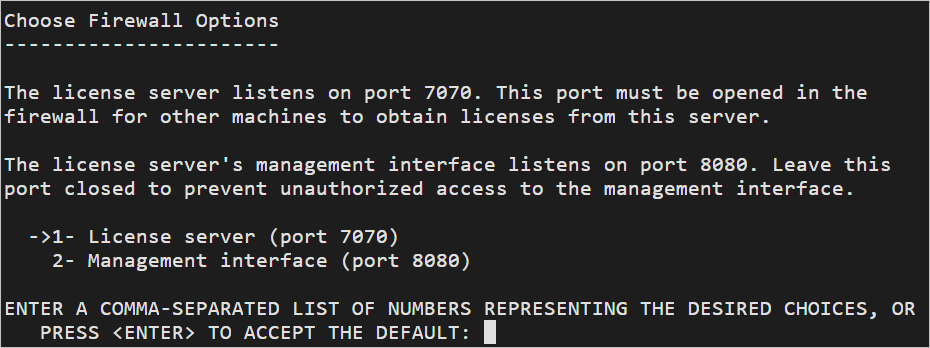
- In the Choose Firewall Options section, confirm the port to be enabled in the firewall and press Enter.
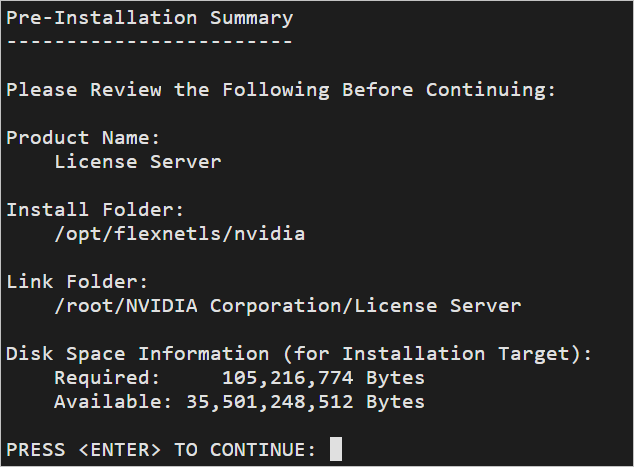
- In the Pre-Installation Summary section, confirm the information and press Enter to start the installation.
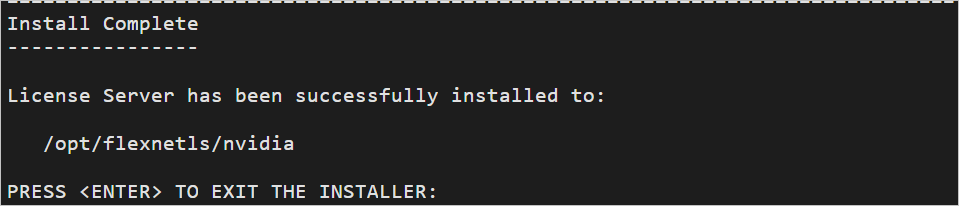
- In the Install Complete section, press Enter to end the installation.
- Run the following command to decompress the installation package. The Installer.zip in the command indicates the name of the software package obtained in step 10.
- Obtain the license file.
- Log in to the NVIDIA website on a new tab and select LICENSE SERVERS.
Figure 7 LICENSE SERVERS
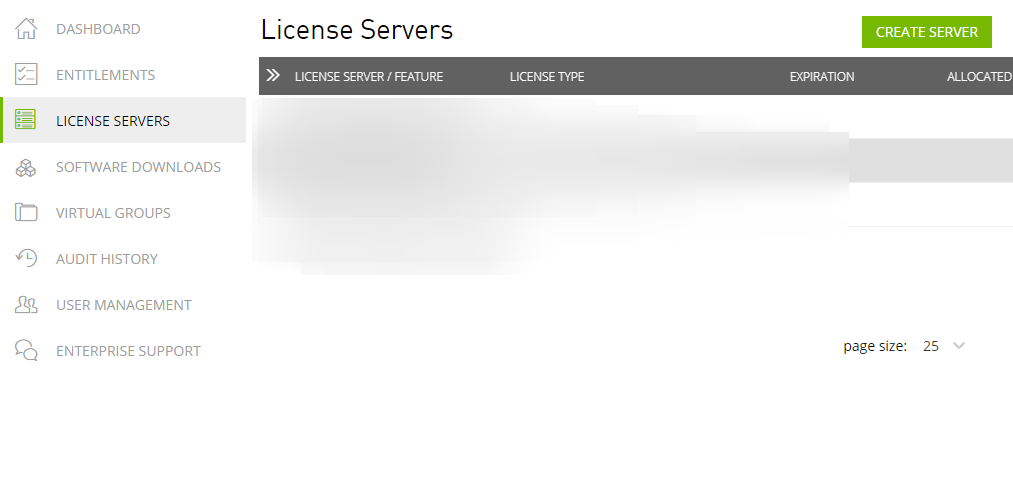
- Click CREATE SERVER.
- On the displayed Create License Server page, configure parameters.
Figure 8 Create License Server
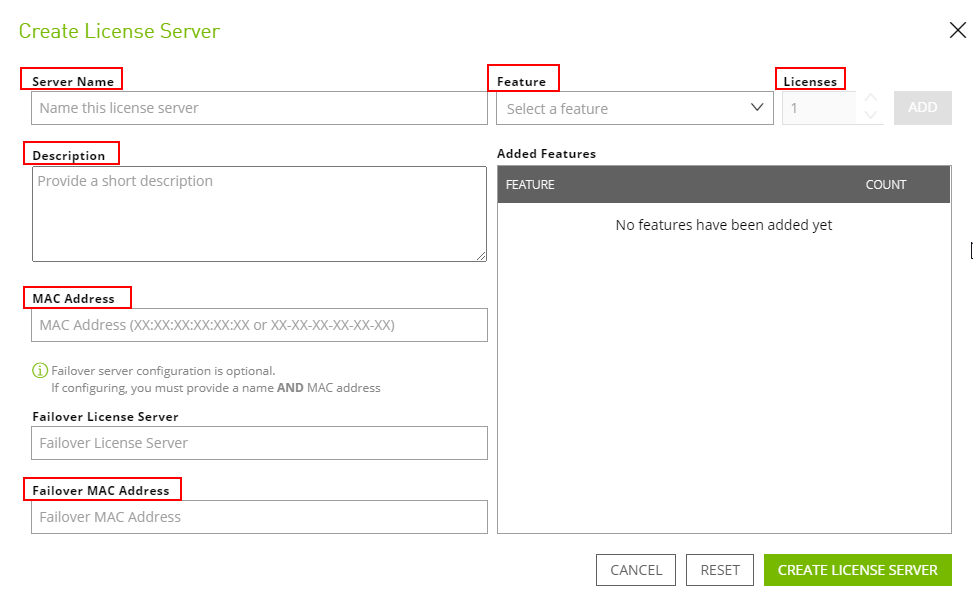 Table 2 Parameters for creating a license server
Parameter
Description
Server Name
License server name, which can be customized.
Description
License description information.
MAC Address
MAC address of the ECS where the license server is deployed.
You can log in to the ECS and run ipconfig -a to query the MAC address.
Feature
Select a feature, enter the number of required licenses in the Licenses text box, and click ADD.
In active/standby deployment, enter the name of the standby server in Failover License Server and enter the MAC address in Failover MAC Address.
- Click CREATE LICENSE SERVER.
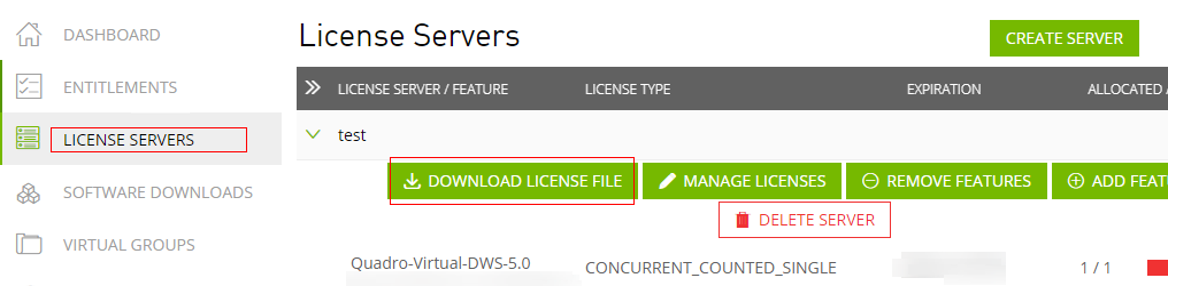
- Download the license file.
Figure 9 Downloading the license file
- Log in to the NVIDIA website on a new tab and select LICENSE SERVERS.
- In the web browser, access the homepage of the license server management page using the link configured during the installation.
Default URL: http://IP address of the EIP:8080/licserver
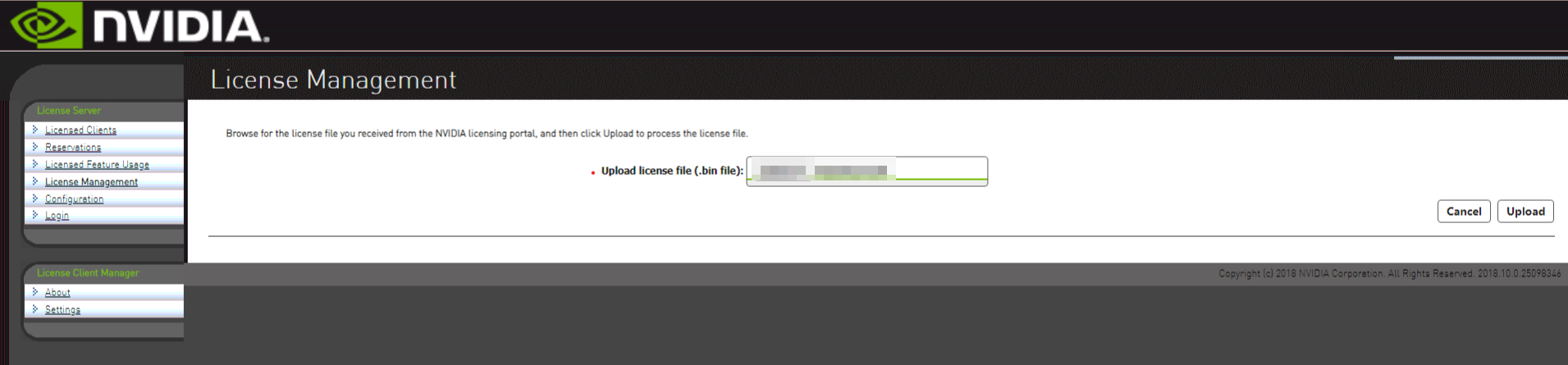
- In the navigation pane on the left, click License Server > License Management.
- Select the .bin license file to be uploaded and click Upload.
Figure 10 Uploading a license file
Installing the GRID Driver and Configuring the License
- Install the GRID driver of a desired version, for example, on a GPU-accelerated Windows ECS.Note
Microsoft remote login protocols do not support GPU 3D hardware acceleration. To use this function, install third-party desktop protocol-compliant software, such as VNC, PCoIP, or NICE DCV, and access the ECS through the client.
- Open the NVIDIA control panel on the Windows control panel.
- Enter the IP address and port number of the deployed license server in the level-1 license server, and then click Apply. If the message indicating that you have obtained a GRID license is displayed, the installation is successful. Additionally, the MAC address of the GPU-accelerated ECS with the GRID driver installed is displayed on the Licensed Clients page of the license server management console.
Figure 11 License server management console
