Scenarios
Changing an ECS OS will change the system disk attached to the ECS. After the change, the system disk ID of the ECS will be changed, and the original system disk will be deleted.
If the OS running on an ECS cannot meet service requirements, change the ECS OS.
The cloud platform supports changing between image types (public images, private images, and shared images) and between OSs. You can change your OS by changing your ECS image.
Constraints
- An OS change takes about 1 to 4 minutes to complete. During this process, the ECS status is Changing OS.
- Do not perform any operations on the ECS before the system injects the password or key, or the login will fail.
- The target ECS must have a system disk attached.
- The EVS disk quota must be greater than 0.
- The system disk type cannot be changed.
- OS change between Windows and Linux is not supported.
- Switching between ECSs in BIOS and UEFI boot modes is not supported.
Notes
- After the OS is changed, the original OS is not retained, and the original system disk is deleted, including the data in all partitions of the system disk.
- Changing the OS clears the data in all partitions of the system disk, including the system partition. Back up data before changing the OS. For details, see Backing Up an ECS.
- Changing the OS does not affect data in data disks.
- After the OS is changed, your service runtime environment must be deployed on the new OS again.
- After the OS is changed, the ECS will be automatically started.
- After the OS is changed, the system disk type of the ECS cannot be changed.
- After the OS is changed, the IP and MAC addresses of the ECS remain unchanged.
- After the OS is changed, custom settings (such as DNS and hostname) of the original OS will be reset. They need to be configured again.
- An OS change takes about 1 to 4 minutes to complete. During this process, the ECS status is Changing OS.
- When you change the OS from Windows to Linux or vice versa, note the following:
- To change Windows to Linux, install a tool or driver (such as NTFS-3G) that enables read and write access to Windows NTFS partitions.
- To change Linux to Windows, install software, such as Ext2Read or Ext2Fsd, to identify ext3 or ext4.Note
If there are LVM partitions on the Linux ECS, these partitions may fail to be identified after the OS is changed to Windows. Therefore, a change from Linux to Windows is not recommended.
Prerequisites
- The ECS data has been backed up.
- If you want to change the login authentication mode from password to key pair during the OS change, ensure that you have created a key file.
For details, see (Recommended) Creating a Key Pair on the Management Console.
- If you plan to use a private image to change the OS, ensure that a private image is available. For details about how to create a private image, see Image Management Service User Guide.
- If the image of a specified ECS is required, make sure that a private image has been created using this ECS.
- If a local image file is required, make sure that the image file has been imported to the cloud platform and registered as a private image.
- If a private image from another region is required, make sure that the image has been copied.
- If a private image from another user account is required, make sure that the image has been shared with you.
Procedure
- Log in to the management console.
- Click
 in the upper left corner and select a region and project.
 - Under Computing, click Elastic Cloud Server.
- Locate the row containing the target ECS and choose More > Manage Image/Backup > Change OS in the Operation column.
Before changing the OS, stop the ECS first or select Stop the ECS in the Change OS dialog box.
- Select the target image.
Figure 1 Changing an OS
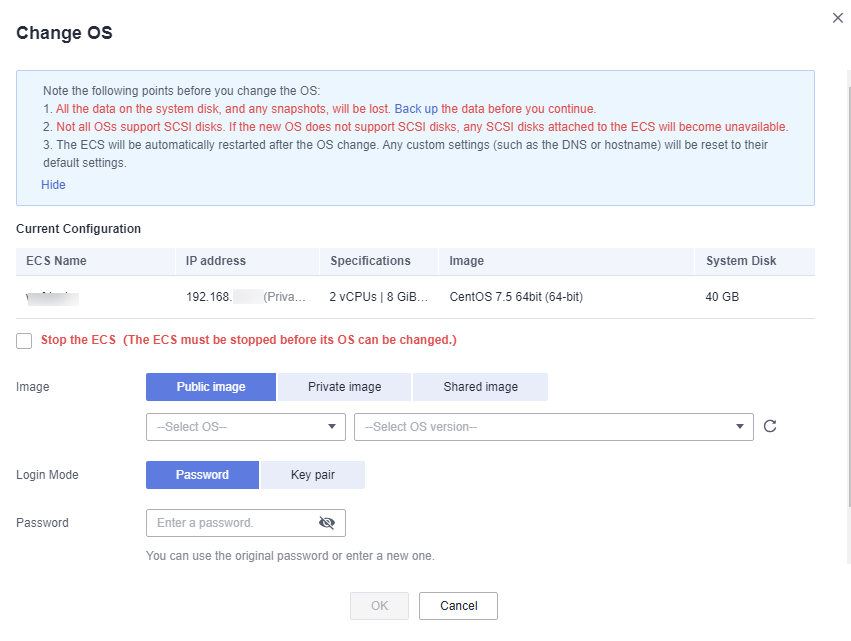
- Set Login Mode.
You can set the login mode for the ECS whose OS is to be changed based on service requirements.
- If you select Password for Login Mode, you can use the original password or enter a new one.
- If you select Key pair for Login Mode, select an available key pair from the drop-down list or create a key pair. For details, see (Recommended) Creating a Key Pair on the Management Console.
- Click OK.
- On the Change OS page, confirm the settings and click OK.
After the application is submitted, the ECS status changes to Changing OS. When this status disappears, the OS change is complete.
NoteDuring the OS change process, a temporary ECS is created. After the OS change is complete, this ECS will be automatically deleted.
Follow-up Procedure
- If the OSs before and after the OS change are both Linux, and automatic mounting upon system startup has been enabled for data disks, the data disk partition mounting information will be lost after the OS is changed. In such a case, you need to update the /etc/fstab configuration.
- Write the new partition information into /etc/fstab.
It is a good practice to back up the /etc/fstab file before writing data into it.
To enable automatic partition mounting upon system startup, see Initializing EVS Data Disks.
- Mount the partition so that you can use the data disk.
mount Disk partition Device name
- Check the mount result.
df -TH
- Write the new partition information into /etc/fstab.
- If the OS change fails, perform the operations described in Procedure again to retry the OS change.
- If the attempt still fails, contact customer service for manual recovery at the backend.