Scenarios
If the OS of an ECS fails to start or requires optimization, reinstall the OS.
Notes
- After the OS is reinstalled, the IP and MAC addresses of the ECS remain unchanged.
- Reinstalling the OS clears the data in all partitions of the system disk, including the system partition. Back up data before reinstalling the OS. For details, see Backing Up an ECS.
- Reinstalling the OS does not affect data in data disks.
- Do not perform any operations on the ECS immediately after its OS is reinstalled. Wait for several minutes until the system successfully injects the password or key. Otherwise, the injection may fail, and the ECS cannot be accessed.
Constraints
- The EVS disk quotas must be greater than 0.
- If the target ECS is created using a private image, ensure that the private image is available.
Prerequisites
- The target ECS has a system disk attached.
Procedure
- Log in to the management console.
- Click
 in the upper left corner and select a region and project.
 - Under Computing, click Elastic Cloud Server.
- Locate the row containing the target ECS and choose More > Manage Image/Backup > Reinstall OS in the Operation column.
Before reinstalling the OS, stop the ECS first or select Stop the ECS in the Reinstall OS dialog box.
Figure 1 Reinstalling an OS
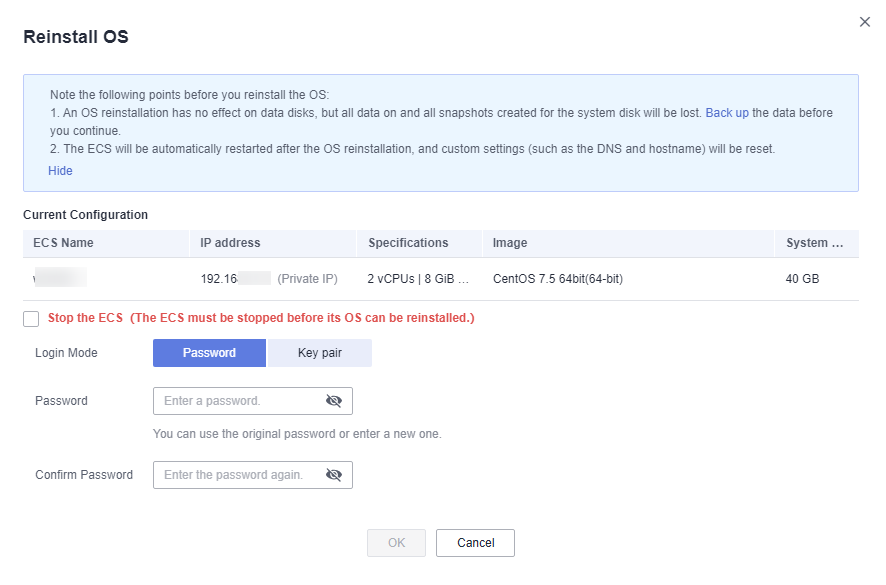
- Set Login Mode.
You can set the login mode for the ECS whose OS is to be reinstalled based on service requirements.
- Password
If you select Password for Login Mode, set a new password based on the password complexity requirements and confirm the new password.
Table 1 Password complexity requirementsParameter
Requirement
Password
- Consists of 8 to 26 characters.
- Contains at least three of the following character types:
- Uppercase letters
- Lowercase letters
- Digits
- Special characters for Windows: $!@%-_=+[]:./,?
- Special characters for Linux: !@%-_=+[]:./^,{}?
- Cannot contain the username or the username spelled backwards.
- Cannot contain more than two consecutive characters in the same sequence as they appear in the username. (This requirement applies only to Windows ECSs.)
- Key pair
If you select Key pair for Login Mode, select an existing key pair from the drop-down list or create a key pair. For details, see (Recommended) Creating a Key Pair on the Management Console.
NoteIf you use an existing key pair, make sure that you have saved the key file locally. Otherwise, logging in to the ECS will fail.
- Password
- Click OK.
- On the Reinstall OS page, confirm the settings and click OK.
After the request is submitted, the status Reinstalling is displayed. When this status disappears, the reinstallation is complete.
NoteDuring the reinstallation process, a temporary ECS is created. After the reinstallation is complete, this ECS will be automatically deleted. Do not perform any operation on the temporary ECS during the reinstallation process.
Follow-up Procedure
If the system displays a message indicating that the reinstallation fails, you can perform steps in Procedure again to retry the OS installation.
If the attempt still fails, contact customer service for manual recovery at the backend.