Scenarios
This section describes how to use the remote login tool MSTSC to log in to a Windows ECS from a local computer.
Prerequisites
- The target ECS is running.
- If your ECS uses key pair authentication, you have obtained the password for logging in to the Windows ECS. For details, see Obtaining the Password for Logging In to a Windows ECS.
- You have bound an EIP to the ECS. For details, see Binding an EIP.
- Access to port 3389 is allowed in the inbound direction of the security group that the ECS belongs to. For details, see Configuring Security Group Rules.
- The network connection between the login tool and the target ECS is normal. For example, the default port 3389 is not blocked by the firewall.
- Remote Desktop Protocol (RDP) needs to be enabled on the target ECS. For details, see Enabling RDP.
Logging In to a Windows ECS Using MSTSC
If your local server runs Windows, you can use the remote desktop connection tool MSTSC delivered with the Windows OS to log in to a Windows ECS.
The following uses Windows Server 2012 ECS as an example.
Figure 1 Logging in to an ECS using MSTSC
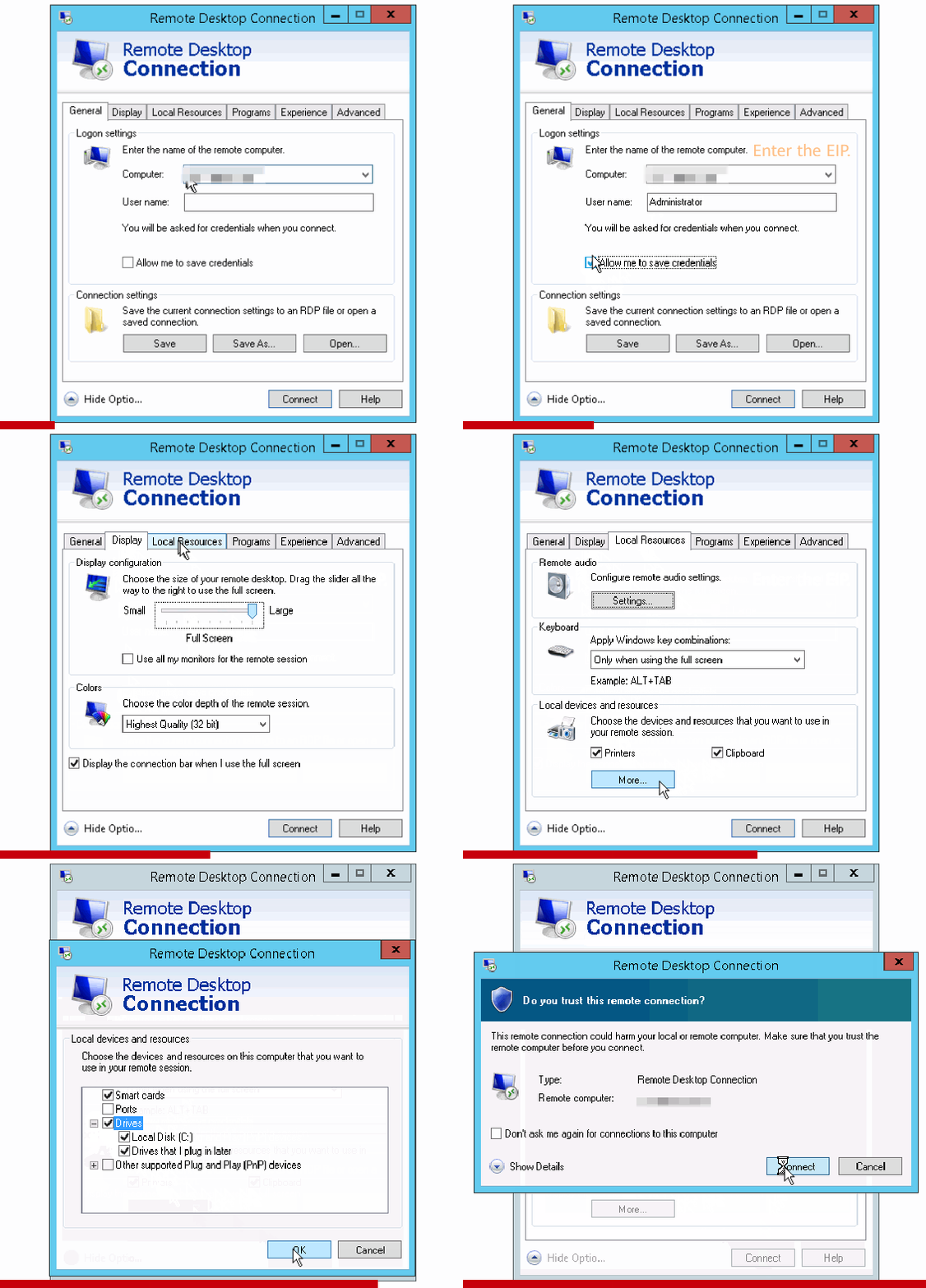
For details, see the following procedure:
- Click the start menu on the local server.
- In the Search programs and files text box, enter mstsc.
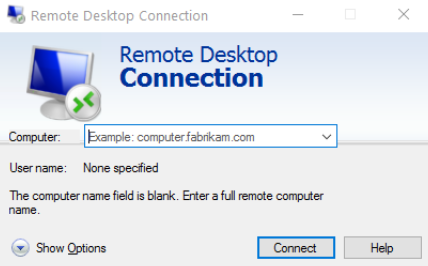
- In the Remote Desktop Connection dialog box, click Show Options.
Figure 2 Showing options
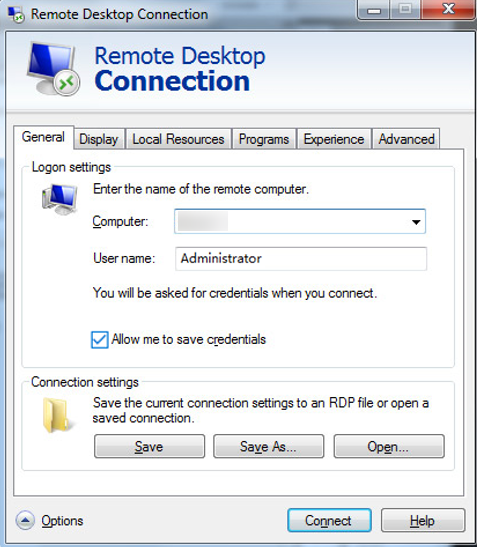
- Enter the EIP and username (Administrator by default) of the target ECS.Note
If you do not want to enter the username and password in follow-up logins, select Allow me to save credentials.
Figure 3 Remote Desktop Connection
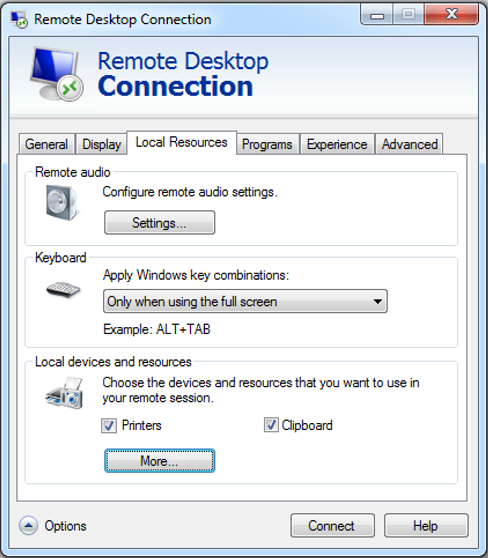
- (Optional) To use local server resources in a remote session, configure parameters on the Local Resources tab.
To copy data from the local server to your ECS, select Clipboard.
Figure 4 Selecting the clipboard
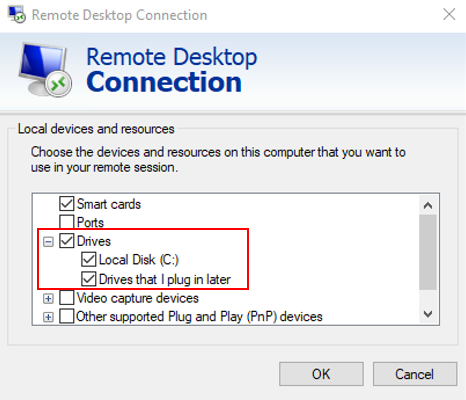
To copy files from the local server to your ECS, click More and select your desired disks.
Figure 5 Selecting drives
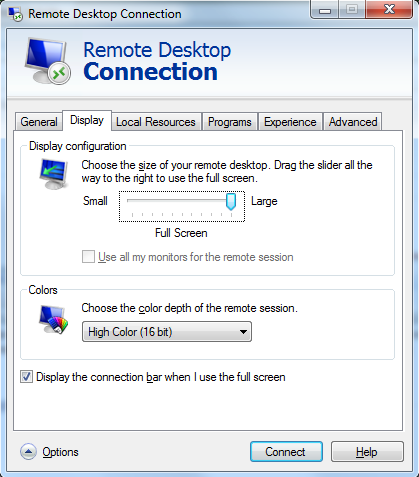
- (Optional) Click the Display tab and then adjust the size of the remote desktop.
Figure 6 Adjusting the size of the desktop
- Click Connect and enter the login password as prompted to log in to the ECS.
To ensure system security, change the login password after you log in to the ECS for the first time.
Enabling RDP
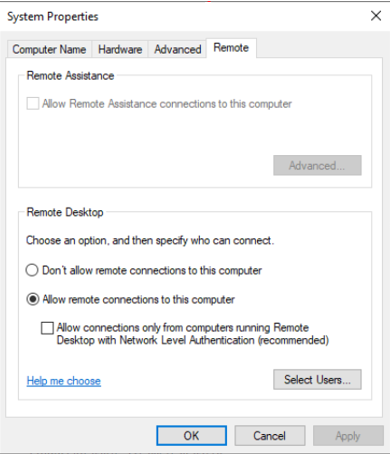
For your first login, use VNC to log in and enable RDP for your ECS. Then, use MSTSC to log in. For details, see Logging In to a Windows ECS Using VNC. The System Properties dialog box is displayed. Figure 7 System Properties