Scenarios
Key pairs (SSH key pairs) are a set of security credentials for identity authentication when you remotely log in to ECSs.
A key pair consists of a public key and a private key. Key Pair Service (KPS) stores the public key and you store the private key. If you have bound a public key to a Linux ECS, you can use the corresponding private key, rather than a password, to log in to the ECS. You do not need to worry about password interception, cracking, or leakage.
For details, see Application Scenarios for Using Key Pairs.
This section describes how to use an SSH key pair to remotely log in to a Linux ECS from a Windows and a Linux server, respectively.
Prerequisites
- The ECS status must be Running.
- You have obtained the private key file (.pem) generated during the ECS creation. For details about how to create a key pair, see (Recommended) Creating a Key Pair on the Management Console.
- You have bound an EIP to the ECS. For details, see Viewing ECS Details.
- You have configured the inbound rules of the security group. For details, see Configuring Security Group Rules.
- The network connection between the login tool (PuTTY) and the target ECS is normal. For example, the default port 22 is not blocked by the firewall.
Logging In to a Linux ECS from a Local Windows Server
You have two methods to log in to a Linux ECS from a local Windows server.
Method 1: Use PuTTY to log in to the ECS.
The following operations use PuTTY as an example. Before using PuTTY to log in, make sure that the private key file has been converted to .ppk format. https://www.chiark.greenend.org.uk/~sgtatham/putty/latest.html PuTTYgen is a key generator, which is used to create a key pair that consists of a public key and a private key for PuTTY. Ensure that the format of All files (*.*) is selected. Figure 1 Importing the private key file Figure 2 Configuring the EIP Figure 3 Entering the username When you log in to an ECS using an SSH key: Figure 4 Importing the private key file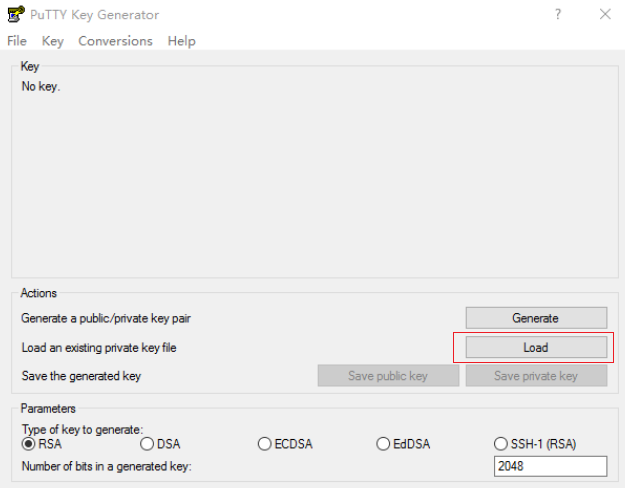
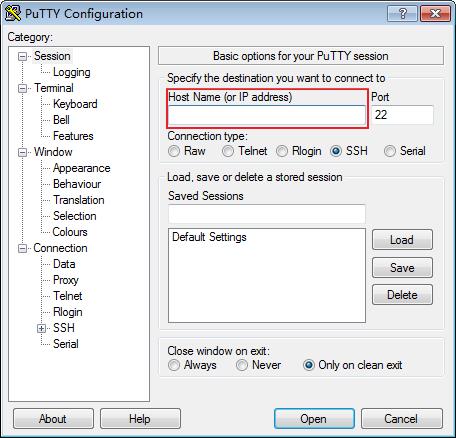
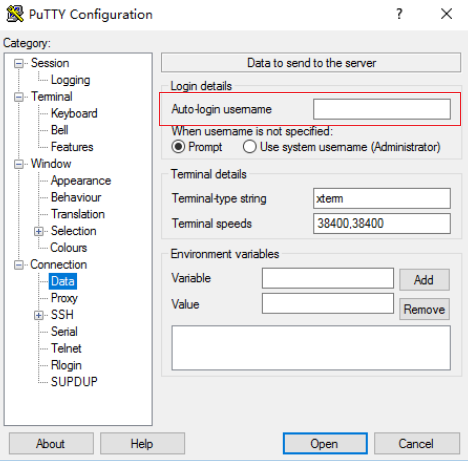
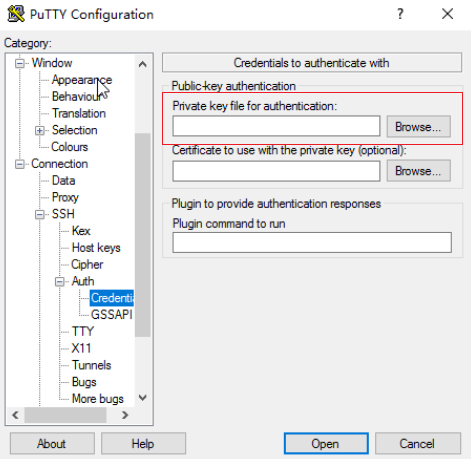
Method 2: Use Xshell to log in to the ECS.
- Start the Xshell tool.
- Run the following command using the EIP to remotely log in to the ECS through SSH:
ssh username@EIP
NoteWhen you log in to an ECS using an SSH key:
- The image username is core for a CoreOS public image.
- The image username is root for a non-CoreOS public image.
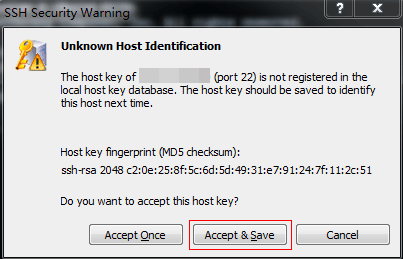
- (Optional) If the system displays the SSH Security Warning dialog box, click Accept & Save.
Figure 5 SSH Security Warning
- Select Public Key and click Browse beside the user key text box.
- In the user key dialog box, click Import.
- Select the locally stored key file and click Open.
- Click OK to log in to the ECS.
Logging In to a Linux ECS from a Local Linux Server
To log in to the Linux ECS from local Linux, perform the operations described in this section. The following operations use private key file kp-123.pem as an example to log in to the ECS. The name of your private key file may differ. chmod 400 /path/kp-123.pem In the preceding command, replace path with the actual path where the key file is saved. ssh -i /path/kp-123.pem Default username@EIP For example, if the default username is root and the EIP is 123.123.123.123, run the following command: ssh -i /path/kp-123.pem root@123.123.123.123 In the preceding command:
Follow-up Procedure
- After logging in to the ECS using the SSH key, you can set a password (by using the passwd command) to log in to the Linux ECS using VNC.