When deploying applications in a CCE cluster, you typically need persistent object storage for service data. In scenarios such as data migration, you may need to reuse an existing OBS bucket rather than provision new storage. In such cases, you can manually create a PV and PVC to declare and bind the existing storage volume. This approach provides precise control over storage resource mapping. This section describes how to statically provision a PV and PVC for an existing OBS bucket, enabling data persistence and sharing across workloads.
How It Works
To statically create an OBS volume, you must have an existing OBS bucket. You then manually create a PV and a PVC to map and bind the storage resources. The core process is as follows.
Static Provisioning for Existing OBS Buckets | Description |
|---|---|
|
|
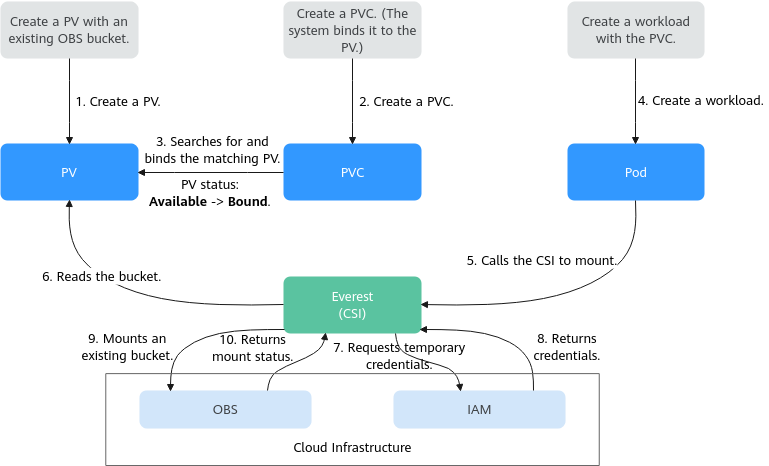
Prerequisites
- You have created a cluster and installed the CCE Container Storage (Everest) add-on in the cluster.
- To create a cluster using commands, ensure kubectl is used. For details, see Accessing a Cluster Using kubectl.
Constraints
- If OBS volumes are used, the owner group and permission of the mount point cannot be modified.
- Every time an OBS volume is mounted to a workload through a PVC, a resident process is created in the backend. When a workload uses too many OBS volumes or reads and writes a large number of object storage files, resident processes will consume a significant amount of memory. To ensure stable running of the workload, make sure that the number of OBS volumes used does not exceed the requested memory. For example, if the workload requests 4 GiB of memory, the number of OBS volumes should be no more than 4.
- Secure containers do not support OBS volumes.
- Hard links are not supported when common buckets are mounted.
- Read-only is not supported when an OBS PVC is mounted to a workload.
- Multiple PVs can use the same OBS storage volume with the following restrictions:
- Do not mount multiple PVCs or PVs that use the same underlying OBS volume to a single pod. Doing so will cause pod startup failures, as not all PVCs can be mounted due to identical volumeHandle value.
- The persistentVolumeReclaimPolicy parameter in the PVs must be set to Retain. Otherwise, when a PV is deleted, the associated underlying volume may be deleted. In this case, other PVs associated with the underlying volume malfunction.
- If underlying storage is repeatedly used, you are required to maintain data consistency. Enable application-layer isolation and protection for ReadWriteMany to prevent multiple clients from writing to the same file, thereby avoiding data overwriting and loss.
Using an Existing OBS Bucket Through the Console
- Log in to the CCE console and click the cluster name to access the cluster console.
- Statically create a PVC and PV.
- Choose Storage in the navigation pane. In the right pane, click the PVCs tab. Click Create PVC in the upper right corner. On the slide-out panel, configure PVC parameters.
Parameter
Description
PVC Type
In this example, select OBS.
PVC Name
Enter the PVC name, which must be unique in a namespace.
Creation Method
- If the underlying storage is available, create a PV or use an existing PV to statically create a PVC.
- If no underlying storage is available, select Dynamically provision. For details, see Using an OBS Bucket Through a Dynamic PV.
In this example, select Create new to create both a PV and PVC on the console.
PVa
Select an existing PV in the cluster. For details about how to create a PV, see "Creating a storage volume" in Related Operations.
You do not need to specify this parameter in this example.
OBSb
Click Select OBS. On the displayed page, select the OBS volume that meets your requirements and click OK.
PV Nameb
Enter the PV name, which must be unique in the same cluster.
Access Modeb
OBS volumes support only ReadWriteMany, indicating that a storage volume can be mounted to multiple nodes in read/write mode. For details, see Volume Access Modes.
Reclaim Policyb
You can select Delete or Retain to specify the reclaim policy of the underlying storage when the PVC is deleted. For details, see PV Reclaim Policy.
NOTE:If multiple PVs use the same OBS volume, use Retain to prevent the underlying volume from being deleted when a PV is deleted.
Access Key (AK/SK)b
- Custom: Each IAM user uses their own access key (AK/SK). You can use IAM to control individual user permissions for accessing OBS. (This method is recommended.) For details, see Using a Custom Access Key (AK/SK) to Mount an OBS Volume.
Only secrets with the secret.kubernetes.io/used-by = csi label can be selected. The secret type must be cfe/secure-opaque. If no secret is available, click Create Secret.
- Name: Enter a secret name.
- Namespace: Select the namespace where the secret is.
- Access Key (AK/SK)
- Permanent: Upload a key file in .csv format. For details, see Obtaining Access Keys.
- Global access secret (paas.longaksk): All clusters use the account's AK/SK. This method is simple, but does not support fine-grained access control. If you create a global access key while using OBS volumes in a cluster, CCE creates a secret named paas.longaksk in the kube-system namespace to store the global AK/SK. This secret is project-scoped. Once a global access key is used, it is automatically provisioned for each cluster within the same project. You can disable the global access secret in Settings > Cluster Settings.
If the cluster does not use the global access secret, this option is not displayed.
CAUTION:If the AK/SK is deleted or disabled accidentally, the container cannot use the OBS volume.
Mount Optionsb
Enter the mounting parameter key-value pairs. For details, see Configuring OBS Mount Options.
Notea: The parameter is available when Creation Method is set to Use existing.
b: The parameter is available when Creation Method is set to Create new.
- Click Create to create a PVC and a PV.
You can choose Storage in the navigation pane and view the created PVC and PV on the PVCs and PVs tabs, respectively.
- Choose Storage in the navigation pane. In the right pane, click the PVCs tab. Click Create PVC in the upper right corner. On the slide-out panel, configure PVC parameters.
- Create an application.
- Choose Workloads in the navigation pane. In the right pane, click the Deployments tab.
- Click Create Workload in the upper right corner. On the displayed page, click Data Storage in the Container Information area under Container Settings and choose Add Volume > PVC.
Mount and use storage volumes. For details about the parameters, see Table 1. For other parameters, see Workloads.
Table 1 Mounting a storage volume Parameter
Description
PVC
Select an existing OBS volume.
Mount Path
Enter a mount path, for example, /tmp.
This parameter specifies a container path to which a data volume will be mounted. Do not mount the volume to a system directory such as / or /var/run. This may lead to container errors. Mount the volume to an empty directory. If the directory is not empty, ensure that there are no files that affect container startup. Otherwise, the files will be replaced, leading to container startup failures or workload creation failures.
NOTICE:If a volume is mounted to a high-risk directory, use an account with minimum permissions to start the container. Otherwise, high-risk files on the host may be damaged.
Subpath
Enter the subpath of the storage volume and mount a path in the storage volume to the container. In this way, different folders of the same storage volume can be used in a single pod. tmp, for example, indicates that data in the mount path of the container is stored in the tmp folder of the storage volume. If this parameter is left blank, the root path will be used by default.
Permission
- Read-only: You can only read the data in the mounted volumes.
- Read-write: You can modify the data volumes mounted to the path. Newly written data will not be migrated if the container is migrated, which may cause data loss.
In this example, the disk is mounted to the /data path of the container. The container data generated in this path is stored in the OBS volume.
- After the configuration, click Create Workload.
After the workload is created, the data in the container mount directory will be persistently stored. Verify the storage by referring to Verifying Data Persistence and Sharing.
Using an Existing OBS Bucket Through kubectl
- Use kubectl to access the cluster.
- Create a PV.
- Create the pv-obs.yaml file.apiVersion: v1kind: PersistentVolumemetadata:annotations:pv.kubernetes.io/provisioned-by: everest-csi-provisionereverest.io/reclaim-policy: retain-volume-only # (Optional) The underlying volume is retained when the PV is deleted.name: pv-obs # PV namespec:accessModes:- ReadWriteMany # Access mode. The value must be ReadWriteMany for OBS volumes.capacity:storage: 1Gi # Storage capacity. This parameter is only for verification. It must not be empty or 0, but the specified size will not take effect.csi:driver: obs.csi.everest.io # Dependent storage driver for the mountingfsType: obsfs # Instance typevolumeHandle: <your_volume_id> # Name of the OBS volumevolumeAttributes:storage.kubernetes.io/csiProvisionerIdentity: everest-csi-provisionereverest.io/obs-volume-type: STANDARDeverest.io/region: <your_region> # Region where the OBS volume iseverest.io/enterprise-project-id: <your_enterprise_project_id> # (Optional) Enterprise project ID of the OBS volume. Ensure that the enterprise project ID specified during PVC creation is the same as that in the PV. Otherwise, the PVC cannot be bound to the PV.nodePublishSecretRef: # Custom secret of the OBS volumename: <your_secret_name> # Custom secret namenamespace: <your_namespace> # Namespace of the custom secretpersistentVolumeReclaimPolicy: Retain # Reclaim policystorageClassName: csi-obs # StorageClass namemountOptions: [] # Mount options
Table 2 Key parameters Parameter
Mandatory
Description
everest.io/reclaim-policy: retain-volume-only
No
Optional.
Only retain-volume-only is supported.
This parameter is valid only when the Everest version is 1.2.9 or later and the reclaim policy is Delete. If the reclaim policy is Delete and the current value is retain-volume-only, the associated PV is deleted while the underlying storage volume is retained, when a PVC is deleted.
fsType
Yes
Instance type. The value can be obsfs or s3fs.
- obsfs: a parallel file system
- s3fs: an object bucket
volumeHandle
Yes
OBS volume name.
everest.io/obs-volume-type
Yes
OBS StorageClass.
- If fsType is set to s3fs, standard buckets (STANDARD) and infrequent access buckets (WARM) are supported.
- This parameter is invalid when fsType is set to obsfs.
everest.io/region
Yes
Region where the OBS bucket is deployed.
For details about its value, see Regions and Endpoints.
everest.io/enterprise-project-id
No
Enter the ID of the enterprise project where the OBS volume is created. It is applicable only to enterprise accounts with enterprise projects enabled.
If an enterprise project ID is specified, you must specify the same enterprise project ID when creating a PVC. Otherwise, the PVC cannot bind to a PV.
How to obtain: On the OBS console, choose Buckets or Parallel File Systems in the navigation pane. Click the name of the OBS bucket to access its details page. In the Basic Information area, locate the enterprise project and click it to access the enterprise project console. Copy the corresponding ID to obtain the ID of the enterprise project to which the object storage belongs.
nodePublishSecretRef
No
Access key (AK/SK) used for mounting the object storage volume. You can use the AK/SK to create a secret and mount it to the PV. For details, see Using a Custom Access Key (AK/SK) to Mount an OBS Volume.
Example:
nodePublishSecretRef:name: secret-demonamespace: defaultmountOptions
No
Mount options. For details, see Configuring OBS Mount Options.
persistentVolumeReclaimPolicy
Yes
A reclaim policy is supported when the cluster version is 1.19.10 or later and the Everest version is 1.2.9 or later.
The Delete and Retain reclaim policies are supported. For details, see PV Reclaim Policy. If multiple PVs use the same OBS volume, use Retain to prevent the underlying volume from being deleted when a PV is deleted.
Delete:
- If everest.io/reclaim-policy is not specified, both the PV and storage resources will be deleted when a PVC is deleted.
- If everest.io/reclaim-policy is set to retain-volume-only, when a PVC is deleted, the PV will be deleted but the storage resources will be retained.
Retain: When a PVC is deleted, both the PV and underlying storage resources will be retained. You need to manually delete these resources. After the PVC is deleted, the PV is in the Released state and cannot be bound to a PVC again. If you want to continue using the underlying storage resources, delete the PV first. Then, create a new PV and PVC and associate them with the underlying storage resources.
storage
Yes
Storage capacity, in Gi.
For OBS, this parameter is only for verification. It must not be empty or 0, and its value is fixed at 1. Any value you set will not take effect.
storageClassName
Yes
StorageClass name, which is csi-obs for an OBS volume.
- Run the following command to create a PV:kubectl apply -f pv-obs.yaml
- Create the pv-obs.yaml file.
- Create a PVC.
- Create the pvc-obs.yaml file.apiVersion: v1kind: PersistentVolumeClaimmetadata:name: pvc-obsnamespace: defaultannotations:volume.beta.kubernetes.io/storage-provisioner: everest-csi-provisionereverest.io/obs-volume-type: STANDARDcsi.storage.k8s.io/fstype: obsfscsi.storage.k8s.io/node-publish-secret-name: <your_secret_name> # Custom secret namecsi.storage.k8s.io/node-publish-secret-namespace: <your_namespace> # Namespace of the custom secreteverest.io/enterprise-project-id: <your_enterprise_project_id> # (Optional) Enterprise project ID of the OBS volume. Ensure that the enterprise project ID specified during PVC creation is the same as that in the PV. Otherwise, the PVC cannot be bound to the PV.spec:accessModes:- ReadWriteMany # The value must be ReadWriteMany for OBS volumes.resources:requests:storage: 1GistorageClassName: csi-obs # StorageClass name, which must be the same as that of the PVvolumeName: pv-obs # PV name
Table 3 Key parameters Parameter
Mandatory
Description
csi.storage.k8s.io/node-publish-secret-name
No
Name of the custom secret specified in the PV.
csi.storage.k8s.io/node-publish-secret-namespace
No
Namespace of the custom secret specified in the PV.
everest.io/enterprise-project-id
No
Enter the ID of the enterprise project where the OBS volume is created. It is applicable only to enterprise accounts with enterprise projects enabled.
How to obtain: On the OBS console, choose Buckets or Parallel File Systems in the navigation pane. Click the name of the OBS bucket to access its details page. In the Basic Information area, locate the enterprise project and click it to access the enterprise project console. Copy the corresponding ID to obtain the ID of the enterprise project to which the object storage belongs.
storage
Yes
Requested capacity in the PVC, in Gi.
For OBS, this parameter is only for verification. It must not be empty or 0, and its value is fixed at 1. Any value you set will not take effect.
storageClassName
Yes
StorageClass name, which must be the same as the StorageClass of the PV in 1.
StorageClass name, which is csi-obs for an OBS volume.
volumeName
Yes
PV name, which must be the same as the PV name in 1.
- Run the following command to create a PVC:kubectl apply -f pvc-obs.yaml
- Create the pvc-obs.yaml file.
- Create an application.
- Create a file named web-demo.yaml. In this example, the OBS volume is mounted to the /data path.apiVersion: apps/v1kind: Deploymentmetadata:name: web-demonamespace: defaultspec:replicas: 2selector:matchLabels:app: web-demotemplate:metadata:labels:app: web-demospec:containers:- name: container-1image: nginx:latestvolumeMounts:- name: pvc-obs-volume # Volume name, which must be the same as the volume name in the volumes fieldmountPath: /data # Location where the storage volume is mountedimagePullSecrets:- name: default-secretvolumes:- name: pvc-obs-volume # Volume name, which is user-definedpersistentVolumeClaim:claimName: pvc-obs # Name of the created PVC
- Run the following command to create a workload to which the OBS volume is mounted:kubectl apply -f web-demo.yaml
After the workload is created, you can try Verifying Data Persistence and Sharing.
- Create a file named web-demo.yaml. In this example, the OBS volume is mounted to the /data path.
Verifying Data Persistence and Sharing
- View the deployed application and files.
- Run the following command to view the created pod:kubectl get pod -n <namespace> | grep web-demo
Expected output:
web-demo-846b489584-mjhm9 1/1 Running 0 46sweb-demo-846b489584-wvv5s 1/1 Running 0 46s - Run the following commands in sequence to check the files in the /data path of the pods:kubectl exec -n <namespace> web-demo-846b489584-mjhm9 -- ls /datakubectl exec -n <namespace> web-demo-846b489584-wvv5s -- ls /data
If no result is returned for both pods, no file exists in the /data path.
- Run the following command to view the created pod:
- Run the following command to create a file named static in the /data path:kubectl exec -n <namespace> web-demo-846b489584-mjhm9 -- touch /data/static
- Run the following command to check the files in the /data path:kubectl exec -n <namespace> web-demo-846b489584-mjhm9 -- ls /data
Expected output:
static - Verify data persistence.
- Run the following command to delete the pod named web-demo-846b489584-mjhm9:kubectl delete pod -n <namespace> web-demo-846b489584-mjhm9
Expected output:
pod "web-demo-846b489584-mjhm9" deletedAfter the deletion, the Deployment controller automatically creates a replica.
- Run the following command to view the created pod:kubectl get pod -n <namespace> | grep web-demo
The expected output is as follows, in which web-demo-846b489584-d4d4j is the newly created pod:
web-demo-846b489584-d4d4j 1/1 Running 0 110sweb-demo-846b489584-wvv5s 1/1 Running 0 7m50s - Run the following command to check whether the files in the /data path of the new pod have been modified:kubectl exec -n <namespace> web-demo-846b489584-d4d4j -- ls /data
Expected output:
staticThe static file is retained, indicating that the data can be stored persistently.
- Run the following command to delete the pod named web-demo-846b489584-mjhm9:
- Verify data sharing.
- Run the following command to view the created pod:kubectl get pod -n <namespace> | grep web-demo
Expected output:
web-demo-846b489584-d4d4j 1/1 Running 0 7mweb-demo-846b489584-wvv5s 1/1 Running 0 13m - Run the command below to create a file named share in the /data path of either pod. In this example, select the pod named web-demo-846b489584-d4d4j.kubectl exec -n <namespace> web-demo-846b489584-d4d4j -- touch /data/share
Check the files in the /data path of the pod.
kubectl exec -n <namespace> web-demo-846b489584-d4d4j -- ls /dataExpected output:
sharestatic - Check whether the share file exists in the /data path of another pod (web-demo-846b489584-wvv5s) as well to verify data sharing.kubectl exec -n <namespace> web-demo-846b489584-wvv5s -- ls /data
Expected output:
sharestaticAfter you create a file in the /data path of a pod, if the file is also created in the /data path of the other pod, the two pods share the same volume.
- Run the following command to view the created pod:
Related Operations
You can also perform the operations listed in Table 4.
Operation | Description | Procedure |
|---|---|---|
Creating a storage volume (PV) | Create a PV on the CCE console. |
|
Updating an access key | Update the access key of object storage on the CCE console. |
|
Viewing events | View event names, event types, number of occurrences, Kubernetes events, first occurrence time, and last occurrence time of the PVC or PV. |
|
Viewing a YAML file | View, copy, or download the YAML file of a PVC or PV. |
|
Editing Reclaim Policy | Modify the reclaim policy of a PV. |
|