Prerequisites
- At least one cluster is available.
- A key pair is available for remote node login using key-pair authentication.
If you use a password for login, skip this step.
Constraints
- The DNS configuration of a subnet where a node is located cannot be modified because OBS and other dependent services are necessary for creating nodes.
Precautions
- To maintain node stability, a specific number of CCE node resources will be reserved for the Kubernetes system and components like kubelet, kube-proxy, and docker, based on the node specifications. Therefore, the total number of node resources and the number of allocatable node resources for your cluster are different. The larger the node specifications, the more the containers deployed on the node. Therefore, more node resources need to be reserved to run Kubernetes components. For details, see Node Resource Reservation Rules.
- Networks including VM networks and container networks of nodes are all managed by CCE. Do not add or delete network interfaces, or change routes and IP addresses. Otherwise, services may be unavailable. For example, the network interface named gw_11cbf51a@eth0 on the node is the container network gateway and is not modifiable.
Procedure
After a cluster is created, you can create nodes for the cluster.
- Log in to the CCE console.
- In the navigation pane of the CCE console, choose Clusters. Click the target cluster name to access its details page.
- In the navigation pane, choose Nodes. On the page displayed, click the Nodes tab and then Create Node in the upper right corner. Configure node parameters.
Node Configuration
You can configure the flavor and OS of a cloud server, on which your containerized applications run.
Table 1 Node configuration parameters Parameter
Description
Billing Mode
The following billing modes are supported:
- Pay-per-use
Resources will be billed based on usage duration. You can provision or delete resources at any time.
AZ
AZ where the node is located. Nodes in a cluster can be created in different AZs for higher reliability. The value cannot be changed after the node is created.
Select Random to deploy your node in a random AZ based on the selected node flavor.
An AZ is a physical region where resources use independent power supply and networks. AZs are physically isolated but interconnected through an internal network. To enhance workload availability, create nodes in different AZs.
Node Type
Select a node type based on service requirements. Then, the available node flavors will be automatically displayed in the Specifications area for you to select.
CCE standard clusters support the following node types:
- ECS (VM): A VM ECS is used as a cluster node.
- ECS (PM): A QingTian-backed bare metal server is used as a cluster node.
CCE Turbo clusters support the following node types:
- ECS (VM): A VM ECS is used as a cluster node. A CCE Turbo cluster supports only the cloud servers that allow multiple network interfaces. Select a server type displayed on the CCE console.
- ECS (PM): A QingTian-backed bare metal server is used as a cluster node.
Specifications
Select node flavors as needed. A node needs at least 2 CPU cores and 4 GiB of memory.
The available node flavors vary depending on AZs. Obtain the flavors displayed on the console.
Container Engine
The container engines supported by CCE include Docker and containerd, which may vary depending on cluster types, cluster versions, and OSs. Select a container engine based on the information displayed on the CCE console.
OS
Select an OS type. Different types of nodes support different OSs.
- Public image: Select a public image for the node.
- Private image: Select a private image for the node.
NOTE:Service container runtimes share the kernel and underlying calls of nodes. To ensure compatibility, select a Linux distribution version that is the same as or close to that of the final service container image for the node OS.
Node Name
Name of the node. When nodes (ECSs) are created in batches, the value of this parameter is used as the name prefix for each ECS.
The system generates a default name for you, which can be modified.
Enter 1 to 56 characters. Only lowercase letters, digits, hyphens (-), and periods (.) are allowed. The name must start with a lowercase letter and cannot end with a hyphen (-). Only lowercase letters or digits are allowed before and after periods (.).
Login Mode
- Password
The default username is root. Enter the password for logging in to the node and confirm the password.
Be sure to remember the password as you will need it when you log in to the node.
- Key Pair
Select the key pair used to log in to the node. You can select a shared key.
A key pair is used for identity authentication when you remotely log in to a node. If no key pair is available, click Create Key Pair.
- Image password (supported for ECSs or PMs whose OSs are private images)
Retain the password of the selected image. To use this option, ensure that you have set a password for the selected image.
Storage Settings
Configure storage resources on a node for the containers running on it. Select a disk type and configure its size based on service requirements.
Table 2 Configuration parameters Parameter
Description
System Disk
System disk used by the node OS. The value ranges from 40 GiB to 1,024 GiB. The default value is 50 GiB.
System Component Storage
Select a disk for storing system components.
- Data Disk: added for storing container runtime and kubelet components by default. The disk size ranges from 20 GiB to 32,768 GiB. The default value is 100 GiB. This data disk cannot be deleted or detached. Otherwise, the node will be unavailable.
- System Disk: stores CCE resources such as downloaded images, ephemeral storage for containers, and container stdout logs. If the system disk is fully occupied, it will negatively affect the stability of the node.
NOTE:Clusters v1.23.18-r0, v1.25.13-r0, v1.27.10-r0, v1.28.8-r0, v1.29.4-r0 and later support the selection of the storage location of system components. If the CCE Node Problem Detector add-on is required in the cluster, install v1.19.2 or a later version. For details about this add-on, see CCE Node Problem Detector.
Data Disk
- At least one default data disk must be added if System Component Storage is set to Data Disk for the container runtime and kubelet. This data disk cannot be deleted or uninstalled. If it is deleted or uninstalled, the node will be unavailable.
- Default data disk: used for container runtime and kubelet components. The disk size ranges from 20 GiB to 32,768 GiB. The default value is 100 GiB.
- Other common data disks: You can set the data disk size to a value ranging from 10 GiB to 32768 GiB. The default value is 100 GiB.
- If System Component Storage is set to System Disk, you do not need to add a default data disk. In this case, all data disks are common ones. You can set the data disk size to a value ranging from 10 GiB to 32,768 GiB. The default value is 100 GiB.
NOTE:- If the node flavor is disk-intensive or ultra-high I/O, one data disk can be a local disk.
- Local disks may break down and do not ensure data reliability. Store your service data in EVS disks, which are more reliable than local disks.
Advanced Settings
Adding data disks
A maximum of 16 data disks can be attached to an ECS. By default, a raw disk is created without any processing.
You can also click Expand and select any of the following options:
- Default: By default, a raw disk is created without any processing.
- Mount Disk: The data disk is attached to a specified directory.
- Use as PV: applicable when there is a high performance requirement on PVs. The node.kubernetes.io/local-storage-persistent label is added to the node with PV configured. The value is linear or striped.
- Use as ephemeral volume: applicable when there is a high performance requirement on emptyDir.NOTE:
- Local PVs are supported only when the cluster version is v1.21.2-r0 or later and the Everest add-on version is 2.1.23 or later. Version 2.1.23 or later is recommended.
- Local EVs are supported only when the cluster version is v1.21.2-r0 or later and the Everest add-on version is 1.2.29 or later.
Network Settings
Configure networking resources to allow node and containerized application access.
Table 3 Configuration parameters Parameter
Description
VPC/Node Subnet
The node subnet selected during cluster creation is used by default. You can choose another subnet instead.
Node IP
IP address of the specified node. By default, the value is randomly allocated.
EIP
An ECS without a bound EIP cannot access the Internet or be accessed from public networks.
The default value is Do not use. Use existing and Auto assign are supported.
If you select Auto assign, configure the following parameters:
- EIP Type
- Dynamic BGP: In a network using dynamic BGP, changes can be quickly addressed by adjusting configurations via the routing protocol, ensuring stability and optimal performance.
- Billed By
- Bandwidth: Dedicated bandwidth, which is billed based on bandwidth size.
- Traffic: Dedicated bandwidth, which is billed by traffic you have actually used.
- Bandwidth Size: Select the bandwidth size (in Mbit/s) based on service requirements.
Advanced Settings
Configure advanced node capabilities such as labels, taints, and startup command.
Table 4 Advanced configuration parameters Parameter
Description
Resource Tag
You can add resource tags to classify resources. A maximum of eight resource tags can be added.
You can create predefined tags on the TMS console. These tags are available to all resources that support tags. You can use these tags to improve the tag creation and resource migration efficiency.
CCE will automatically create the CCE-Dynamic-Provisioning-Node=Node ID tag.
Kubernetes Label
A key-value pair added to a Kubernetes object (such as a pod). After specifying a label, click Add Label for more. A maximum of 20 labels can be added.
Labels can be used to distinguish nodes. With workload affinity settings, container pods can be scheduled to a specified node. For more information, see Labels and Selectors.
Taint
This parameter is left blank by default. You can add taints to configure anti-affinity for the node. A maximum of 20 taints are allowed for each node. Each taint contains the following parameters:
- Taint key: A key must contain 1 to 63 characters, starting with a letter or digit. Only letters, digits, hyphens (-), underscores (_), and periods (.) are allowed. A DNS subdomain name can be used as the prefix of a key.
- Taint value: A value must contain 1 to 63 characters, starting with a letter or digit. Only letters, digits, hyphens (-), underscores (_), and periods (.) are allowed.
- Effect: Available options are NoSchedule, PreferNoSchedule, and NoExecute.
For details, see Managing Node Taints.
NOTE:For a cluster v1.19 or earlier, the workload may have been scheduled to a node before the taint is added. To avoid such a situation, select a cluster v1.19 or later.
Max. Pods
Maximum number of pods that can run on the node, including the default system pods.
This limit prevents the node from being overloaded with pods.
This number is also decided by other factors. For details, see Maximum Number of Pods That Can Be Created on a Node.
ECS Group
An ECS group logically groups ECSs. The ECSs in the same ECS group comply with the same policy associated with the ECS group.
Anti-affinity: ECSs in an ECS group are deployed on different physical hosts to improve service reliability.
Select an existing ECS group, or click Create Cloud Server Group to create one. After the ECS group is created, click the refresh icon.
Pre-installation Command
Installation script command. The script command will be Base64-transcoded. The characters of both the pre-installation and post-installation scripts are centrally calculated, and the total number of characters after transcoding cannot exceed 10240.
The script will be executed before Kubernetes software is installed. Note that if the script is incorrect, Kubernetes software may fail to be installed.
Post-installation Command
Installation script command. The script command will be Base64-transcoded. The characters of both the pre-installation and post-installation scripts are centrally calculated, and the total number of characters after transcoding cannot exceed 10240.
The script will be executed after Kubernetes software is installed, which does not affect the installation. During post-installation script execution, pods can be scheduled normally. However, if the script execution times out, node installation will fail. To prevent pods from being scheduled to nodes with incomplete script execution, enable the option to schedule pods only after the post-installation script execution completes.
CAUTION:Do not use the reboot command in the post-installation script to restart the system immediately. Instead, use the shutdown -r 1 command to restart the system with a one-minute delay.
Agency
If you need to share ECS resources with other accounts or delegate a more professional person or team to manage the resources, you can create an agency on IAM and grant the agency the permissions to manage ECS resources. The delegated account can log in to the cloud system and switch to your account to manage resources. You do not need to share security credentials (such as passwords) with other accounts, ensuring the security of your account.
If you have created an agency, select the agency from the drop-down list. If no agency is available, click Create Agency on the right to create one.
Kubernetes Node Name
The Kubernetes node name is the value of metadata.labels.kubernetes.io/hostname in the YAML file of the node. The following two values are supported:
- Node private IP: The value must be the same as the private IP address of the node (default value).
- Cloud server name: Use the custom cloud server name configured in node settings. Cloud server names may be duplicate. To prevent naming conflicts, CCE adds a random five-digit suffix to each cloud server name.NOTICE:
- This function is available only when the cluster version is v1.23.4-r0 or later.
- The name of a cloud server can be specified as the name of a Kubernetes node only when the cloud server is created or managed. After the cloud server is created or managed, the Kubernetes node name cannot be changed. For details, see ECS Names, Node Names, and Kubernetes Node Names.
- Existing nodes in the cluster still use the private IP address as the Kubernetes node name. Newly created or accepted nodes can use cloud server names.
In this scenario, some Kubernetes node names may be inconsistent with node private IP addresses, and adaptation is required. For example, when configuring node affinity, you cannot use the node private IP address as the node name to configure a scheduling policy.
To change the Kubernetes node name of the existing nodes to the cloud server name, remove these nodes from the cluster and accept them again. Before doing so, learn about the possible impacts on services when removing or accepting a node.
- Pay-per-use
- Configure the number of nodes to be purchased. Then, click Next: Confirm. Confirm the configured parameters and specifications.
- Click Submit.
The node list page is displayed. If the node status is Running, the node is created successfully. It takes about 6 to 10 minutes to create a node.
- Click Back to Node List. The node is created successfully if it changes to the Running state.
ECS Names, Node Names, and Kubernetes Node Names
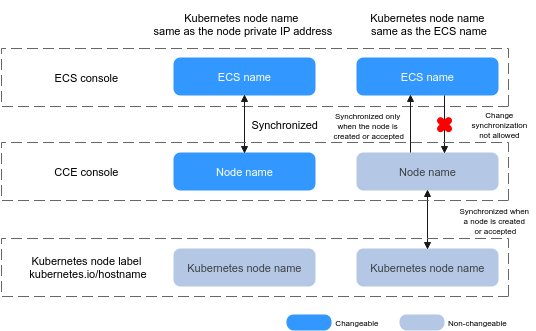
- ECS name: the name of an ECS on the ECS page. You can customize an ECS name when creating the ECS (node).
- Node name: the name of a node on the CCE console, which can be synchronized with the ECS name on the ECS console. However, after the Kubernetes node name is specified, the change of the ECS name cannot be synchronized to the node name.
- Kubernetes node name: value of metadata.labels.kubernetes.io/hostname in the YAML file of the node. The name of a cloud server can be specified as the name of a Kubernetes node only when the cloud server is created or managed. After the cloud server is created or managed, the Kubernetes node name cannot be changed.
Figure 1 shows the synchronization relationship between ECS names, node names, and Kubernetes node names.
Figure 1 Relationship between node names