This section takes an example to get you started with DMS for RabbitMQ. The example creates a RabbitMQ instance with SSL disabled, and accesses it over a private network on a client within a VPC. As a result, messages can be produced and consumed.
Figure 1 Procedure for using DMS for RabbitMQ
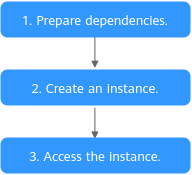
- Step 1: Preparations
A RabbitMQ instance runs in a Virtual Private Cloud (VPC). Before creating a RabbitMQ instance, ensure that a VPC is available.
- Step 2: Creating a RabbitMQ Instance
You can select the specifications and quantity when creating a RabbitMQ instance.
- Step 3: Accessing an Instance for Message Production and Consumption
A client connects to the instance with SSL disabled using the demo provided by RabbitMQ.
Step 1: Preparations
- Grant RabbitMQ instance permissions.
To achieve fine-grained management of your cloud resources, create Identity and Access Management (IAM) user groups and users and grant specified permissions to the users. For more information, see Creating an IAM User and Granting DMS for RabbitMQ Permissions.
- Create a VPC and subnet.
Before creating a RabbitMQ instance, ensure that a VPC and a subnet are available. For details about how to create a VPC and subnet, see Creating a VPC with a Subnet.
The VPC must be created in the same region as the RabbitMQ instance.
- Create a security group and add security group rules.
Before creating a RabbitMQ instance, ensure that a security group is available. For details about how to create a security group, see Creating a Security Group.
The security group must be created in the same region as the RabbitMQ instance.
To connect to RabbitMQ instances, add the security group rules described in Table 1. Other rules can be added based on site requirements.
Table 1 Security group rulesDirection
Protocol
Port
Source address
Description
Inbound
TCP
5672
0.0.0.0/0
Accessing a RabbitMQ instance (SSL disabled)
NoteAfter a security group is created, it has a default inbound rule that allows communication among ECSs within the security group and a default outbound rule that allows all outbound traffic. If you access your RabbitMQ instance over a private network within a VPC, you do not need to add the rules described in Table 1.
- Construct a client for message production and consumption.
This section uses a Linux Elastic Cloud Server (ECS) as the client. Before creating a RabbitMQ instance, create an ECS with elastic IPs (EIPs), install JDK, and configure the environment variables.
- Log in to the console, click
 in the upper left corner, click Elastic Cloud Server under Computing, and then create an ECS.
For details about how to create an ECS, see Creating an ECS. If you already have an available ECS, skip this step.
- Log in to the ECS as user root.
- Install Java JDK and configure the environment variables JAVA_HOME and PATH.
- Download a JDK.Note
Use Oracle JDK instead of ECS's default JDK (for example, OpenJDK), because ECS's default JDK may not be suitable. Obtain Oracle JDK 1.8.111 or later from Oracle's official website.
- Decompress the JDK.tar -zxvf jdk-8u321-linux-x64.tar.gz
Change jdk-8u321-linux-x64.tar.gz to your JDK version.
- Open the .bash_profile file.vim ~/.bash_profile
- Add the following content:export JAVA_HOME=/root/jdk1.8.0_321export PATH=$JAVA_HOME/bin:$PATH
Change /root/jdk1.8.0_321 to the path where you install JDK.
- Press Esc. Enter the following line and press Enter. Save the .bash_profile file and exit.:wq
- Run the following command to make the change take effect:source .bash_profile
- Check whether the JDK is installed.java -version
If the following message is returned, the JDK is installed.
java version "1.8.0_321"
- Download a JDK.
- Log in to the console, click
Step 2: Creating a RabbitMQ Instance
- Log in to the RabbitMQ console, and click Buy RabbitMQ Instance in the upper right corner.
- Specify the basic instance settings. For details, see Table 2.Table 2 Basic instance settings
Parameter
Description
Billing Mode
Select Pay-per-use, which is a postpaid mode. You can pay after using the service, and will be billed for your usage duration. The fees are calculated in seconds and settled by hour.
Region
DMS for RabbitMQ in different regions cannot communicate with each other over an intranet. Select a nearest location for low latency and fast access.
Select RU-Moscow.
Project
Projects isolate compute, storage, and network resources across geographical regions. For each region, a preset project is available.
Select RU-Moscow (default).
AZ
An AZ is a physical region where resources use independent power supply and networks. AZs are physically isolated but interconnected through an internal network.
Select AZ1.
Instance Name
You can customize a name that complies with the rules: 4–64 characters; starts with a letter; can contain only letters, digits, hyphens (-), and underscores (_).
Enter "rabbitmq-test".
Enterprise Project
This parameter is for enterprise users. An enterprise project manages project resources in groups. Enterprise projects are logically isolated.
Select default.
Version
RabbitMQ version.
Select 3.8.35.
Architecture
Select Single-node, which indicates that a RabbitMQ broker will be deployed.
Broker Flavor
Select a broker flavor as required.
Select rabbitmq.2u4g.single.
Brokers
Fixed and the default value is 1.
Storage Space per Broker
Select the disk type and specify the disk size as required.
Total storage space = Storage space per broker × Broker quantity. The disk type cannot be changed once the instance is created.
Select Ultra-high I/O and enter 100.
- Configure the instance network. For details, see Table 3.
- Set the instance access mode. For details, see Table 4.Table 4 Configuring the instance access mode
Parameter
Description
SSL
Skip it.
Username
Enter the username used for accessing the instance.
A username should contain 4 to 64 characters, start with a letter, and contain only letters, digits, hyphens (-), and underscores (_).
Enter "test".
Password
Enter the password used for accessing the instance.
A password must meet the following requirements:
- Contains 8 to 32 characters.
- Contains at least three types of the following characters: uppercase letters, lowercase letters, digits, and special characters `~!@#$%^&*()-_=+\|[{}];:'",<.>? and spaces, and cannot start with a hyphen (-).
- Cannot be the username spelled forwards or backwards.
- Skip Advanced Settings.
- Click Buy.
- Confirm the instance information and then submit the request.
- Return to the instance list and check whether the instance has been created.
It takes 3 to 15 minutes to create an instance. During this period, the instance status is Creating.
- If the instance is created successfully, its status changes to Running.
- If the instance is in the Creation failed state, delete it and try purchasing another one. If the instance purchase fails again, contact customer service.
- After the instance is created, click its name to go to the instance details page.
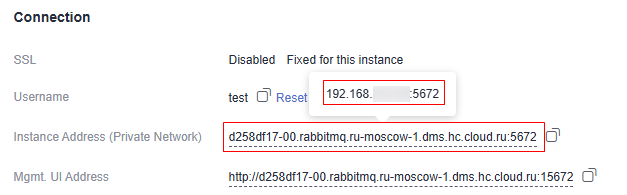
- In the Connection area, hover over the connection domain name to view and record the IP address.
Figure 2 Connection address
Step 3: Accessing an Instance for Message Production and Consumption
- Go to the root directory on the ECS and download the sample project code RabbitMQ-Tutorial.zip.wget https://dms-demo.obs.ru-moscow-1.hc.sbercloud.ru/RabbitMQ-Tutorial.zipNote
/root is the path for storing the sample project code. Change it to the actual path if needed.
- Run the following command to decompress RabbitMQ-Tutorial.zip:unzip RabbitMQ-Tutorial.zip
- Run the following command to navigate to the RabbitMQ-Tutorial directory, which contains the precompiled JAR file:cd RabbitMQ-Tutorial
- Produce messages using the sample project.java -cp .:rabbitmq-tutorial.jar Send ${host} ${port} ${user} ${password}
Description:
- host: connection address obtained in the instance creation.
- port: port of the RabbitMQ instance. Enter 5672.
- user: username set in instance creation.
- password: password set in instance creation.
Sample message production:
[root@ecs-test RabbitMQ-Tutorial]# java -cp .:rabbitmq-tutorial.jar Send 192.168.xx.40 5672 test Zxxxxxxs[x] Sent 'Hello World!'[root@ecs-test RabbitMQ-Tutorial]# java -cp .:rabbitmq-tutorial.jar Send 192.168.xx.40 5672 test Zxxxxxxs[x] Sent 'Hello World!' - Consume messages using the sample project.java -cp .:rabbitmq-tutorial.jar Recv ${host} ${port} ${user} ${password}
Description:
- host: connection address obtained in the instance creation.
- port: port of the RabbitMQ instance. Enter 5672.
- user: username set in instance creation.
- password: password set in instance creation.
Sample message consumption:
[root@ecs-test RabbitMQ-Tutorial]# java -cp .:rabbitmq-tutorial.jar Recv 192.168.xx.40 5672 test Zxxxxxxs[*] Waiting for messages. To exit press CTRL+C[x] Received 'Hello World!'[x] Received 'Hello World!'Press Ctrl+C to cancel.