An ISO file is a disk image of an optical disc. A large number of data files can be compressed into a single ISO file. Likewise, to access the files stored in an ISO, the ISO file needs to be decompressed. For example, you can use a virtual CD-ROM to open an ISO file, or burn the ISO file to a CD or DVD and then use the CD-ROM to read the image.
This section describes how to create a Windows system disk image from an ISO file.
This section is applicable only to the management console. If you are an API user, see "Creating an Image from an ISO File" in Image Management Service User Guide.
Creation Process
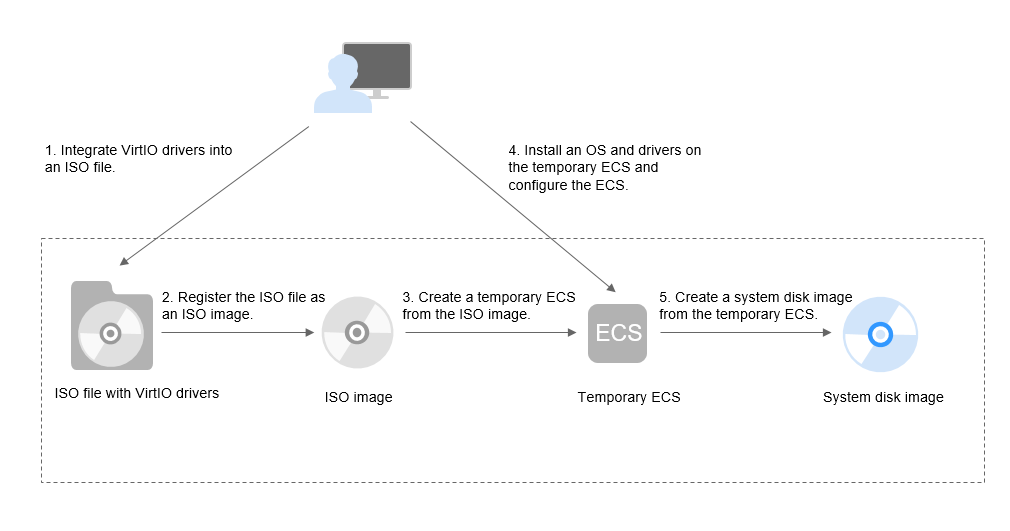
Figure 1 shows the process of creating a Windows system disk image from an ISO file.
Figure 1 Creating a Windows system disk image
The procedure is as follows:
- Integrate VirtIO drivers into the ISO file.
Windows uses Integrated Drive Electronics (IDE) disks and VirtIO NICs. Before registering an image on the cloud platform, integrate VirtIO drivers into the Windows ISO file. For details, see Integrating VirtIO Drivers into an ISO File.
- Register the ISO file as an ISO image.
On the management console, register the ISO file with VirtIO drivers as an image. The image is an ISO image and cannot be used to provision ECSs. For details, see Registering a Windows ISO File as a Private Image.
- Create a temporary ECS from the ISO image.
Use the registered ISO image to create a temporary ECS. The ECS has no OS or driver installed. For details, see Creating a Windows ECS from an ISO Image.
- Install an OS and necessary drivers for the temporary ECS and configure related settings.
You need to install an OS and VirtIO drivers, and configure NICs. For details, see Installing a Windows OS and VirtIO Drivers and 1 in Configuring the ECS and Creating a Windows System Disk Image.
- Create a system disk image from the temporary ECS.
On the management console, create a system disk image from the temporary ECS on which the installation and configuration have been completed. After the image is created, delete the temporary ECS to prevent it from occupying compute resources. For details, see Creating a Windows System Disk Image from an ECS.
Constraints
- An ISO image created from an ISO file is used only for creating a temporary ECS. It will not be available on the ECS console. You cannot use it to create ECSs or change ECS OSs. You need to install an OS on the temporary ECS and use that ECS to create a system disk image which can be used to create ECSs or change ECS OSs.
- A temporary ECS has limited functionality. For example, you cannot attach disks to it. You are not advised to use it as a normal ECS.