Scenarios
This section uses Windows Server 2019 64-bit as an example to describe how to install Windows on an ECS.
The installation procedure varies depending on the image file you use. Perform operations as prompted.
Set the time zone, KMS address, patch server, input method, and language based on service requirements.
Prerequisites
You have remotely logged in to the ECS and entered the installation page.
Procedure
Do not stop or restart the ECS during the OS installation. Otherwise, the OS installation will fail.
- Install the Windows OS.
- Configure Windows setup.
Figure 1 Windows setup
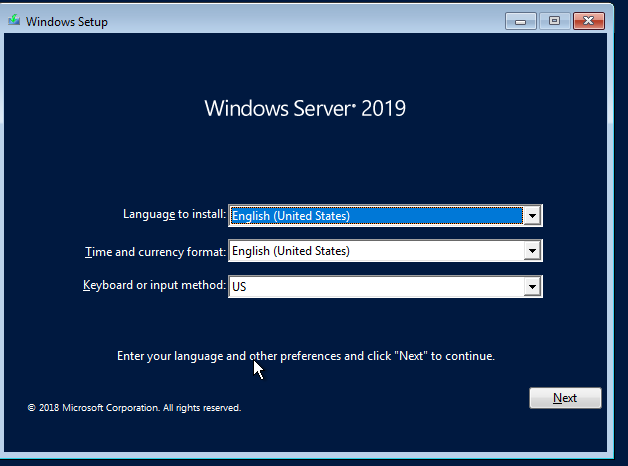
- Click Next.
The installation confirmation window is displayed.
Figure 2 Installation confirmation
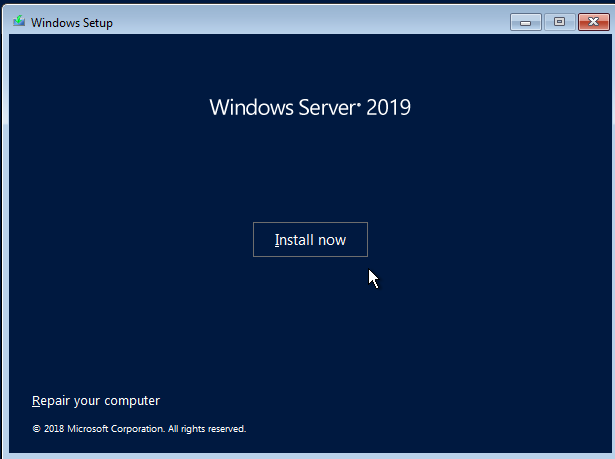
- Click Install now.
The Select the operating system you want to install dialog box is displayed.
- Select the version of the OS to be installed and click Next.
The Please read the license terms dialog box is displayed.
- Select I accept the license terms, and click Next.
The Which type of installation do you want? dialog box is displayed.
Figure 3 Installation type
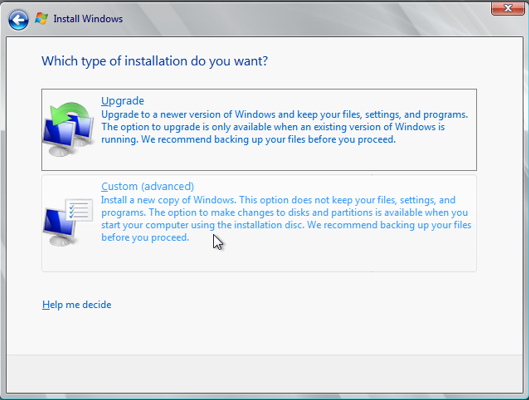
- Select Custom (advanced).
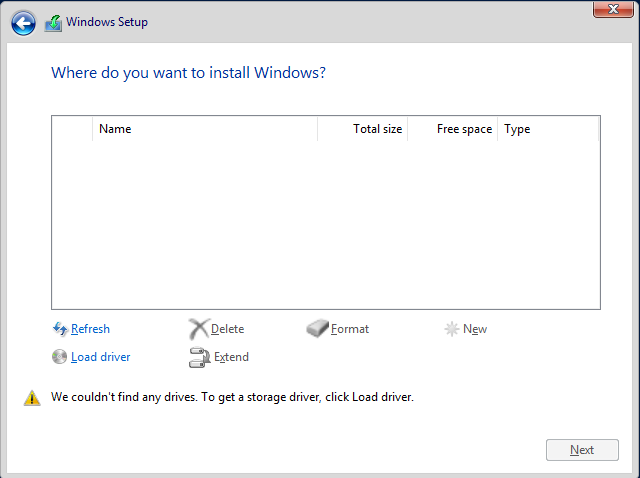
The Where do you want to install Windows? dialog box is displayed.
- Click Load driver and then Browse.
Figure 6 Loading drivers
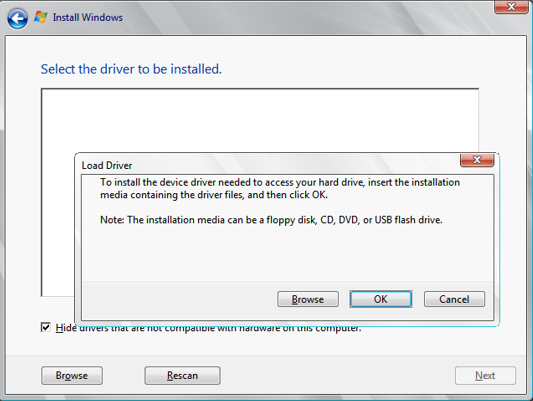
- Select a driver based on the disk type.
- If the disk type is VBD, choose viostor > 2k19 > amd64 and click OK.
Figure 7 Browsing for a folder
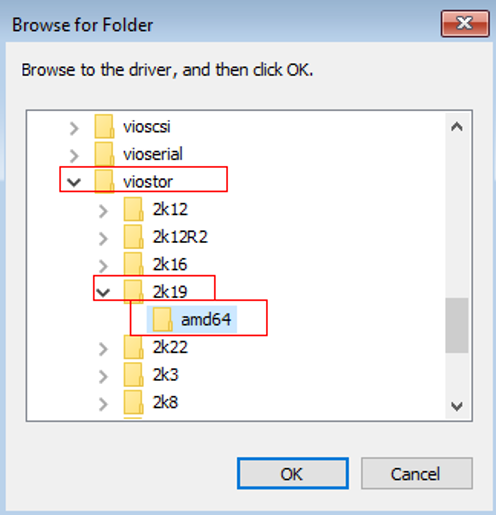
Select the viostor.inf driver and click Next.
Figure 8 Selecting the driver to install
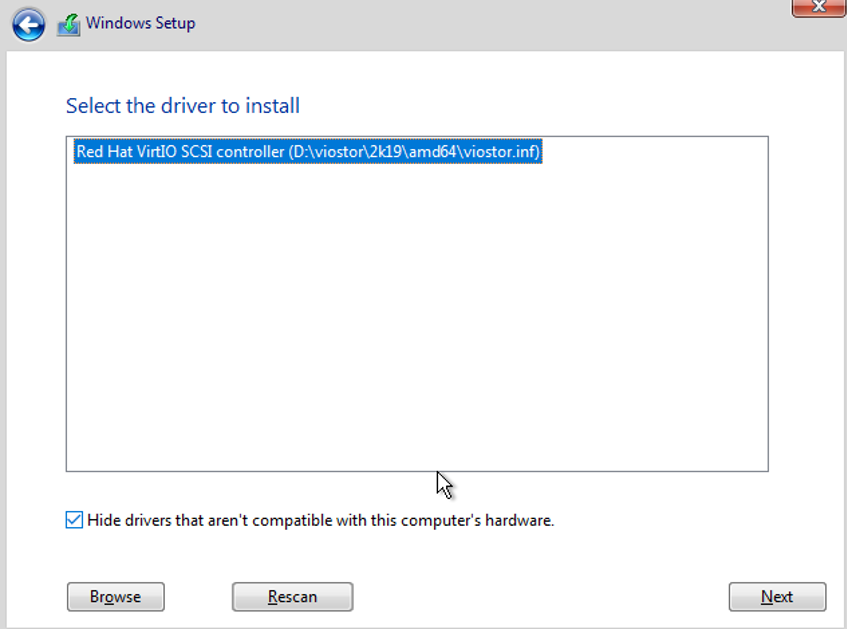
- If the disk type is SCSI, choose vioscsi > 2k19 > amd64 and click OK.
Figure 9 Browsing for a folder
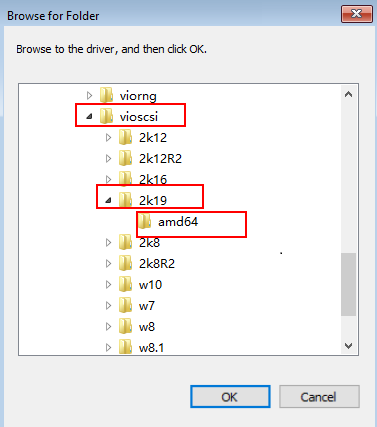
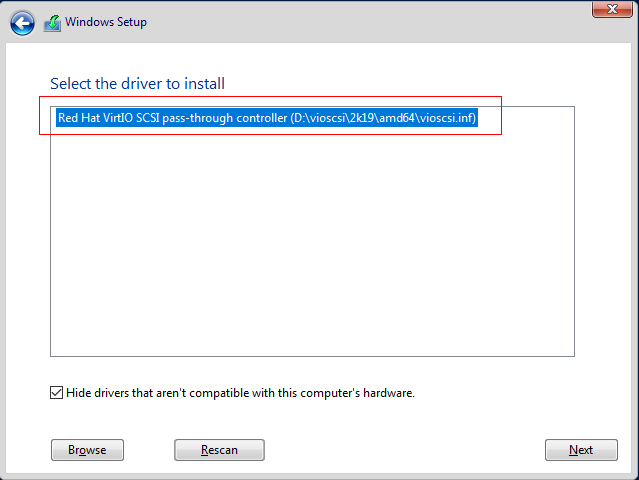
Select the vioscsi.inf driver and click Next.
Figure 10 Selecting the driver to install
- If the disk type is VBD, choose viostor > 2k19 > amd64 and click OK.
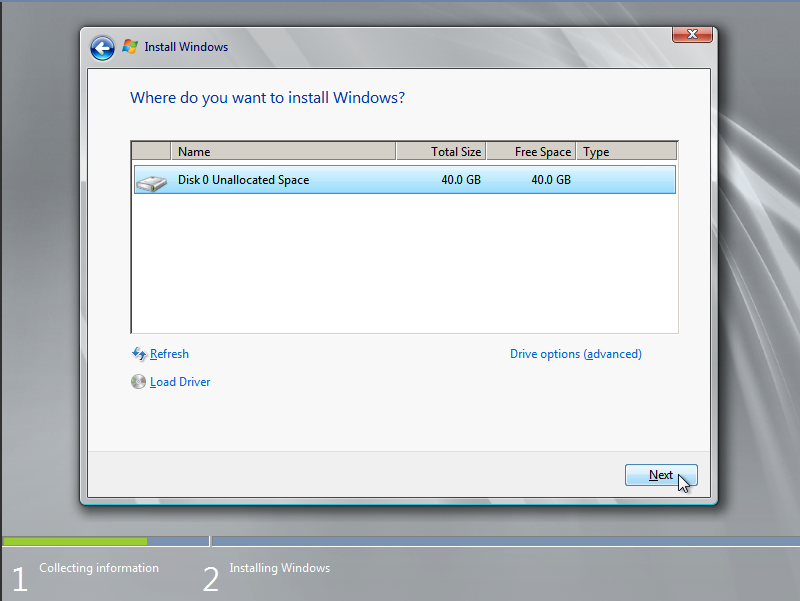
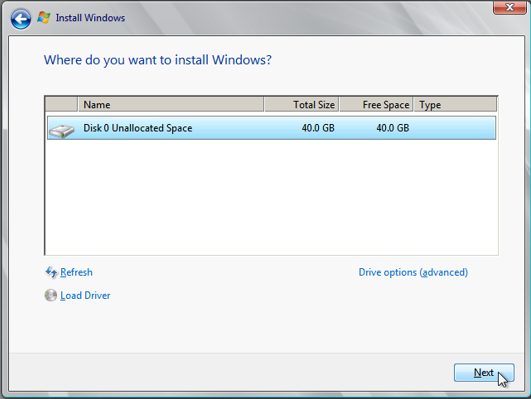
- Select the disk and click Next.
Figure 11 Installation path
 Note
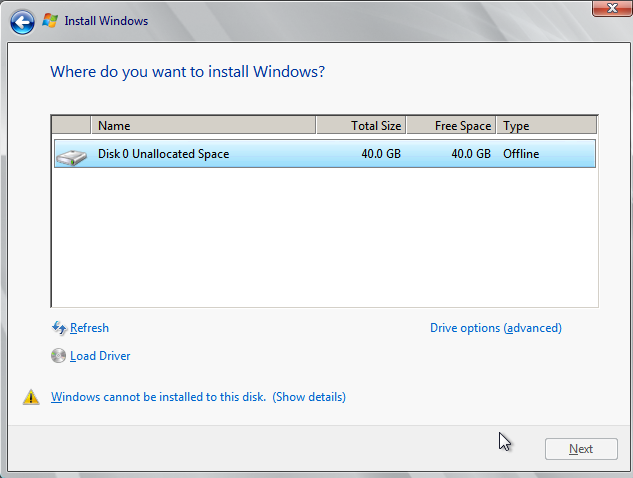
NoteIf the disk type is Offline, you can stop and then start the ECS, and restart the OS installation process.
Figure 12 Offline disk
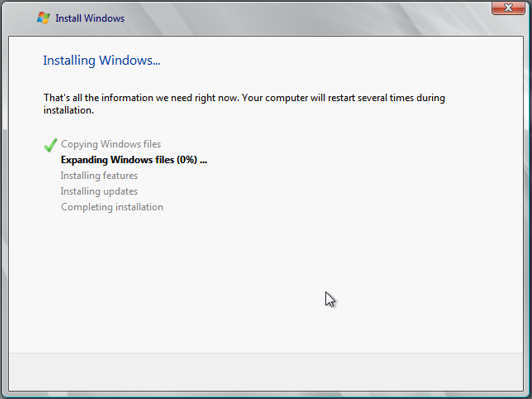
- The Installing Windows dialog box is displayed, and the OS installation starts.
The installation takes about 50 minutes. The ECS restarts during the installation. After the ECS successfully restarts, log in to it again and configure the OS as prompted.
NoteYou are required to set a password for the OS user.
Supported special characters include !@$%^-_=+[{}]:,./?
Figure 13 Installation progress
- Configure Windows setup.
- Install drivers.
- Open Computer and double-click the CD drive.
Figure 14 Opening the drive
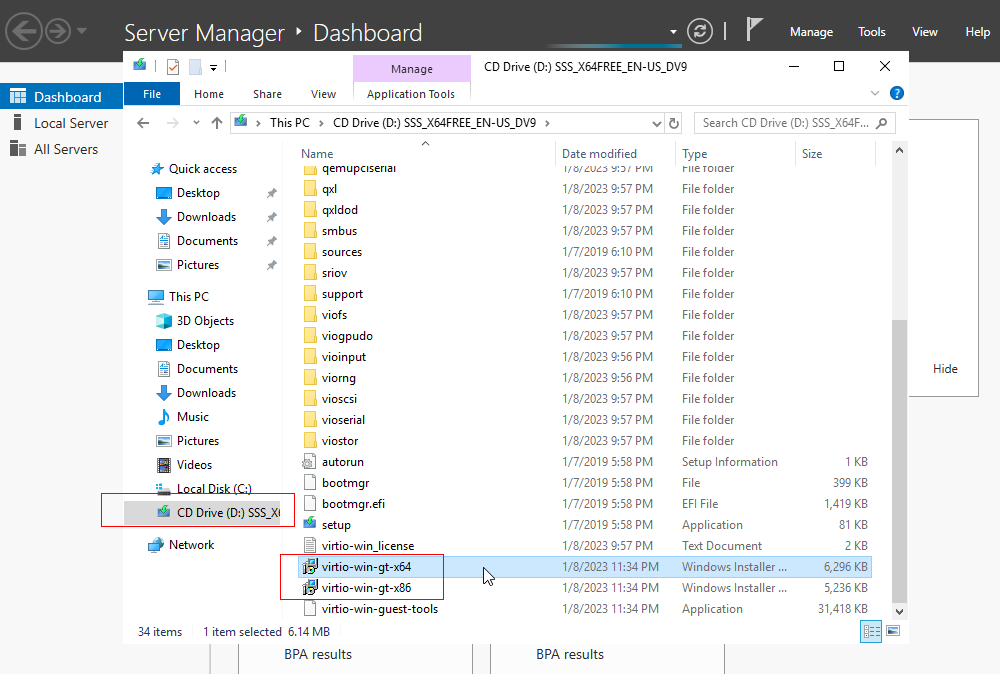
- Double-click virtio-win-gt-x64 or virtio-win-gt-x86. Install drivers as prompted.
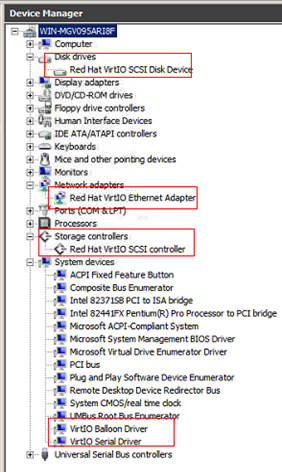
- After the installation is complete, start Device Manager and check that all the drivers shown in the red box are successfully installed.
Figure 15 Device Manager
- Open Computer and double-click the CD drive.