Scenarios
A data disk image contains only service data. You can create a data disk image from an ECS and then use the image to create new EVS disks. This is a convenient way to migrate data from an ECS to EVS disks.
For example, you can create a data disk image to clone the data of an ECS whose disk is about to expire.
Background
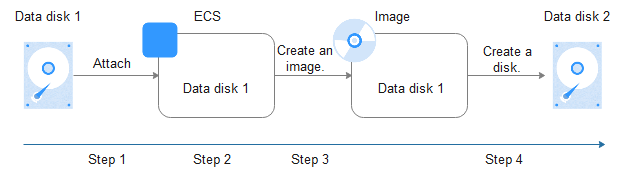
The following figure shows the process of creating a data disk image from an ECS.
Figure 1 Creating a data disk image and using it to create data disks
Prerequisites
- A data disk has been attached to the ECS. For details, see Elastic Cloud Server User Guide.
- The ECS status is Running or Stopped.
Constraints
- The data disk capacity of the cloud server must be no greater than 1 TiB.
- If the data disk capacity is greater than 1 TiB, data disk images cannot be created. Only full-ECS images can be created.
Procedure
- Log in to the management console.
- Under Computing, click Image Management Service. The IMS console is displayed.
- Create a data disk image.
- Click Create Image in the upper right corner.
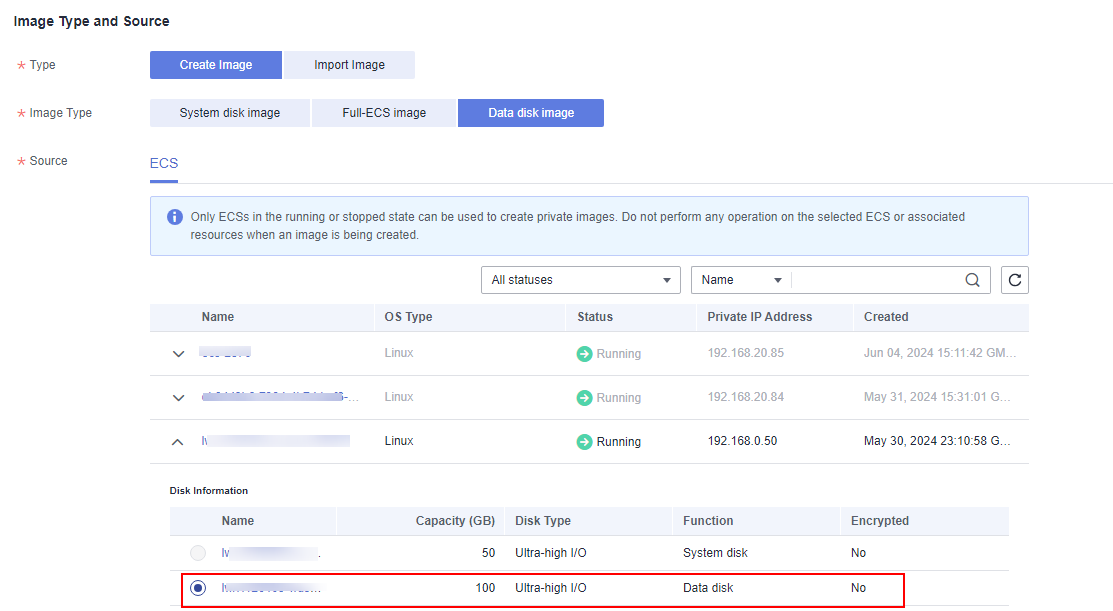
- In the Image Type and Source area, select Create Image for Type and then select Data disk image for Image Type.
- Select ECS for Source and then select a data disk of the ECS.
Figure 2 Creating a data disk image
- In the Image Information area, enter a name and select an enterprise project. Then, enter the image description and add tags as need.
If the data disk is not encrypted, the private image created from it is also not encrypted. The encryption attribute cannot be changed during image creation. After the image is created, you can change its encryption attribute based on Replicating Images Within a Region.
- Click Apply Now.
- Confirm the settings and click Submit Application.
- Go back to the private image list and view the new data disk image.
Follow-up Procedure
If you want to use the created data disk image to create an EVS disk and attach it to an ECS, you can perform either of the following operations:
- Locate the row that contains the created data disk image and click Create Data Disk to create one or multiple data disks. Then attach the data disks to an ECS.
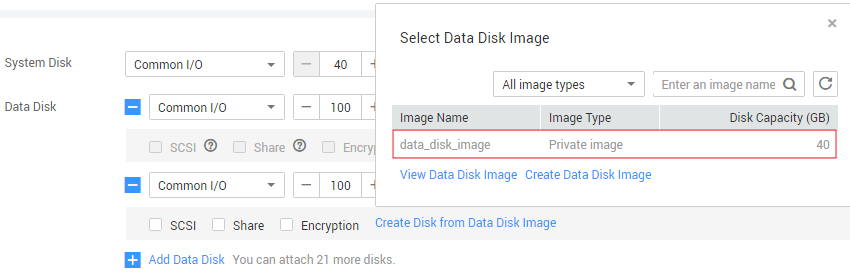
- On the page for creating ECSs, click Create Disk from Data Disk Image and select the data disk image.Note
In this way, a data disk image can be used to create a data disk for an ECS only once. For example, a data disk created from the data disk image data_disk_image has been added to the ECS. No other data disk created from this image can be added to the ECS.
Figure 3 Adding data disks