Scenarios
If you do not want to create an account for every person in your enterprise, you can use Identity and Access Management (IAM). Only the enterprise's administrator needs to create an account. The account can be used to create user groups and assign permissions. Then, the IAM users created for the enterprise personnel can be added to different user groups based on their job responsibilities.
The following shows how an enterprise administrator uses IAM to create user groups and assign permissions.
Procedure
Step | Description |
|---|---|
Create a user group, which is the minimum authorization unit. | |
Assign permissions defined by roles or policies to the user group. Users added to this group can inherit the assigned permissions from it. |
Step 1: Create a User Group
- Log in to the management console and choose .
- On the IAM console, choose User Groups and click Create User Group.
Figure 1 Creating a user group

- In the displayed dialog box, enter a name for the developer user group.
Only letters (case-sensitive), digits, spaces, hyphens (-), and underscores (_) are allowed.
Figure 2 Setting user group details
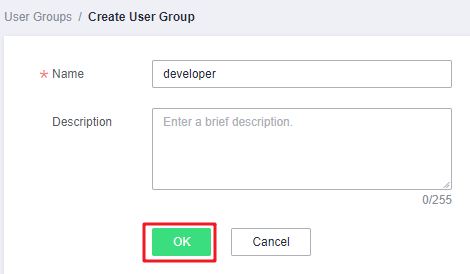
- Click OK to create a developer user group.
You will be redirected to the user group list and the created developer user group is displayed in the list.
Step 2: Assign Permissions to the User Group
Assume that developers in the enterprise need to use ECS and OBS, so the administrator needs to perform the following operations to assign the required permissions to the developer user group to enable access to these services. For details about the permissions of all cloud services, see "Permissions".
- Determine the permissions required by the users in the user group.
Table 1 lists the required permissions. The application scope is determined by geographic areas where services are deployed.
- Region-specific project-level services: If permissions are assigned for a region-specific project, the permissions are only applied in that project. For example, if you assign permissions only for a region-specific project, IAM users have no permissions to access resources in other projects.
- Global services: Global services are deployed in all regions. You do not need to switch regions when accessing global services. For example, if you grant OBS permissions to an IAM user, the user can access OBS resources in all region-specific projects.
Table 1 Required permissions Cloud Service
Application Scope
Permissions
ECS
Region-specific projects
ECS Admin
OBS
Global regions
OBS Buckets Viewer
- In the user group list, click Authorize in the row containing the developer user group.
Figure 3 Authorizing a user group

- Assign permissions to the user group for region-specific projects.
- As shown in Table 1, ECS is a region-specific project-level service. Select desired permissions for the project-level service and click Next.
- Select Region-specific projects for Scope, select target projects, and click OK.
Then users in the developer user group can only access resources in the authorized regions.
- In the user group list, click Authorize in the row containing the developer user group.
Figure 4 Authorizing a user group

- Assign permissions to the user group for global services.
- Select OBS Buckets Viewer and click Next.
- Select Global services for Scope and click OK.
After the permissions are assigned, click the name of the developer user group to view the assigned permissions on the Permissions tab of the user details page.
NoteOBS permissions will be applied about 15 to 30 minutes after the authorization is complete.