Add a new agent or choose an existing agent for the database to be audited, depending on your database type. The agent will obtain database access traffic, upload traffic statistics to the audit system, receive audit system configuration commands, and report database monitoring data.
After adding an agent, configure TCP (port 8000) and UDP (ports 7000 to 7100) in the security group inbound rule of the agent node to allow the agent to communicate with the audit instance.
Currently, only the following types of databases support agent-free audit:
- GaussDB for MySQL
- RDS for SQLServer
- RDS for MySQL
- 5.6 (5.6.51.1 or later)
- 5.7 (5.7.29.2 or later)
- 8.0 (8.0.20.3 or later)
Prerequisites
- You have applied for a database audit instance and the Status is Running.
- A database has been added.
Scenarios
Determine where to add the agent based on how your database is deployed. Common database deployment modes are as follows:
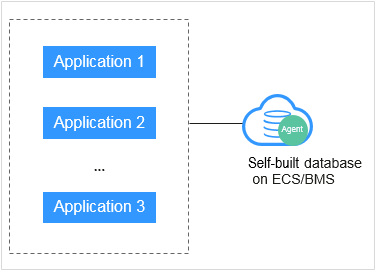
- Deploy DBSS for databases built on ECS/BMS. For details, see Figure 1 and Figure 2.
Figure 1 One application connecting to multiple databases built on ECS/BMS
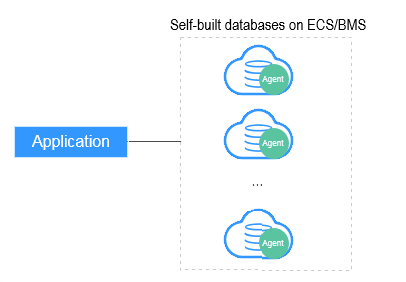
Figure 2 Multiple applications connecting to one database built on ECS/BMS
- Deploy DBSS for RDS databases. For details, see Figure 3 and Figure 4.
Figure 3 One application connecting to multiple RDS databases
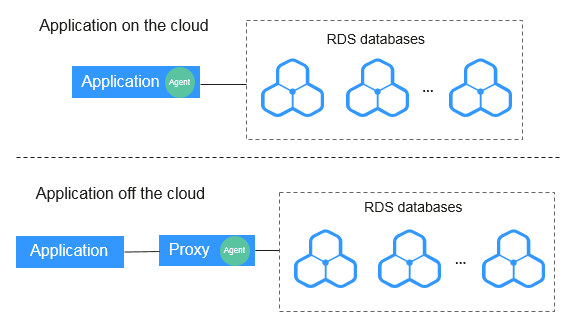
Figure 4 Multiple applications connecting to one RDS database
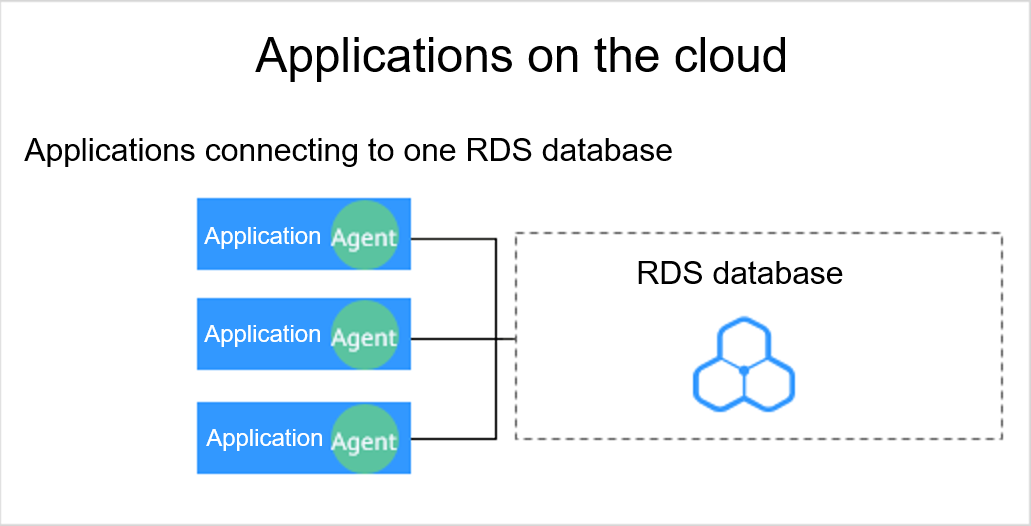
Table 1 provides more details.
- If your applications and databases (databases built on ECS/BMS) are deployed on the same node, add the agent on the database side.
Scenario | Where to Add the Agent | Audit Scope | Description |
|---|---|---|---|
Databases built on ECS/BMS | Database | All access records of applications that have accessed the database |
|
RDS database | Application (if applications are deployed on the cloud) | Access records of all the databases connected to the application |
|
Proxy side (if applications are deployed off the cloud) | Only the access records between the proxy and database. Those between the applications and database cannot be audited. |
|
Adding an Agent (User-built Databases on ECS/BMS)
- Log in to the management console.
- Select a region, click
 , and choose . The Dashboard page is displayed.
 - In the navigation tree on the left, choose Databases.
- In the Instance drop-down list, select the instance whose agent is to be added.
- In the Agent column of the desired database, click Add.
- In the displayed dialog box, select an add mode. For details about related parameters, see Table 2.
Figure 5 Adding an agent to a database
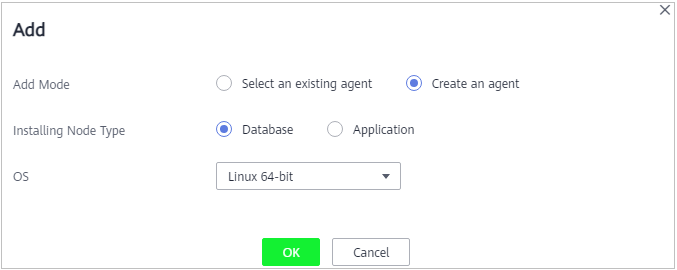 Table 2 Parameters for adding an agent (user-built databases on ECS/BMS)
Parameter
Description
Example Value
Add Mode
Mode for adding an agent
- Select an existing agent
If an agent has been installed on a database connected to the same application as the desired database, select Select an existing agent.
- Create an agent
If no agent is available, select Create an agent to create one.
Create an agent
Installing Node Type
This parameter is mandatory when Add Mode is set to Create an agent.
When auditing user-installed databases on ECS/BMS, select Database for Installing Node Type.
Database
OS
OS of the database to be audited. Its value can be Linux 64-bit.
NOTE:Select LINUX64_X86 or LINUX64_ARM based on the server architecture.
Linux 64-bit
- Select an existing agent
- Click OK.
- Click
 in the lower part of the database list page to expand the database details and view the information about the added agent.Note
After adding the agent, confirm that the agent information is correct. If the agent is incorrectly added, locate the target agent, click More > Delete in the Operation column of the row to delete it, and add an agent again.
Adding an Agent (RDS Databases)
After you add a MySQL or GaussDB(for MySQL) database, you can start configuring security group rules. You do not need to install an agent on the database.
If an application connects to multiple RDS databases, be sure to:
- Add an agent to each of the RDS databases.
- Select Select an existing agent if one of the databases already has an agent. Add that agent for the rest of the databases.
- Log in to the management console.
- Select a region, click , and choose . The Dashboard page is displayed.
- In the navigation tree on the left, choose Databases.
- In the Instance drop-down list, select the instance whose agent is to be added.
- In the Agent column of the desired database, click Add.
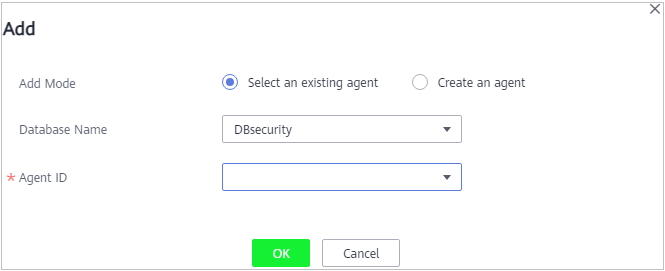
- In the displayed dialog box, select an add mode, as shown in Figure 6 and Figure 7. For details about related parameters, see Table 3.
- Select Select an existing agent for Add Mode.
Note
If an agent has been installed on the application, you can select it to audit the desired database.
Figure 6 Selecting an existing agent
- Set Add Mode to Create an agent.
If no agent is available, select Create an agent to create one.
Select Installing Node Type to Application, and set Installing Node IP Address to the intranet IP address of the application.
Figure 7 Adding an agent to an application
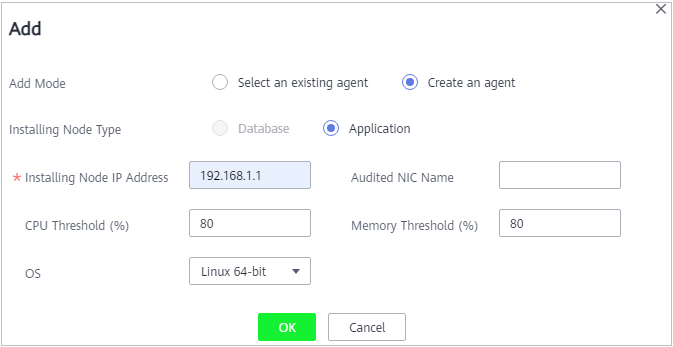
Table 3 Parameters for adding an agent (RDS databases)Parameter
Description
Example Value
Add Mode
Mode for adding an agent
- Selecting an existing agent
If an agent has been installed on a database connected to the same application as the desired database, select Select an existing agent.
- Create an agent
If no agent is available, select Create an agent to create one.
Create an agent
Installing Node Type
This parameter is mandatory when Add Mode is set to Create an agent.
To audit the RDS databases, select Application.
Application
Installing Node IP Address
This parameter is mandatory if Installing Node Type is set to Application. You can enter only one installation node IP address. The IP address of an agent must be unique.
The IP address is the intranet IP address of the application.
The IP address must be an internal IP address in IPv4 or IPv6 format.
NOTICE:To audit an RDS database connected to an off-cloud application, set this parameter to the IP address of the proxy.
192.168.1.1
Audited NIC Name
Optional. This parameter is configurable if Installing Node Type is set to Application.
Name of the network interface card (NIC) of the application node to be audited
-
CPU Threshold (%)
Optional. This parameter is configurable if Installing Node Type is set to Application.
CPU threshold of the application node to be audited. The default value is 80.
NOTICE:If the CPU usage of a server exceeds the threshold, the agent on the server will stop running.
80
Memory Threshold (%)
Optional. This parameter is configurable if Installing Node Type is set to Application.
Memory threshold of the application node to be audited. The default value is 80.
NOTICE:If the memory usage of your server exceeds the threshold, the agent will stop running.
80
OS
OS of the application node to be audited. The value can be Linux 64-bit. This parameter is configurable if Installing Node Type is set to Application.
Linux 64-bit
- Select Select an existing agent for Add Mode.
- Click OK.
- Click
 in the lower part of the database list page to expand the database details and view the information about the added agent.
Figure 8 Successfully adding an agent
 Note
NoteAfter adding the agent, confirm that the agent information is correct. If the agent is incorrectly added, locate the target agent, click More > Delete in the Operation column of the row to delete it, and add an agent again.
Follow-Up Procedure
Configure TCP (port 8000) and UDP (ports 7000 to 7100) in the security group inbound rule of the agent node to allow the agent to communicate with the audit instance. For details about how to add a security group rule, see Adding a Security Group Rule.