Database audit supports databases built on ECS, BMS, and RDS on the console. After applying for a database audit instance, you need to add the database to be audited to the instance.
Prerequisites
You have applied for a database audit instance and the Status is Running.
Adding a Database
- Log in to the management console.
- Select a region, click
 , and choose . The Dashboard page is displayed.
 - In the navigation tree on the left, choose Databases.
- In the Instance drop-down list, select the instance whose database is to be added.
- Click Add Database.
- In the displayed dialog box, configure the database information.
Figure 1 Add Database dialog box
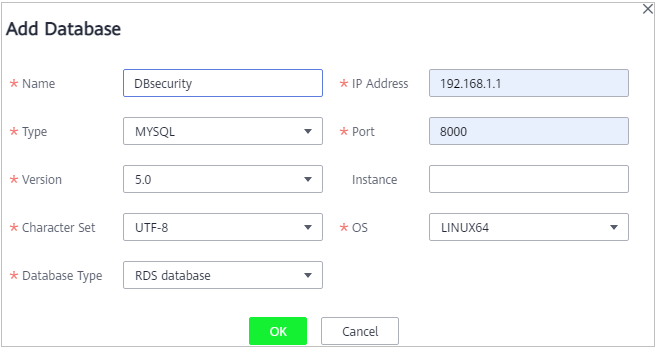 Table 1 Parameters
Parameter
Description
Example Value
Database Type
Type of the database to be added. You can select RDS database or Self-built database.
NOTE:If you select RDS database, you can directly select the databases that you want to add to DBSS.
RDS database
Name
Custom name of the database to be added
test1
IP Address
IP address of the database to be added.
The IP address must be an internal IP address in IPv4 or IPv6 format.
IPv4: 192.168.1.1
IPv6: fe80:0000:0000:0000:0000:0000:0000:0000
Type
Supported database type. The options are as follows:
- MYSQL
- ORACLE
- PostgreSQL
- SQL Service
- DWS
- GaussDB for MYSOL
- GaussDB
- DAMENG
- KINGBASE
- SHENTONG
- GBase 8a
- GBase XDM Cluster
- Greenplum
- HighGo
- MariaDB
- Hive
NOTE:- If ORACLE is selected, to make the audit settings take effect, restart the applications to be audited and log in to the database again.
MYSQL
Port
Port number of the database to be added
3306
Version
Supported database versions
- When Type is set to MYSQL, the following versions are available:
- 5.0, 5.1, 5.5, 5.6, and 5.7
- 8.0 (8.0.11 and earlier)
- When Type is set to ORACLE, the following versions are available:
- 11g
- 12c
- 19c
- When Type is set to POSTGRESQL, the following versions are available:
- 7.4
- 8.0
8.0, 8.1, 8.2, 8.3, 8.4
- 9.0
9.0, 9.1, 9.2, 9.3, 9.4, 9.5, 9.6
- 10.0
10.0, 10.1, 10.2, 10.3, 10.4, 10.5
- 11.0
- 12.0
- 13.0
- 14.0
- When Type is set to SQLSERVER, the following versions are available:
- 2008
- 2012
- 2014
- 2016
- 2017
- When Type is set to DWS, the following versions are available:
- 1.5
- When Type is set to GaussDB for MySQL, the following version is available:
- MySQL 8.0
- When Type is set to GaussDB, the following version is available:
- 1.4 Enterprise Edition
- When Type is set to DAMENG, the following version is available:
- DM8
- When Type is set to KINGBASE, the following version is available:
- V8
5.0
Instance
Instance name of the database to be audited
NOTE:- If you do not configure the Instance field, database audit will audit all instances in the database.
- If you enter an instance name, database audit will audit the entered instance. Enter a maximum of five instance names and use semicolons (;) to separate instance names.
-
Character Set
Encoding format of the database character set. The options are as follows:
- UTF-8
- GBK
UTF-8
OS
OS of the added database. The options are as follows:
- LINUX64
LINUX64
- Click OK. A database whose Audit Status is Disabled is added to the database list.
Figure 2 Successfully adding a database
 Note
Note- After adding the database, confirm that the database information is correct. If the database information is incorrect, locate the target database and click Delete in the Operation column, and add the database again.