DataArts Insight allows you to connect to a ClickHouse data source. This section describes how to connect DataArts Insight to a ClickHouse data source.
Preparations
Before connecting to a data source, verify that a VPC endpoint security group is added. Check procedure: If no EIP is bound, locate the Network Information area and click Bind next to EIP. Click Manage Security Group Rule and then the Inbound Rules tab to check or add a security group. If the data source connection test fails after the security group is added, the possible cause is that SASL_SSL is not enabled for that data source.
Accessing a ClickHouse Data Source Through a Public Network
- Click
 in the upper left corner of the management console to select a region and select an enterprise project from Enterprise Project in the upper right corner of the Workspace page.
 - Click the name of the desired project in the My Projects area in the right pane.
- In the navigation pane on the left, choose Data Management > Data Sources. On the displayed page, click Create Data Source. In the slide-out panel, set Source Database Type to ClickHouse and Access Network Type to Public network.
- Set other parameters based on Table 1.
Figure 1 Parameters for connecting to a ClickHouse data source
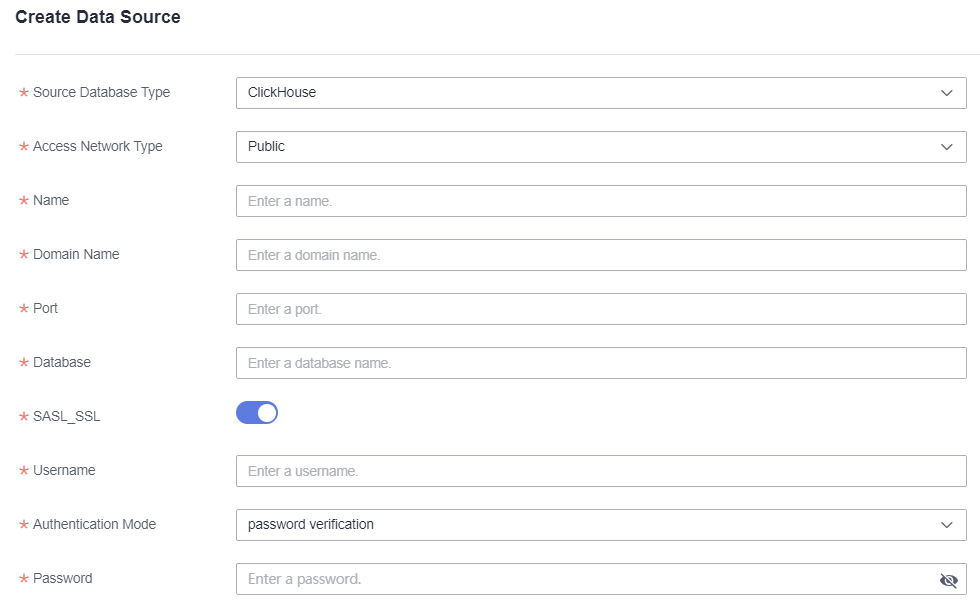
Table 1 Parameters Parameter
Mandatory
Description
Source Database Type
Yes
Type of the accessed data source. In this example, ClickHouse is selected.
Access Network Type
Yes
In this example, Public network is selected.
Name
Yes
Name of the data source displayed in the list.
Domain Name
Yes
IP address of the data source.
Port
Yes
Port number for logging in to the database.
Database
Yes
Name of the database to be logged in to.
SASL_SSL
-
It is used for trusted identity authentication and secure data transmission when DataArts Insight retrieves data from the data source. This function is enabled by default.
Username
Yes
Username for logging in to the database.
Authentication Mode
Yes
The options are Password authentication and Certificate authentication.
Password
Yes
Password for logging in to the database.
- Click Test Connection to test the data source connectivity.
- Once the test is successful, click OK.
Accessing a ClickHouse Data Source Through a VPC Network
- Click in the upper left corner of the management console to select a region and select an enterprise project from Enterprise Project in the upper right corner of the Workspace page.
- Click the name of the desired project in the My Projects area in the right pane.
- In the navigation pane on the left, choose Data Management > Data Sources. On the displayed page, click Create Data Source. In the slide-out panel, set Source Database Type to ClickHouse and Access Network Type to MRS ClickHouse.
- Set other parameters based on Table 2.Note
- The selection of MRS instances only determines the VPC and subnet to be connected, and does not have any corresponding relationship with the server list.
- Only the ClickHouse built in MRS is supported.
Figure 2 Parameters for connecting to a ClickHouse data source
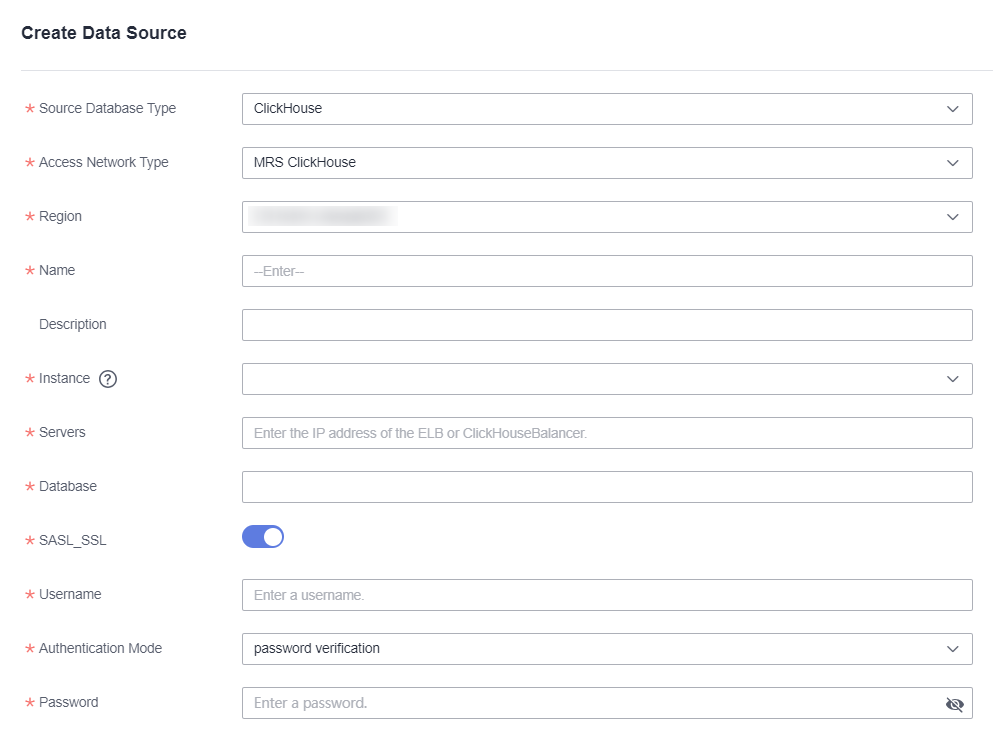
Table 2 Parameters Parameter
Mandatory
Description
Source Database Type
Yes
Type of the accessed data source. In this example, ClickHouse is selected.
Access Network Type
Yes
In this example, MRS ClickHouse is selected.
Region
Yes
Region where the ClickHouse service host is located.
Name
Yes
Name of the data source displayed in the list.
Description
No
Description of the data source.
Instance
Yes
Role instance corresponding to the ClickHouse service.
Servers
Yes
List of servers where ClickHouse is located.
Database
Yes
Name of the database to be logged in to.
SASL_SSL
-
It is used for trusted identity authentication and secure data transmission when DataArts Insight retrieves data from the data source. This function is enabled by default.
Username
Yes
Username for logging in to the database.
Authentication Mode
Yes
The options are Password authentication and Certificate authentication.
Password
Yes
Password for logging in to the database.
- Click Test Connection to test the data source connectivity.
- Once the test is successful, click OK.