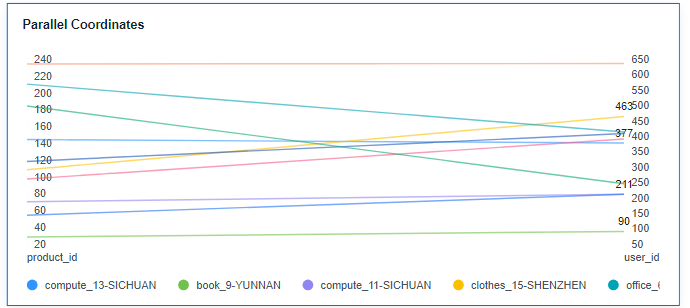
DataArts Insight allows you to set a parallel coordinate system. This section describes how to create a parallel coordinate system.
Notes and Constraints
- The dimension axis is determined by the dimensions of the data and at least one dimension must be selected, such as date, province, or product type.
- The metric axis is determined by the metrics of the data and at least two metrics must be selected, such as order quantity.
- The chart will display label values if the query limit is 14 or less, but not if it is greater than 14.
Prerequisites
- A project has been created by referring to Creating a Project.
- A data source has been connected by referring to Creating a Data Source.
- A dataset has been created by referring to Creating a Dataset.
- A dashboard has been created by referring to Creating a Dashboard.
Procedure
- In the top navigation bar on the dashboard creation page, click
 to create a parallel coordinate system.
 - Select a dataset in the Data area.
- Set parameters on the Field, Style, and Advanced tabs.
- Click Update. The system automatically updates the chart.
Figure 1 Parallel coordinates
Field
Set the fields of the parallel coordinate system.
- Find the data field you need in the dimension and metric lists within the data column.
- In the dimension list, select the field and drag it to the column.
- In the metric list, select the field and drag it to the column.
Columns support the setting of field display content modification and drill-down functions for dimension fields.
NoteDrill-down function: When analyzing company sales data, you can change the analysis granularity by drilling down the data, such as drilling down from the regional granularity to the provincial granularity to view the data situation based on geographic dimensions. Connecting data from various dimensions facilitates data analysts to analyze the data and draw conclusions.
- Set the field display content.
Click
 in the column, select Field Display Content and click to modify the field display content on the displayed page. Click OK.
 - Set the drill-down.
Click
 in the column.
Columns support the setting of aggregation method and field display content for metric fields.
NoteAggregation method: Perform calculation and processing on data to make the analyzed data more orderly and intuitive.
- Set the aggregation mode.
Click
 of the field in the column, select Aggregation Method and click to support setting of no aggregation, sum, count, distinct count, maximum value, minimum value, average value, population standard deviation, sample standard deviation, sample variance, range start value, and range end value.
 - Set the field display content.
Click
 in the column, select Field Display Content and click to modify the field display content on the displayed page. Click OK.
- Set a filter.
- Drag dimension and metric fields to the Filter area.
- Click
 next to a field in the Filter area.
 - In the displayed Set Filter dialog box, set the parameters and click OK.
Table 1 Filter parameters Type
Parameter
Description
String
Condition
Filter Mode: The options are Condition and Enumeration.
Condition Type: The options are And condition and Or condition.
Filter Condition: The options are Exact match, Contain, Start with, End with, Not match, Not contain, Null, and Not null.
Enumeration
Query Mode: The options are Single-select and multi-select.
Filter Condition: The options are >, ≥, <, ≤, =, ≠, Null, and Not null.
Metric
Condition Type
The options are And condition and Or condition.
Filter Condition
The options are >, ≥, <, ≤, =, ≠, Null, and Not null. You can select Before aggregation and After aggregation for data.
NOTE:If you select Before aggregation, data is filtered before aggregation. If you select After aggregation, data is filtered after aggregation. For aggregation concepts, see Creating a Dataset.
You can click Create Filter Condition to set multiple filter criteria.
Date
Range value
Select a time range for filtering.
Single value
Set a single time for filtering.
Condition
You can select And condition or Or condition as the condition type and select filter condition like >, ≥, <, ≤, and =.
You can click Create Filter Condition to set multiple filter criteria.
- Set sorting.
- Drag and drop required data fields from the Dimension and Metric (Indicator) areas under Data to the Sorting area.
- Click
 next to a field in the Sorting area and select a sorting mode. The sorting modes are Ascending, Descending, and Custom.
 - To cancel sorting, click
 next to the sorting field.
- Set the maximum number of query results.
Enter the maximum number of records that can be returned in the text box. The default value is 1000.
- Set automatic refresh.
The auto refresh interval supports the following options: no refresh, 1 minute, 5 minutes, 15 minutes, and 30 minutes.
Style
Set the style parameters of the parallel coordinate system.
Parameter | Description |
|---|---|
Card Title | Cards can be configured with or without a title. If a title is set, it will be displayed in the top left corner of the card. If the checkbox is not selected ( If the checkbox is selected ( |
Text | You can adjust the font size and color of the text. To change the font size, you can either type in the desired size or use the NOTE: Note that the input cannot be empty and must be from 14 to 32. |
Alignment | You can align the text in the card to the left or center. |
Bottom Margin | Set the distance between the title of the parallel coordinate system chart and the chart. To change the margin, you can either type in the desired margin or use the NOTE: Note that the input cannot be empty and must be from 0 to 32. |
Divider | Cards can be configured with or without a divider line. If the checkbox is not selected ( If the checkbox is selected ( NOTE: Note that the input for the style cannot be empty and must be from 0 to 8. The bottom margin can only be set after the style has been set, and the input cannot be empty and must be from 0 to 32. |
Card Background | Cards can be configured with or without a background. If the checkbox is not selected ( If the checkbox is selected ( |
Status Icon | You can customize the display style and color of the icon, which can be set to always show or show on hover. The card icon can be set to have a status or no status. If the checkbox is not selected ( If the checkbox is selected ( |


Parameter | Description |
|---|---|
Show Legend | Choose to display or hide the legend. If you choose to hide it, the following parameters cannot be set. |
Text | Set the font size of the text. |
Position | Set the position of the legend, either below or above the chart. |
Color Palette | Choose to use the system color palette or customize your own. |
Value Settings | You can set the context, units, scientific notation, use of thousand separators, and decimal places for numerical values. |
Parameter | Description |
|---|---|
Show Axis | Set the coordinate line and color of the coordinate axis. |
Show Axis Label | Set the text and text color of axis labels. |
Show Grid Line | Set the thickness and color of grid lines. |
Show Scale Line | Set the scale type, which can be linear or logarithmic. |
Parameter | Description |
|---|---|
Select Metric | Select metrics based on the metrics selected on the Field tab. |
Context | Set the context for the series, supporting Simplified Chinese and English. |
Unit | Units support automatic, none, hundred, thousand, ten thousand, hundred million, ten billion, and trillion. |
Scientific Notation | Support the use of scientific notation. |
Use thousands separator | Whether or not to use thousands separators. |
Decimal Places | Whether or not to support decimal places. |
Function Settings: You can set how null values are handled, with options to delete, intelligent delete, or set to zero.
Advanced
- Linkage
Click the Advanced tab and click
 next to Linkage. The Chart Linkage Settings page is displayed. Set parameters. For details, see Linkage example.
Table 6 Chart linkage configurations Parameter
Description
Filter
Select the fields to be bound first and then select the chart to be associated with them. You can select all charts on the dashboard.
Associated Charts
Link the associated charts.
- Follow bound field: When the bound field is set to A, the associated data tables filter data related to A.
- SQL placeholder: The bound field value corresponds to the value set for the SQL placeholder in the dataset.
- Initialize Query for Associated Query Control: whether the associated query control supports query initialization. If the checkbox is selected (
 ), the control supports query initialization. If the checkbox is not selected (
 ), the control does not support query initialization.Note
If you select this option, when a chart is linked to a query control and the query control does not have a default query set, the chart's data configuration will be queried during chart initialization.