When monitoring big data platforms in real time, O&M teams need to be promptly notified of cluster health status or any abnormal changes in service metrics. Although OpenSearch provides powerful search capabilities, the native engine lacks deep integration with cloud-native notification services. CSS addresses this by offering built-in alerting and notification plugins that integrate seamlessly with the Simple Message Notification (SMN) service. This integration enables a highly automated monitoring workflow: monitors are configured to query specified indexes periodically; triggers evaluate the query results against predefined thresholds to identify anomalies and generate alerts; CSS then calls the SMN API to push alerts to subscribers.
How the Feature Works
The open-source OpenSearch alerting plugin (opensearch-alerting) and OpenSearch notifications plugin (opensearch-notifications and opensearch-notifications-core) are built into CSS OpenSearch clusters. They trigger alerts when data meets predefined conditions.
Figure 1 Alert notification link

- A monitor defines the query conditions, such as which index to query and how often.
- A trigger checks the monitor's query results to determine whether preset conditions that trigger an alert are met (for example, count > 100). If yes, it generates an alert and triggers a predefined action.
- A destination/channel is a message channel that defines the SMN topic where alerts are to be sent.
- A CSS cluster is granted permission to access SMN through an agency.
- SMN sends the received alert to subscribers.
For more about the alerting plugin, see Alerting - OpenSearch Documentation. For more about the notifications plugin, see Notifications - OpenSearch Documentation.
Constraints
Only OpenSearch 1.3.6 and 2.19.0 clusters provide a built-in alerting plugin. Only clusters of these versions support alert notification via SMN.
Preparations
- Prepare the needed SMN topic. Create a topic on SMN and add subscribers (mobile number or email address). For details, see "Creating a Topic" and "Adding a Subscription" in the Simple Message Notification User Guide.
- Grant SMN access to CSS. You can configure an IAM agency to authorize CSS to access SMN.
- Use a CSS administrator account to perform: Log in to the CSS management console.
The CSS administrator account must have the following minimum IAM permissions:
"iam:agencies:listAgencies","iam:roles:listRoles","iam:agencies:getAgency","iam:agencies:createAgency","iam:permissions:listRolesForAgency","iam:permissions:grantRoleToAgency","iam:permissions:listRolesForAgencyOnProject","iam:permissions:revokeRoleFromAgency","iam:roles:createRole" - In the navigation pane, choose Service Authorization.
- On the Service Authorization page, click Create Agency for SMN. In the dialog box displayed, confirm that the agency is successfully created.
- If an agency has already been created, the message "The css_smn_agency already exists. Please check the agency permission." is displayed in the upper right corner.
- If you do not have the permission to create an agency, an error message is displayed in the upper right corner indicating "no permission", in which case, check that the administrator account has been assigned the necessary IAM permissions.
- Use a CSS administrator account to perform: Log in to the CSS management console.
Configuring Alert Notifications via SMN (OpenSearch 2.19.0)
- Log in to the CSS management console.
Log in using an account with CSS permissions.
- In the navigation pane on the left, choose Clusters > OpenSearch.
- In the cluster list, find the target cluster, and click Dashboards in the Operation column to log in to OpenSearch Dashboards.
- On the OpenSearch Dashboards console, expand the menu in the upper-left corner, and choose Management > Notifications.
- Create an SMN channel to send alert messages.
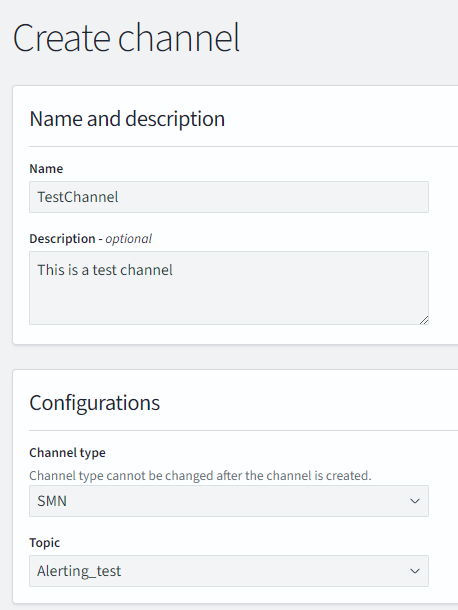
- On the Channels page, click Create channel and configure a notification channel.
Table 1 Channel parameters Parameter
Description
Name
Custom channel name.
Description
Channel description.
Channel type
Type of the notification. Select SMN.
Topic
An associated SMN topic. Select the SMN topic created in Preparations.
Figure 2 Create channel
- Click Create.
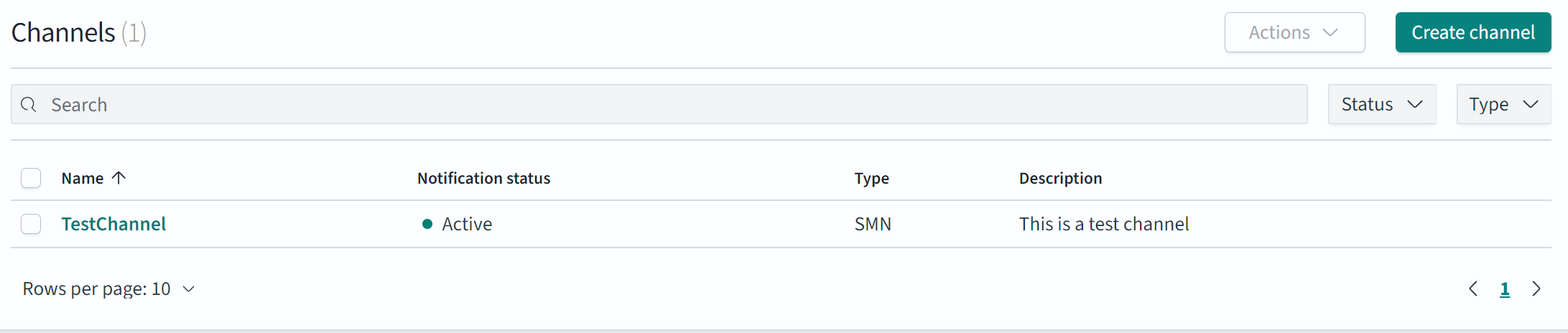
- Return to the Channels page. If the new channel is displayed, it has been created successfully.
Figure 3 Channels
- On the Channels page, click Create channel and configure a notification channel.
- On the OpenSearch Dashboards console, expand the menu in the upper-left corner, and choose OpenSearch Plugins > Alerting.
- Create a monitor and trigger to define the alert triggering conditions and monitor interval.
- Click the Monitors tab on the Alerting page and click Create monitor to configure monitor information.
Table 2 Monitor parameters Parameter
Description
Monitor details
Monitor name
User-defined monitor name
Monitor type
Monitor type, which can be:
- Per query monitor
- Per bucket monitor
- Per cluster metrics monitor
- Per document monitors
- Composite monitors
In this example, Per query monitor is selected. For more information, see Monitors in the OpenSearch official documentation.
Monitor defining method
Monitor defining method. Extraction query editor is recommended.
- Visual editor
- Extraction query editor
- Anomaly detector
The options of Monitor defining method are determined by the Monitor type you selected.
Detector
If Monitor defining method is set to Anomaly detector, select an exception detection task.
Frequency
Select the monitoring frequency and set the monitoring interval. The options include:
- By interval
- Daily
- Weekly
- Monthly
- Custom cron expression
Select data
Index
When Monitor defining method is set to Visual editor or Extraction query editor, you need to specify the index to be monitored.
Time field
When Monitor defining method is set to Visual editor, you need to specify the time field to define counting parameters such as count.
Query
Metrics
When Monitor defining method is set to Visual editor, you need to set the metrics range for extracting statistics.
Time range for the last
When Monitor defining method is set to Visual editor, you need to set the monitoring time range for plugins.
Data filter
When Monitor defining method is set to Visual editor, you need to set filters for data search.
Group by
When Monitor defining method is set to Visual editor, you need to specify a field so that any value of the field will always trigger an alert.
Define extraction query
When Monitor defining method is set to Extraction query editor, you need to enter the query statement to define the monitoring.
Request type
When Monitor type is set to Per cluster metrics monitor, you need to specify the request type to monitor cluster metrics, such as the running status and CPU usage.
Preview query and performance
Preview the query result and verify query performance under the current configuration.
- Click Add trigger to add triggers and specify the alert triggering conditions and actions to be triggered when an alert is triggered.
- On the Triggers page, set the alert triggering sensitivity and message release on the destination end.
Table 3 Trigger parameters Parameter
Description
Define trigger
Trigger name
User-defined trigger name.
Severity level
Sensitivity of a trigger, that is, the number of alerts that need to be triggered before a notification is sent. 1 indicates the highest sensitivity.
Trigger condition
Trigger condition. An alert is triggered when the trigger condition is hit.
Configure actions
Action name
Trigger action name.
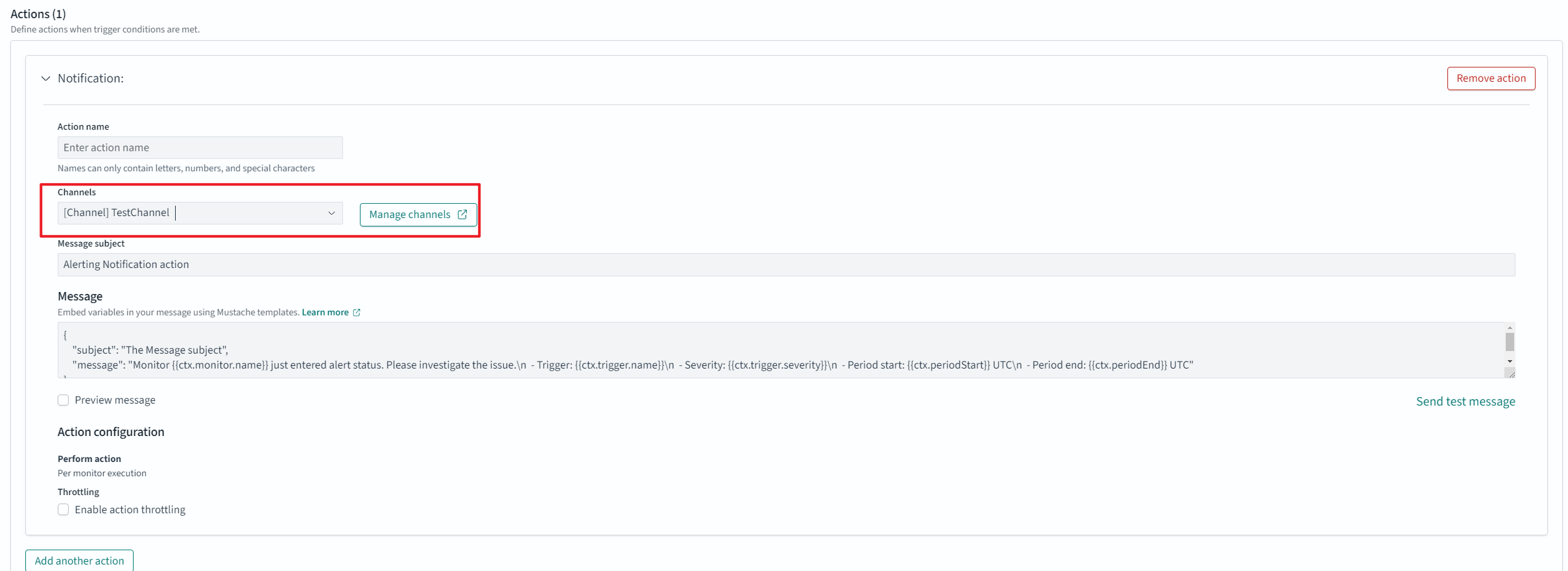
Channels
Select the SMN channel created in 5.
Message subject
A description of the message.
Message
Alert message body. By default, the subject and body are defined when the destination is an email address.
Perform action
When Monitor type is set to Per bucket monitor, you need to specify whether to send alerts in combination. The value can be:
- Per execution: A combination alert is sent when multiple alert triggering conditions are hit.
- Per alert: Alerts are sent separately when multiple alert triggering conditions are hit.
Actionable alerts
When Monitor type is set to Per bucket monitor, and Perform action is set to Per alert, you need to set the alerts that can be executed after alert triggering conditions are hit.
- De-duplicated: Alerts that have been triggered. OpenSearch retains the existing alerts to prevent the plugin from generating duplicate alerts.
- New: Newly created alerts.
- Completed: Alerts that are no longer ongoing.
Throttling
Specify the message frequency to limit the number of notifications you receive within a given span of time. Without it, high-frequency or low-severity triggers may cause information overload or result in unexpected cloud costs.
For example, if this parameter is set to 10 minutes, SMN sends only one alert notification in the next 10 minutes even if the trigger condition is hit multiple times. After 10 minutes, SMN sends another alert notification if the alert condition is met.
Figure 4 Setting the destination of a trigger action
- Click Send test message to test the alert notification link.
- As shown in Figure 6, if a subscriber to the SMN topic receives the message, alert notification is configured successfully.
Figure 5 Sending a test message
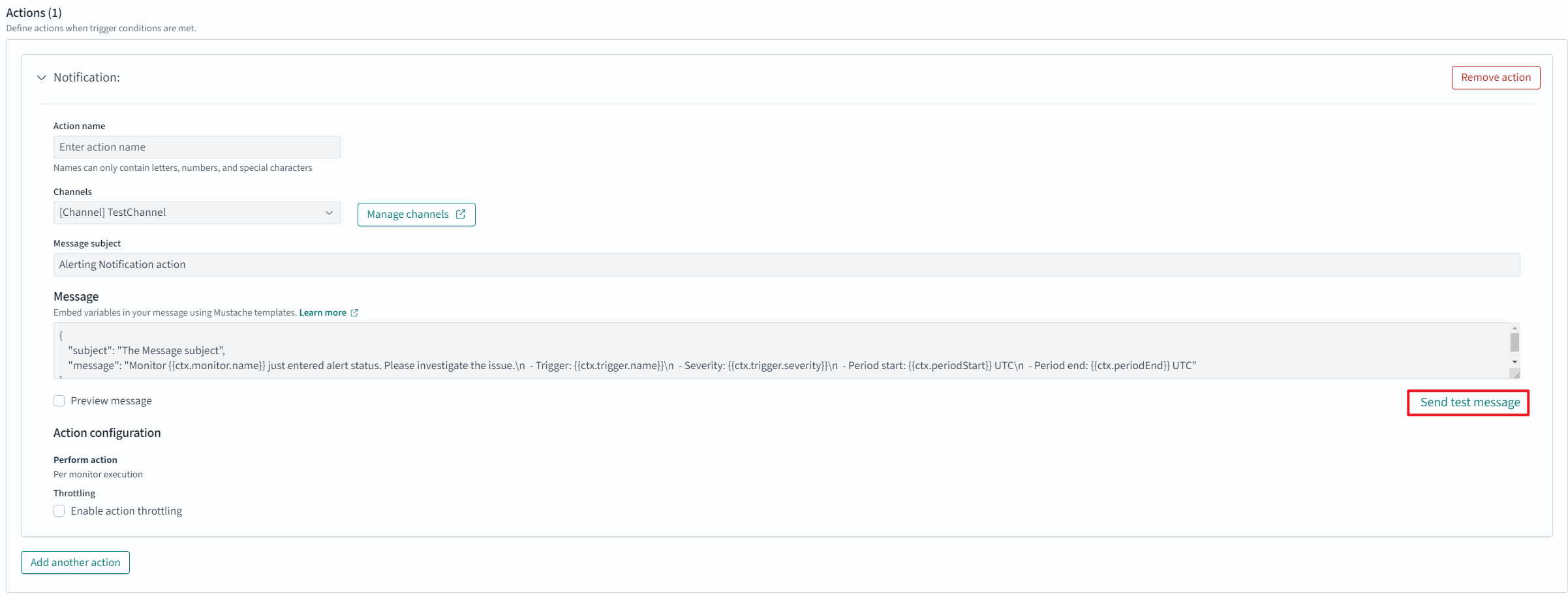
Figure 6 Email notification

- Click Create to go to the monitor details page.
- Click the Monitors tab on the Alerting page and click Create monitor to configure monitor information.
Configuring Alert Notifications via SMN (OpenSearch 1.3.6)
- Log in to the CSS management console.
Log in using an account with CSS permissions.
- In the navigation pane on the left, choose Clusters > OpenSearch.
- In the cluster list, find the target cluster, and click Dashboards in the Operation column to log in to OpenSearch Dashboards.
- On the OpenSearch Dashboards page, choose OpenSearch Plugins > Alerting in the navigation tree on the left.
- Create an SMN destination to send alert messages.
- On the Alerting page, click the Destinations tab, and click Add destination to configure destination information.
Table 4 Destinations parameters Parameter
Description
Name
User-defined destination name
Type
Type of the notification. Select SMN.
Topic
An associated SMN topic. Select the SMN topic created in Preparations.
Figure 7 Add destination
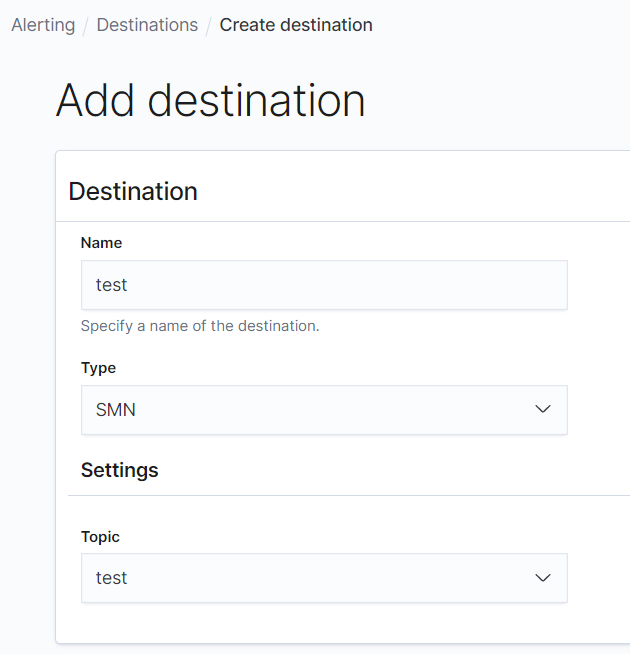
- Click Create to create destinations.
- Return to the Destinations page. If the new channel is displayed, it has been created successfully.
Figure 8 Destination list

- On the Alerting page, click the Destinations tab, and click Add destination to configure destination information.
- Create a monitor and trigger to define the alert triggering conditions and monitor interval.
- Click the Monitors tab on the Alerting page and click Create monitor to configure monitor information.
Table 5 Monitor parameters Parameter
Description
Monitor details
Monitor name
User-defined monitor name
Monitor type
Monitor type, which can be:
- Per query monitor
- Per bucket monitor
- Per cluster metrics monitor
- Per document monitors
- Composite monitors
In this example, Per query monitor is selected. For more information, see Monitors in the OpenSearch official documentation.
Monitor defining method
Monitor defining method. Extraction query editor is recommended.
- Visual editor
- Extraction query editor
- Anomaly detector
The options of Monitor defining method are determined by the Monitor type you selected.
Detector
If Monitor defining method is set to Anomaly detector, select an exception detection task.
Frequency
Select the monitoring frequency and set the monitoring interval. The options include:
- By interval
- Daily
- Weekly
- Monthly
- Custom cron expression
Data source
Index
When Monitor defining method is set to Visual editor or Extraction query editor, you need to specify the index to be monitored.
Time field
When Monitor defining method is set to Visual editor, you need to specify the time field to define counting parameters such as count.
Query
Metrics
When Monitor defining method is set to Visual editor, you need to set the metrics range for extracting statistics.
Time range for the last
When Monitor defining method is set to Visual editor, you need to set the monitoring time range for plugins.
Data filter
When Monitor defining method is set to Visual editor, you need to set filters for data search.
Group by
When Monitor defining method is set to Visual editor, you need to specify a field so that any value of the field will always trigger an alert.
Define extraction query
When Monitor defining method is set to Extraction query editor, you need to enter the query statement to define the monitoring.
Request type
When Monitor type is set to Per cluster metrics monitor, you need to specify the request type to monitor cluster metrics, such as the running status and CPU usage.
- Click Add trigger to add triggers and specify the alert triggering conditions and actions to be triggered when an alert is triggered.
- On the Triggers page, set the alert triggering sensitivity and message release on the destination end.
Table 6 Trigger parameters Parameter
Description
Define trigger
Trigger name
User-defined trigger name
Severity level
Sensitivity of a trigger, that is, the number of alerts that need to be triggered before a notification is sent. 1 indicates the highest sensitivity.
Trigger condition
Trigger condition. An alert is triggered when the trigger condition is hit.
Configure actions
Action name
Trigger action name
Destination
Select the SMN destination created in 5.
Message
Alert message body By default, the subject and body are defined when the destination is an email address.
Perform action
When Monitor type is set to Per bucket monitor, you need to specify whether to send alerts in combination. The value can be:
- Per execution: A combination alert is sent when multiple alert triggering conditions are hit.
- Per alert: Alerts are sent separately when multiple alert triggering conditions are hit.
Actionable alerts
When Monitor type is set to Per bucket monitor, and Perform action is set to Per alert, you need to set the alerts that can be executed after alert triggering conditions are hit.
- De-duplicated: Alerts that have been triggered. OpenSearch retains the existing alerts to prevent the plugin from generating duplicate alerts.
- New: Newly created alerts.
- Completed: Alerts that are no longer ongoing.
Throttling
Specify the message frequency to limit the number of notifications you receive within a given span of time. Without it, high-frequency or low-severity triggers may cause information overload or result in unexpected cloud costs.
For example, if this parameter is set to 10 minutes, SMN sends only one alert notification in the next 10 minutes even if the trigger condition is hit multiple times. After 10 minutes, SMN sends another alert notification if the alert condition is met.
Figure 9 Setting the destination of a trigger action
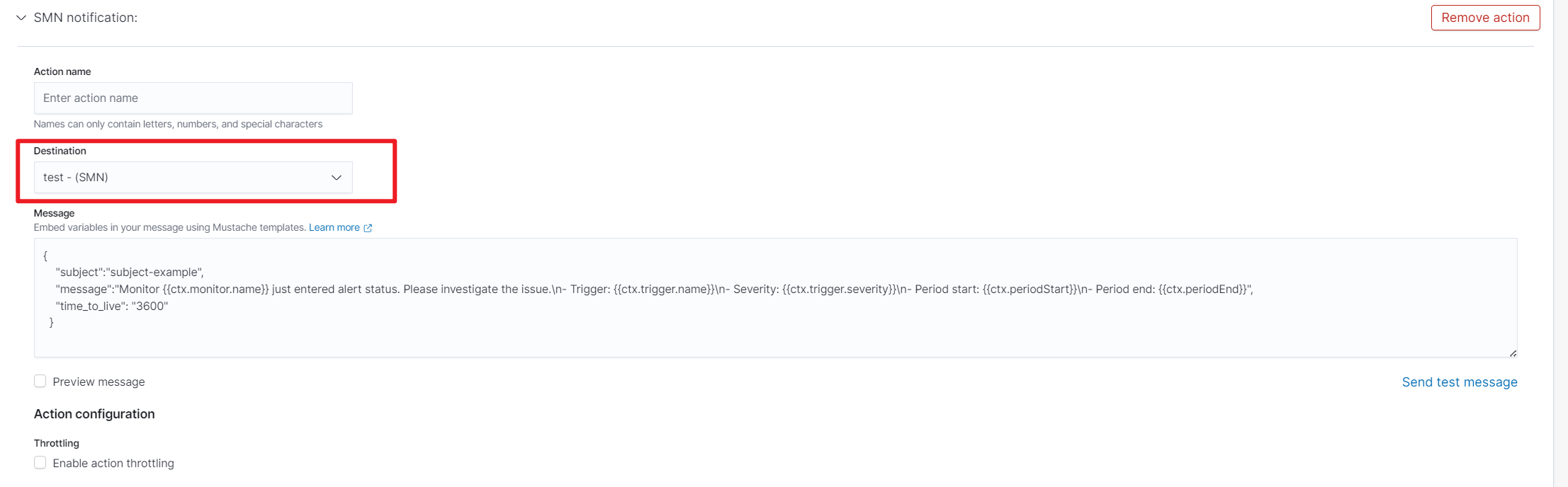
- Click Send test message to test the alert notification link.
Figure 10 Sending a test message
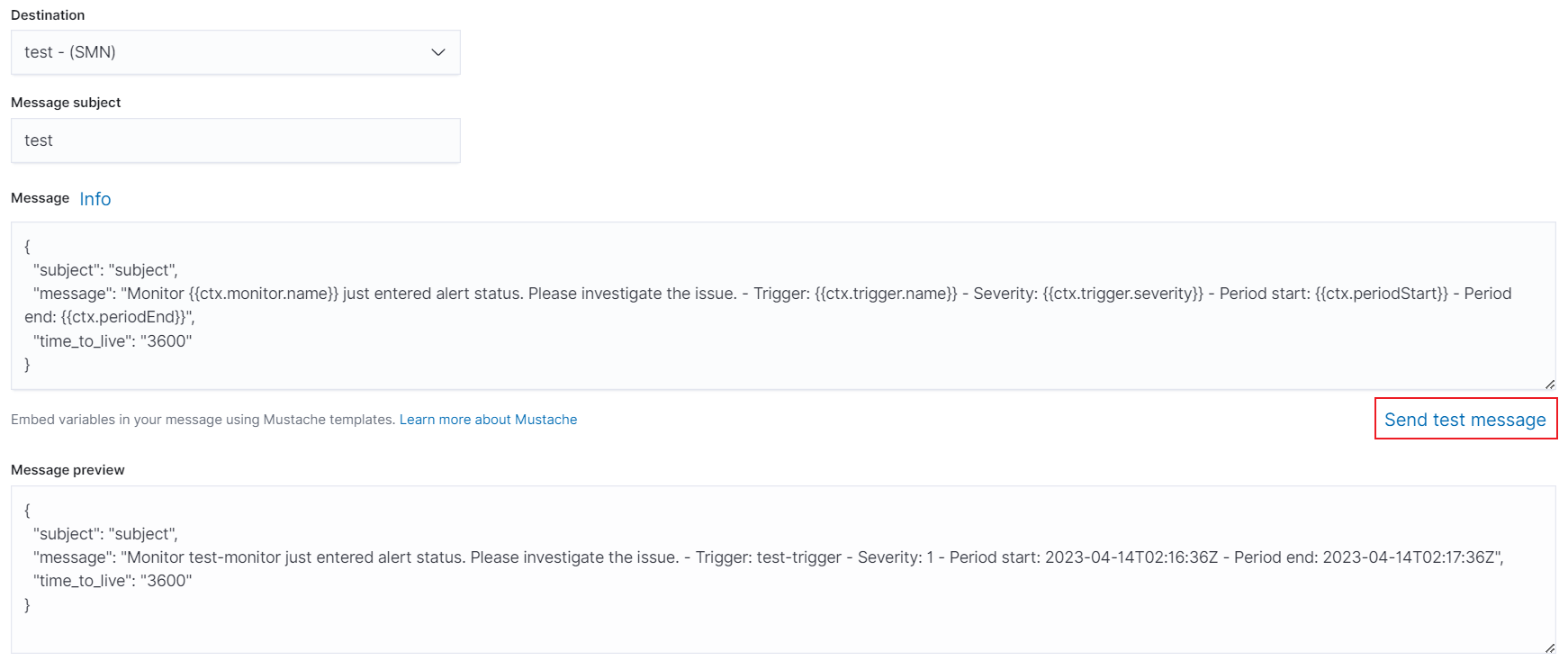
- As shown in Figure 11, if a subscriber to the SMN topic receives the message, alert notification is configured successfully.
Figure 11 Email notification

- Click Create to go to the monitor details page.
- Click the Monitors tab on the Alerting page and click Create monitor to configure monitor information.