This section describes how to use the built-in code repository of CodeArts to develop, build, and deploy projects for continuous delivery.
This chapter uses Elastic Cloud Server (ECS) for traditional software package deployment.
To use container-based deployment, see Deploying a Code Development Pipeline on CCE.
Preparations
- You have purchased an ECS. The following table lists the mandatory configurations. You can select the configurations that are not listed in the table based on the site requirements. After the purchase is complete, add inbound rules for ports 22 and 8080 by referring to Configuring Security Group Rules.
Table 1 Configuring ECS
Category
Parameter
Suggestion
Configure Basic Settings
CPU Architecture
Select x86.
Specifications
Select 2 vCPUs and 4 GiB or higher.
Image
Choose Public image > CentOS > CentOS 7.6 64bit(10 GiB).
Configure Network
EIP
Select Auto assign.
Billed By
Select By bandwidth.
Configure Advanced Settings
Login Mode
Select Password.
Password
Enter a password.
Enabling Pay-per-Use Billing
- Log in to the console, view the Overview page, and click .
- View the service specifications and click Next.
- View and confirm the package details. Click Submit. In the dialog box that is displayed, click Yes.
- Check whether the system displays a message indicating that CodeArts is subscribed to successfully.
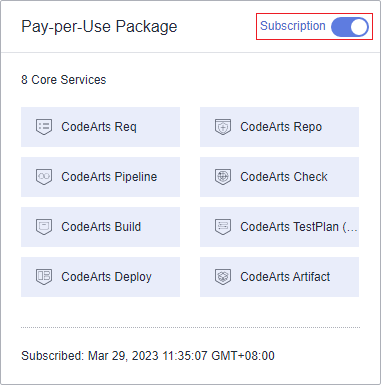
Return to the Overview page. On the My Services tab, the status shows enabled Subscription.
Figure 1 Subscribed to the CodeArts package
Creating a Project
A project is the basis for using services on CodeArts. Subsequent operations can be performed only after a project is created.
- Click Access Service on the CodeArts console.
- Click Create Project, click Select for the Scrum template, enter the project name Demo, and click OK.
Creating a Code Repository
You can use a code repository to manage project code versions. This section describes how to use the built-in template Java Web Demo to create a code repository.
- In the navigation pane, choose Code > Repo.
- Click New Repository, select Template, and click Next.
- On the page displayed, select Java Web Demo and click Next.
- Enter the code repository name Web-Demo and click OK.
Checking Code
You can use CodeArts Check to perform static code check and control code quality.
- In the navigation pane, choose Code > Check. The automatically created task Web-Demo-check is displayed on the page.
- Click
 in the row where the task is located to start the task.
 - When
 is displayed, the task is successfully executed. Click the task name, and view the check result on the Overview tab.
If the task fails, check and fix errors based on the message displayed on the page.
Building and Archiving Software Packages
You can use CodeArts Build to compile the source code of the software into a target file, packs the configuration file and resource file, and archives them to a release repo.
- In the navigation pane, choose CICD > Build. The automatically created build task Web-Demo-build is displayed.
- Click
 in the row where the task is located to start the task. If a dialog box is displayed, confirm the parameter settings and click OK.
 - When
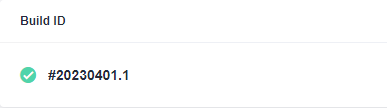
 is displayed, the task is successfully executed. Click the task name. On the Build History page that is displayed, find the Build ID of the latest build in the list and record the ID.
If the build fails, rectify the fault based on the failed action information and error information in logs.
Figure 2 Build ID
- In the navigation pane, choose Artifact > Release Repos.
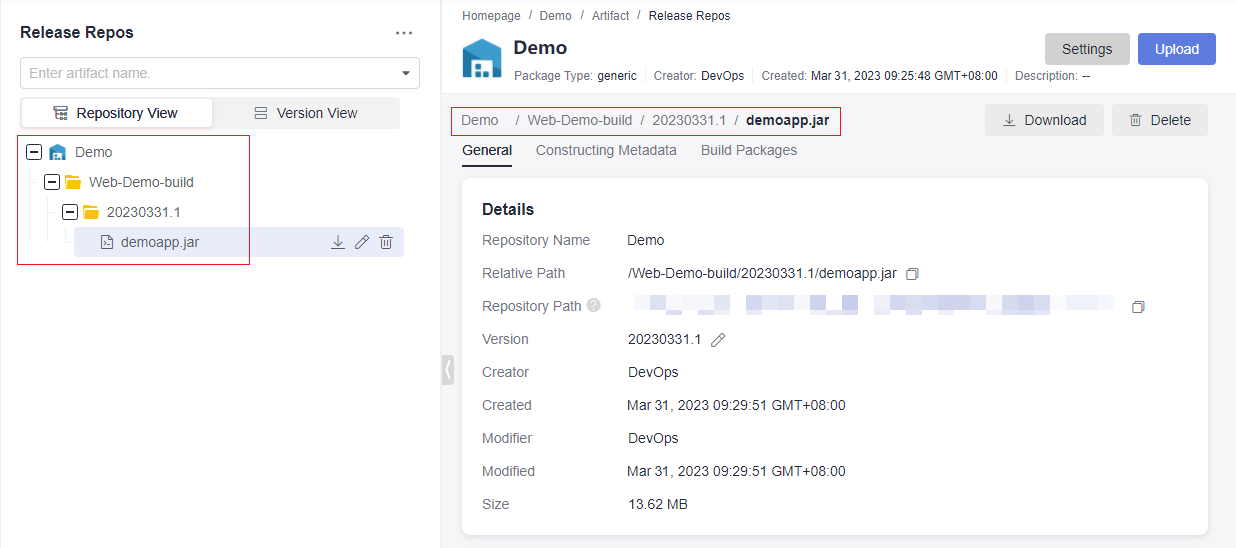
In the repository named after the project, go to the folder named after the build task and the folder named after the build ID in sequence to find the generated software package demoapp.jar.
Figure 3 Viewing the software package
Deploying the Build Package
You can use CodeArts Deploy to deploy software packages in a release repo to a VM and run the software.
- Configure the target host.
- In the navigation pane, choose Settings > General > Basic Resources.
- Click Create Host Cluster, configure the following information, and click Save.
Table 2 Creating a host cluster
Parameter
Suggestion
Cluster Name
Enter host-group.
OS
Select Linux.
Host Connection Mode
Select Direct Connection.
Execution Resource Pool
Select Official.
- Click Add Host, configure the following information, and click OK.
Table 3 Adding a host
Parameter
Suggestion
Add Hosts by
Select Adding IP.
Host Name
You are advised to keep this same as the name of an ECS purchased in Preparations.
IP
Enter the elastic IP address of an ECS purchased in Preparations.
Authorization
Select Password.
Username
Enter root.
Password
Enter the password set when you purchase the ECS in Preparations.
SSH Port
Enter 22.
- A host record is displayed on the page. If the Verification Result column shows successful, the host is added.
If the host fails to be added, check its configuration based on the failure details.
- Choose CICD > Deploy from the navigation pane. The automatically created application Web-Demo-deploy is displayed on the page.
- Click
 and choose Edit.
 - Click the Environment Management tab and configure the host environment.
- Click Create Environment, configure the following information, and click Save.
Table 4 Creating an environment
Parameter
Suggestion
Environment
Enter demo-env.
Resource Type
Select Host.
OS
Select Linux.
- Click Import Host. In the displayed dialog box, select the host cluster and host configured in 1 and click Import.
- A message is displayed, indicating that the import is successful. Close the window.
- Click Create Environment, configure the following information, and click Save.
- Click the Deployment Actions tab and configure information.
- Install JDK: Check that the JDK version is openjdk-1.8.0.
- Select a Deployment Source: Set the parameters based on the following table.
Table 5 Deployment source configuration
Parameter
Value
Source
Click Build task.
Build Task
Select Web-Demo-build.
Download Path
Enter /usr/local/${package_name}/.
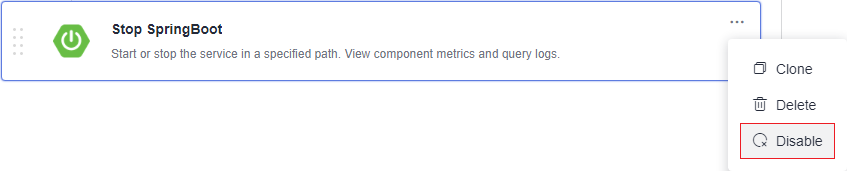
- Stop SpringBoot: When you perform this action for the first time, it fails because no service is running on the target host. To disable this action, click
 on the action card and choose Disable.
Figure 4 Disabling "Stop SpringBoot"
- Health Test Through URLs: This action is optional and disabled in this example.
- Click the Parameters tab and set parameters by referring to the following table.
Parameter Name
Value
host_group
Select the environment demo-env added in 4.
package_url
This parameter is not required. Click
 in the same row to delete it.
service_port
Enter 8080.
package_name
Enter demoapp.
- Click Save & Deploy. If a dialog box is displayed, confirm the parameter settings and click OK.
Wait until
 is displayed on the page. If the deployment fails, rectify the fault based on the failed action information and error information in logs.
 - View the deployment result.
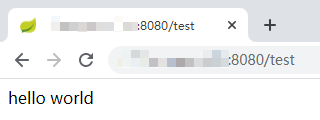
Open a new browser page and enter the access address http://IP:8080/test. IP is the elastic IP address of the ECS purchased in Preparations.
If the following information is displayed, the deployment is successful.
Figure 5 Deployment result
Configuring a Pipeline
You can use a CodeArts pipeline to connect code check, build, and deployment tasks. When code changes, the pipeline is automatically triggered for continuous delivery.
- Choose CICD > Pipeline from the navigation pane. On the Pipelines tab, the automatically created pipeline Web-Demo-pipeline is displayed.
- Click
 and choose Edit.
 - On the Task Orchestration tab page, configure the pipeline.
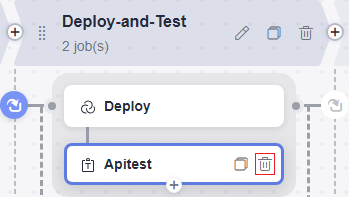
- API testing is not involved in this document. Therefore, remove the API test task from the pipeline.
Click
 next to the Apitest job. In the dialog box that is displayed, click OK.
Figure 6 Deleting a job
- Click the Deploy job, associate build task Build, and set other parameters based on the parameter settings in Deploying the Build Package.
- API testing is not involved in this document. Therefore, remove the API test task from the pipeline.
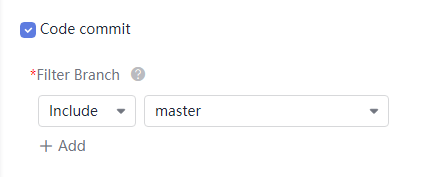
- Click the Execution Plan tab, select Code commit, and select master from the branch filter drop-down list.
Figure 7 Configuring the execution plan
- Click Save.
- Go to Deploy, edit the deployment actions, and enable Stop SpringBoot.
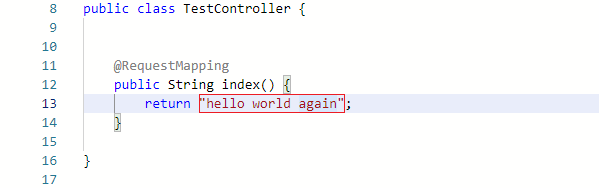
- Go to the code repository and search for and open the TestController.java file.
Click
 , change hello world to hello world again, submit the information, and click OK.
Figure 8 Modifying code
- Return to the Pipeline page. You can see that the pipeline is running.
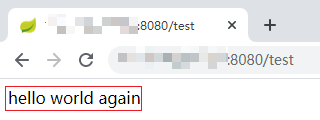
When
 is displayed, access http://IP:8080/test again. The following figure shows the access result.
If the task fails to be executed, check the failure cause. You can open the step details page to view the task logs and rectify the fault based on the logs.
Figure 9 Pipeline execution result
Follow-up Operations
To avoid incurring unnecessary fees, you can release any unused resources once you have completed this example. The following resources can be released.
Resource | Releasing Method |
|---|---|
CodeArts project | Choose Settings > General > Basic Information, click Delete Project, and follow the prompts to delete the project. |
ECS | Log in to the ECS console, locate the ECS to be deleted in the list, choose More > Delete, and follow the prompts to delete the ECS. |
Released resources cannot be restored. Exercise caution when performing this operation.