If you encounter a fault that a cluster is available but some nodes in it are unavailable, you can rectify this fault by referring to the methods provided in this section.
Mechanism for Detecting Node Unavailability
Kubernetes provides heartbeats to help you detect whether a node is available. For details about the mechanism and detection interval, see Heartbeats.
Troubleshooting
Possible causes are listed in order of likelihood.
Check these causes one by one until you find the cause of the fault.
- Check Item 1: Whether the Node Is Overloaded
- Check Item 2: Whether the ECS Is Deleted or Faulty
- Check Item 3: Whether You Can Log In to the ECS
- Check Item 4: Whether the Security Group Has Been Changed
- Check Item 5: Whether the Security Group Rules Contain the One That Allows the Communication Between the Master Nodes and the Worker Nodes
- Check Item 6: Whether the Disk Is Abnormal
- Check Item 7: Whether Internal Components Are Normal
- Check Item 8: Whether the DNS Address Is Properly Configured
- Check Item 9: Whether the vdb Disk on the Node Has Been Deleted
- Check Item 10: Whether the Docker Service Is Normal
Check Item 1: Whether the Node Is Overloaded
Symptom
The node connection in the cluster is abnormal, with multiple nodes reporting write errors, but services are not affected.
Fault locating
- Log in to the CCE console and click the cluster name to access the cluster console. In the navigation pane, choose Nodes. In the right pane, click the Nodes tab, locate the row containing the unavailable node, and click Monitor.
- On the top of the displayed page, click View More to go to the AOM console and view historical monitoring records.
A too high CPU or memory usage on the node will result in a high network latency or trigger a system OOM, so the node is displayed as unavailable.
Solution
- Reduce the number of workloads on the node by migrating the services to other nodes and configure resource limits for the workloads.
- Clear data on the CCE nodes in the cluster.
- Limit the CPU and memory quotas of each container.
- Add more nodes to the cluster.
- Restart the node on the ECS console.
- Add more nodes and deploy memory-intensive containers separately.
- Reset the nodes.
After the node becomes available, the workloads are restored.
Check Item 2: Whether the ECS Is Deleted or Faulty
- Check whether the cluster is available.
Log in to the CCE console and check whether the cluster is available.
- If the cluster is unavailable, for example, an error occurs, perform operations described in How Do I Locate the Fault When a Cluster Is Unavailable?
- If the cluster is running but some nodes in the cluster are unavailable, go to 2.
- Log in to the ECS console and view the ECS status.
- If the ECS status is Deleted, go back to the CCE console, delete the corresponding node from the node list of the cluster, and then create a new one.
- If the ECS status is Stopped or Frozen, restore the ECS first. It takes about 3 minutes to restore the node.
- If the ECS is faulty, restart it to rectify the fault.
- If the ECS status is Running, log in to the ECS and locate the fault by referring to Check Item 7: Whether Internal Components Are Normal.
Check Item 3: Whether You Can Log In to the ECS
- Log in to the ECS console.
- Check whether the node name displayed is the same as that on the VM and whether the password or key can be used to log in to the node.
If the node names are inconsistent and the node cannot be logged in to using the password or key, it means that a Cloud-Init problem occurred when the ECS was created. In this case, restart the node and submit a service ticket to the ECS personnel to locate the root cause.
Check Item 4: Whether the Security Group Has Been Changed
Log in to the VPC console. In the navigation pane, choose Access Control > Security Groups and find the master node security group of the cluster.
The name of this security group is in the format of {cluster_name}-cce-control-{ID}. You can search for the security group by cluster name and then -cce-control-.
Check whether the security group rules have been changed. For details about security groups, see How Do I Modify Cluster Security Group Rules?
Check Item 5: Whether the Security Group Rules Contain the One That Allows the Communication Between the Master Nodes and the Worker Nodes
Check whether such a security group rule exists.
When adding a node to the cluster, add the security group rules in the figure below to the cluster-name-cce-control-random-ID security group to ensure the availability of the added node. This is necessary if a secondary CIDR block is added to the VPC of the node subnet and the subnet is in the secondary CIDR block. However, if a secondary CIDR block has already been added to the VPC during cluster creation, this step is not required.
For details about security groups, see How Do I Modify Cluster Security Group Rules?
Check Item 6: Whether the Disk Is Abnormal
Each new node is equipped with a 100-GiB data disk dedicated for Docker. If this data disk is removed or damaged, the Docker service will be disrupted and the node will become unavailable.
Click the node name and check whether the data disk attached to the node has been removed. If the disk has been detached from the node, you need to attach another data disk to the node and restart the node. Then the node can be restored.
Check Item 7: Whether Internal Components Are Normal
- Log in to the node and check whether the following key components are running properly:
- kubelet
- kube-proxy
- Network components
- yangtse: used by clusters that use the VPC or Cloud Native 2.0 networks
- canal: used by clusters that use the container tunnel networks
- Runtime: Docker or containerd
- chronyd
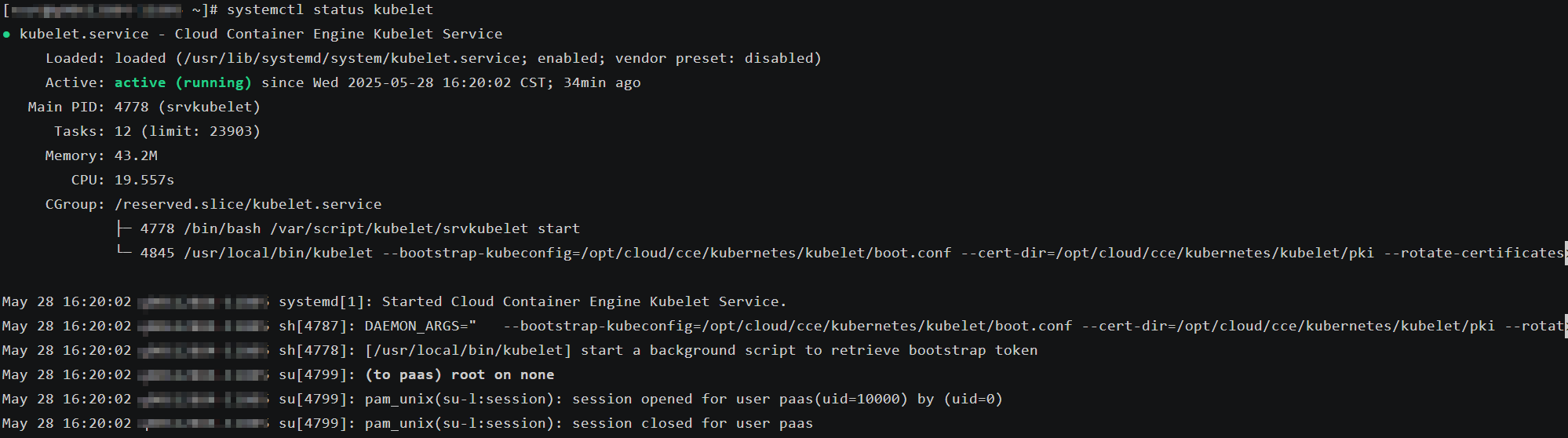
Check the status of a component. For example, to check the status of kubelet, run the following command:
systemctl status kubeletkubelet is a component name. You can replace it as required.
The expected output is shown in the figure below.
- If the component is not in the Active state, restart it. Specify the restart command based on the faulty component. If yangtse is faulty, run the following command:systemctl restart yangtse
Check the component status again.
systemctl status yangtse - If the node status is still not restored after the component restart, submit a service ticket and contact customer service.
Check Item 8: Whether the DNS Address Is Properly Configured
- Log in to the node and check whether any domain name resolution failure is recorded in /var/log/cloud-init-output.log.
cat /var/log/cloud-init-output.log | grep resolv
If the command output contains the following information, it means that there is a domain name resolution failure.
Could not resolve host: Unknown error
- On the node, ping the domain name that cannot be resolved in the previous step to check whether the domain name can be resolved.
- If the domain name cannot be pinged, the DNS cannot resolve the IP address. Check whether the DNS address in the /etc/resolv.conf file is the same as that configured on the VPC subnet. In most cases, the DNS address in the file is configured incorrectly, leading to the inability to resolve the domain name. To fix this issue, adjust the DNS configuration of the VPC subnet and reset the node.
- If the domain name can be pinged, the DNS address configuration is correct. Check whether there are other faults.
Check Item 9: Whether the vdb Disk on the Node Has Been Deleted
If the vdb disk on a node has been deleted, you can restore the node by referring to What Should I Do If the vdb Disk of a Node Is Damaged and the Node Can't Be Recovered After Reset?
Check Item 10: Whether the Docker Service Is Normal
- Run the following command to check whether the Docker service is running:systemctl status docker
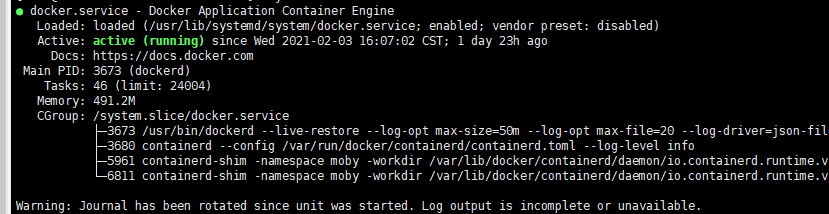
If the command fails to be executed or the Docker service status is not active, locate the cause or contact technical support if necessary.
- Run the following command to check the number of containers on the node:docker ps -a | wc -l
If the command is suspended, takes too long to execute, or if there are over 1000 abnormal containers, you should check if workloads are being repeatedly created and deleted. If many containers are being created and deleted frequently, it may result in numerous abnormal containers that cannot be cleared promptly.
In this case, stop repeated creation and deletion of workloads or use more nodes to share the load. Typically, the node will be restored after a period of time. If necessary, run the docker rm {container_id} command to manually clear the abnormal containers.