This section describes how to allocate data disk space to nodes so that you can configure the data disk space accordingly.
Allocating Default Data Disk Space
- In clusters of a version earlier than v1.23.18-r0, v1.25.13-r0, v1.27.10-r0, v1.29.4-r0, or v1.28.8-r0, a default data disk will be added to the node for the container runtime and kubelet components. You can customize the space allocation of the default data disk.
- In clusters v1.23.18-r0, v1.25.13-r0, v1.27.10-r0, v1.28.8-r0, v1.29.4-r0, or later, a default data disk will be added to the node for the container runtime and kubelet components only if System Component Storage is set to Data Disk. You can customize the space allocation of the default data disk.
When creating a node, you can specify Data Disk Space Allocation in the expanded area of Data Disk.
- Container Runtime Space Allocation
- Specified disk space: CCE divides the data disk space for two parts by default. One part is used to store the Docker/containerd working directories, container image data, and image metadata. The other is reserved for kubelet and emptyDir volumes. The available container runtime space affects image pulls and container startup and running.
- Container runtime and container image space (90% by default): stores the container runtime working directories, container image data, and image metadata.
- kubelet and emptyDir space (10% by default): stores pod configuration files, secrets, and mounted storage such as emptyDir volumes.
NoteIf the sum of the container runtime and container image space and the kubelet and emptyDir space is less than 100%, the remaining space will be allocated for user data. You can mount the storage volume to a service path. Do not leave the path empty or set it to a key OS path such as the root directory.
- Shared disk space: In clusters v1.21.10-r0, v1.23.8-r0, v1.25.3-r0, or later versions, CCE allows a container runtime (Docker or containerd) and kubelet components to share data disk space.
- Specified disk space: CCE divides the data disk space for two parts by default. One part is used to store the Docker/containerd working directories, container image data, and image metadata. The other is reserved for kubelet and emptyDir volumes. The available container runtime space affects image pulls and container startup and running.
- Space Allocation for Pods: indicates the basesize of a pod. You can set an upper limit for the disk space occupied by each workload pod (including the space occupied by container images). This setting prevents the pods from taking all the disk space available, which may cause service exceptions. The value should be less than or equal to 80% of the container runtime space. This parameter is related to the node OS and container storage Rootfs and is not supported in some scenarios. For details, see Mapping Between OS and Container Storage Rootfs.
- Write Mode
- Linear: A linear logical volume integrates one or more physical volumes. Data is written to the next physical volume when the previous one is used up.
- Striped: available only if there are at least two data disks. A striped logical volume stripes data into blocks of the same size and stores them in multiple physical volumes in sequence. This allows data to be concurrently read and written. A storage pool consisting of striped volumes cannot be scaled-out.
Container Runtime Space Allocation
For nodes using a data disk shared between a container runtime and kubelet components, the container storage Rootfs is of the OverlayFS type. For details about data disk space allocation, see Data Disk Shared Between a Container runtime and kubelet Components.
For a node using a non-shared data disk (100 GiB for example), the division of the disk space varies depending on the container storage Rootfs type Device Mapper or OverlayFS. For details about the container storage Rootfs corresponding to different OSs, see Mapping Between OS and Container Storage Rootfs.
- Rootfs (Device Mapper)
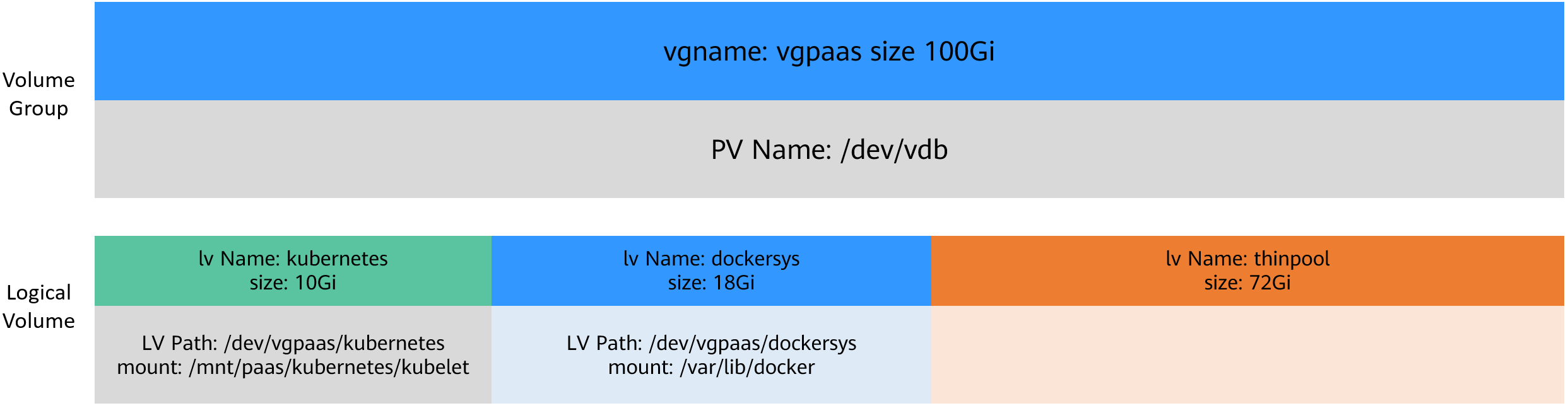
By default, the container runtime and image space, occupying 90% of the data disk, can be divided into the following two parts:
- The /var/lib/docker directory is used as the Docker working directory and occupies 20% of the container runtime and container image space by default. (Space of the /var/lib/docker directory = Data disk space × 90% × 20%)
- The thin pool is used to store container image data, image metadata, and container data, and occupies 80% of the container runtime and container image space by default. (Thin pool space = Data disk space × 90% × 80%)
The thin pool is dynamically mounted. You can view it by running the lsblk command on a node, but not the df -h command.
Figure 1 Space allocation for container runtimes of Device Mapper
- Rootfs (OverlayFS)
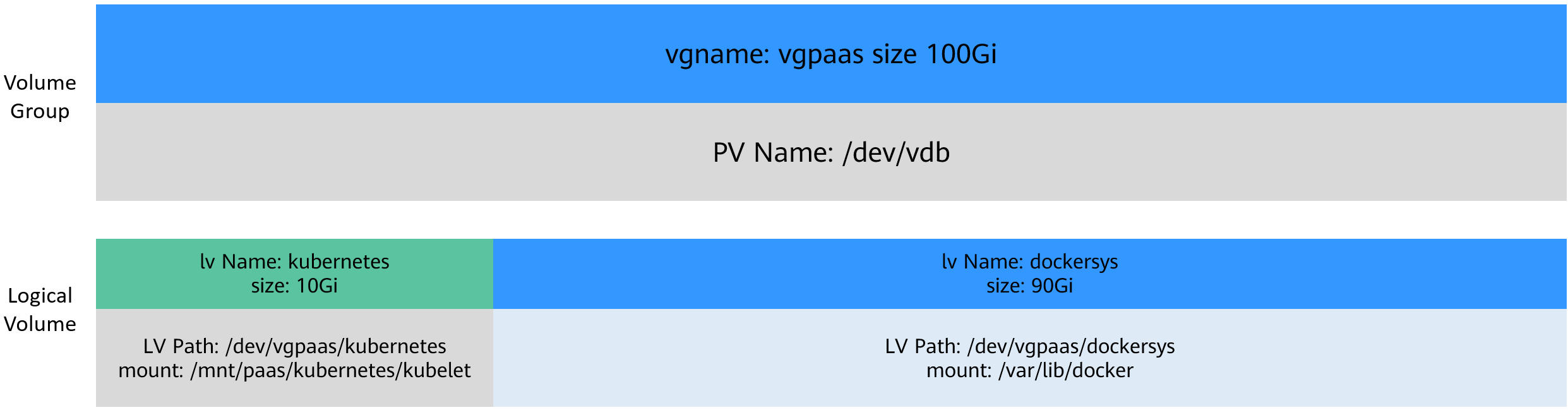
No separate thin pool. The entire container runtime and container image space (90% of the data disk by default) are in the /var/lib/docker directory.
Figure 2 Space allocation for container runtimes of OverlayFS
Space Allocation for Pods
The custom pod container space (basesize) is related to the node OS and container storage Rootfs. For details about the container storage Rootfs, see Mapping Between OS and Container Storage Rootfs.
- Device Mapper supports custom pod basesize. The default value is 10 GiB.
- In OverlayFS mode, the pod container space is not limited by default.
When configuring basesize, consider the maximum number of pods allowed on one node. The container runtime space should be greater than the total disk space used by containers (formula: Container runtime space and container image space (90% by default) > Number of containers × basesize). Otherwise, the container runtime space allocated to the node may be insufficient and the container cannot be started.
For nodes that support basesize, when Device Mapper is used, although you can limit the size of the /home directory of a single container (to 10 GiB by default), all containers on the node still share the thin pool of the node for storage. They are not completely isolated. When the sum of the thin pool space used by certain containers reaches the upper limit, other containers cannot run properly.
In addition, after a file is deleted in the /home directory of the container, the thin pool space occupied by the file is not released immediately. Therefore, even if basesize is set to 10 GiB, the thin pool space occupied by files keeps increasing until 10 GiB when files are created in the container. The space released after file deletion will be reused eventually. If the number of containers on the node multiplied by basesize is greater than the thin pool space size of the node, there is a possibility that the thin pool space has been used up.
Mapping Between OS and Container Storage Rootfs
OS | Container Storage Rootfs | Custom Basesize |
|---|---|---|
CentOS 7.x | Clusters v1.19.16 and earlier use Device Mapper. Clusters v1.19.16 and later use OverlayFS. NOTE: When upgrading clusters of earlier versions, Device Mapper nodes will not automatically switch to OverlayFS. You need to manually reset these nodes. | Supported when Rootfs is set to Device Mapper and the runtime is Docker. The default value is 10 GiB. If Rootfs is set to OverlayFS, the basesize cannot be specified. |
EulerOS 2.5 | Device Mapper | Supported only when the runtime is Docker. The default value is 10 GiB. |
Ubuntu 18.04 | OverlayFS | Not supported |
Ubuntu 22.04 | OverlayFS | Not supported |
HCE OS 2.0 | OverlayFS | Supported only by Docker clusters earlier than v1.23.14-r0, v1.25.9-r0, v1.27.6-r0, or v1.28.4-r0. There are no limits by default. Supported by both Docker and containerd clusters v1.23.14-r0, v1.25.9-r0, v1.27.6-r0, v1.28.4-r0, or later. There are no limits by default. |
OS | Container Storage Rootfs | Custom Basesize |
|---|---|---|
CentOS 7.x | OverlayFS | Not supported |
Ubuntu 18.04 | OverlayFS | Not supported |
Ubuntu 22.04 | OverlayFS | Not supported |
HCE OS 2.0 | OverlayFS | Supported only by Docker clusters earlier than v1.23.14-r0, v1.25.9-r0, v1.27.6-r0, or v1.28.4-r0. There are no limits by default. Supported by both Docker and containerd clusters v1.23.14-r0, v1.25.9-r0, v1.27.6-r0, v1.28.4-r0, or later. There are no limits by default. |
Garbage Collection Policies for Container Images
When the container runtime space is insufficient, image garbage collection is triggered.
The policy for garbage collecting images takes two factors into consideration: HighThresholdPercent and LowThresholdPercent. Disk usage exceeding the high threshold (default: 80%) will trigger garbage collection, which will delete least recently used images until the low threshold (default: 70%) is met.
Recommended Configuration for the Container runtime Space
- The container runtime space should be greater than the total disk space used by containers. Formula: Container runtime space > Number of containers × basesize
- You are advised to create and delete files of containerized services in local storage volumes (such as emptyDir and hostPath volumes) or cloud storage directories mounted to the containers. In this way, the thin pool space is not occupied. emptyDir volumes occupy the kubelet space. Therefore, properly plan the size of the kubelet space.
- You can deploy services on nodes that use the OverlayFS (for details, see Mapping Between OS and Container Storage Rootfs) so that the disk space occupied by files created or deleted in containers can be released immediately.
Data Disk Shared Between a Container runtime and kubelet Components
Docker/containerd and kubelet components share the space of a data disk.
- This function is available only to clusters v1.21.10-r0, v1.23.8-r0, v1.25.3-r0, or later.
- If Rootfs is set to OverlayFS, shared data disks are supported. If Rootfs is set to Device Mapper, shared data disks are not supported.
- If you have installed a CCE Node Problem Detector add-on in the cluster, upgrade the add-on to v1.18.10 or later. Otherwise, false alarms will be generated.
- If you have installed the Cloud Native Log Collection add-on in the cluster, upgrade the add-on to v1.3.0 or later. Otherwise, log collection will be affected.
- If you have installed ICAgent in the cluster, upgrade it to v5.12.140 or later. Otherwise, log collection will be affected.
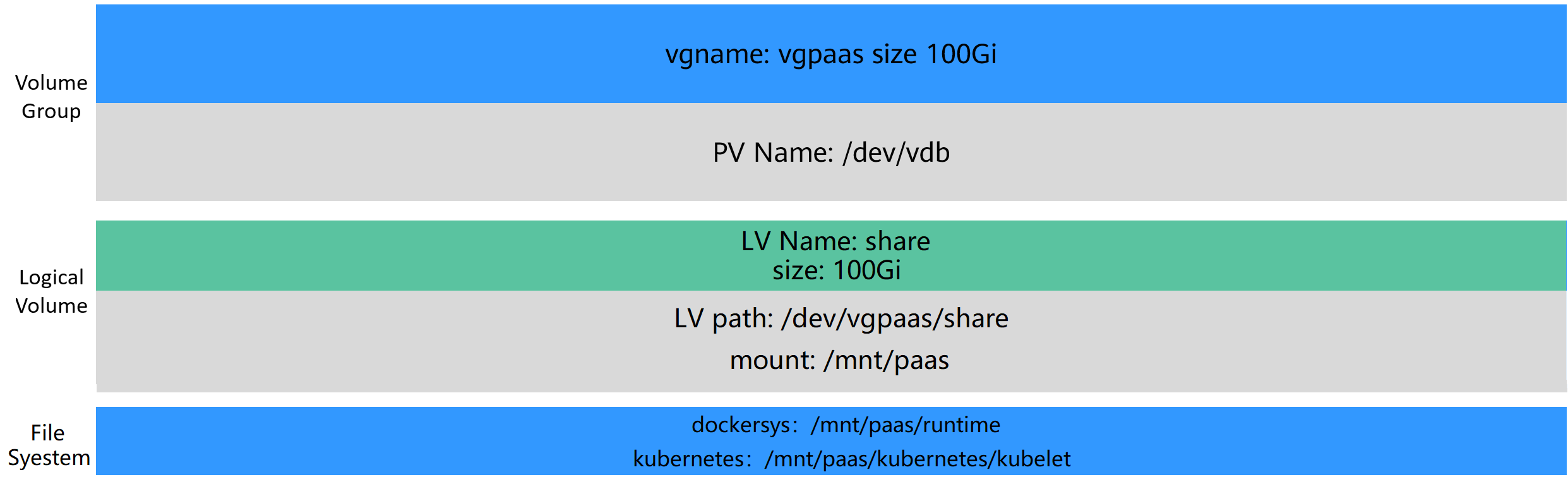
For nodes using a shared data disk, the container storage Rootfs is of the OverlayFS type. After such a node is created, the data disk space (for example, 100 GiB) will not be divided for the container runtimes, container images, and kubelet components. The data disk is mounted to /mnt/paas, and the storage space is divided using two file systems.
- dockersys: /mnt/paas/runtime
- Kubernetes: /mnt/paas/kubernetes/kubelet
Figure 3 Allocating the storage space of a shared data disk