Model Definition
The proprietary, next-generation Cloud Native Network 2.0 combines the network interfaces and supplementary network interfaces of VPC. This allows you to bind network interfaces or supplementary network interfaces to pods, giving each pod a unique IP address within the VPC. Cloud Native Network 2.0 also has features like ELB passthrough networking and association of security groups and EIPs with pods. Because container tunnel encapsulation and NAT are not required, Cloud Native Network 2.0 delivers higher network performance than the container tunnel and VPC networks.
Figure 1 Cloud Native Network 2.0
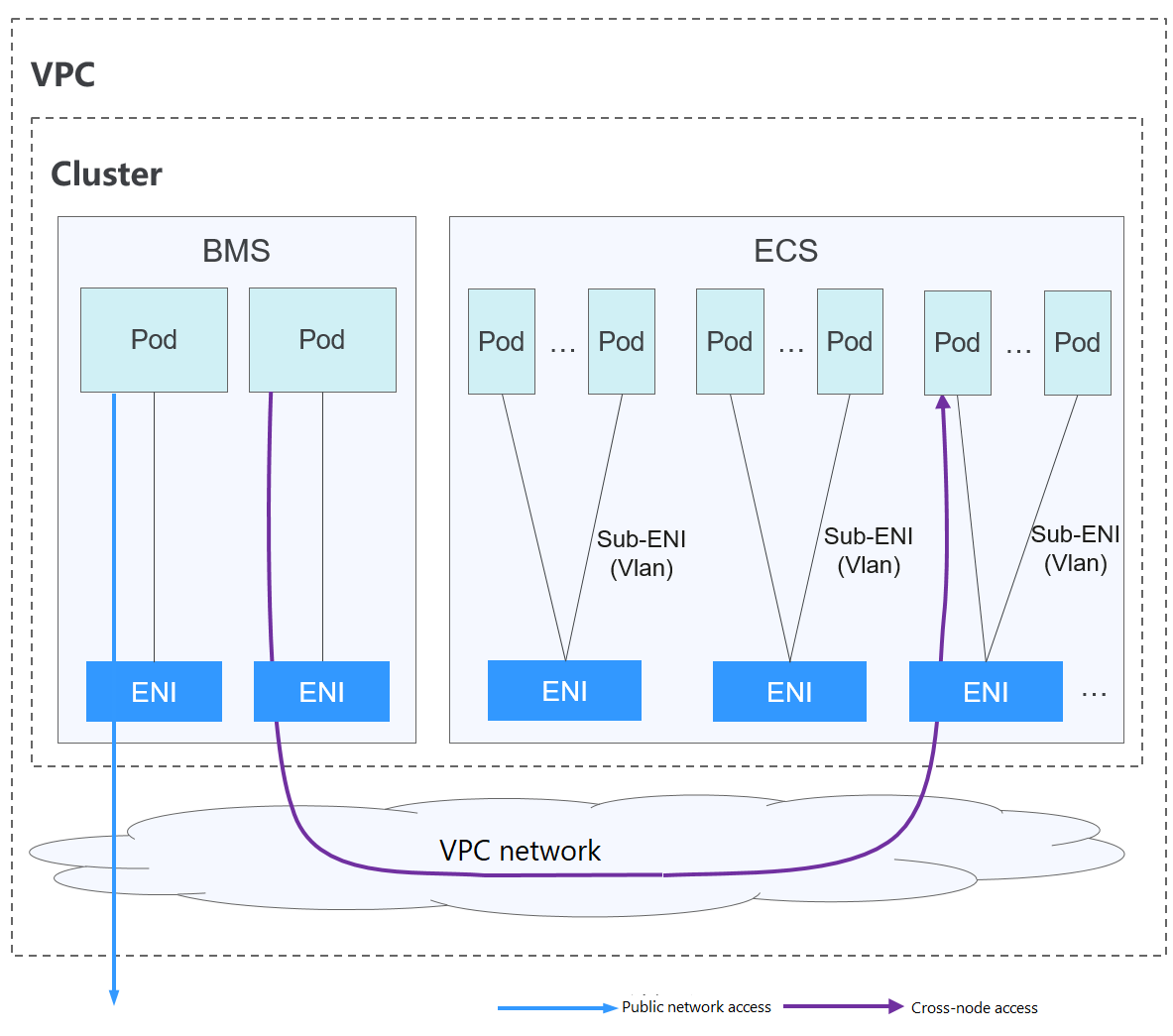
In a cluster using Cloud Native Network 2.0, pods rely on network interfaces and supplementary network interfaces to access external networks.
- Pods running on an ECS use supplementary network interfaces to access external networks. Supplementary network interfaces are attached to the elastic network interfaces of ECSs through VLAN subinterfaces.
- To run a pod, bind a network interface to it. The maximum number of pods that can run on a single node depends on the number of network interfaces that can be bound to the node and the number of network interface ports available on the node.
- Traffic for communications between pods on a node, communications between pods on different nodes, and pod access to networks outside a cluster is forwarded through the elastic or supplementary network interfaces of VPC.
Notes and Constraints
This network model is available only to CCE Turbo clusters.
Advantages and Disadvantages
Advantages
- VPCs serve as the foundation for constructing container networks. Every pod has its own network interface and IP address, which simplifies network problem-solving and enhances performance.
- In the same VPC, network interfaces are directly bound to pods in a cluster, so that resources outside the cluster can directly communicate with containers within the cluster.Note
Similarly, if the VPC is accessible to other VPCs or data centers, resources in other VPCs or data centers can directly communicate with containers in the cluster, provided there are no conflicts between the network CIDR blocks.
- The load balancing, security group, and EIP capabilities provided by VPC can be directly used by pods.
Disadvantages
Container networks are built on VPCs, with each pod receiving an IP address from the VPC CIDR block. As a result, it is crucial to plan the container CIDR block carefully before creating a cluster.
Application Scenarios
- High performance requirements: Cloud Native Network 2.0 uses VPC networks to construct container networks, eliminating the need for tunnel encapsulation or NAT required by container communications. This makes Cloud Native Network 2.0 ideal for scenarios that demand high bandwidth and low latency.
- Large-scale networking: Cloud Native Network 2.0 supports up to 2,000 ECS nodes and 100,000 pods.
Recommendation for CIDR Block Planning
As explained in Cluster Network Structure, there are three networks in a cluster: cluster network, container network, and Service network. When planning network addresses, consider the following:
- All subnets (including those created from the secondary CIDR blocks) in the VPC where the cluster resides cannot conflict with the Service CIDR blocks.
- Each CIDR block has sufficient IP addresses.
- The IP addresses in cluster CIDR blocks must match the cluster scale. Otherwise, nodes cannot be created due to insufficient IP addresses.
- The IP addresses in container CIDR blocks must match the service scale. Otherwise, pods cannot be created due to insufficient IP addresses.
In Cloud Native Network 2.0, the container CIDR block and node CIDR block share the IP addresses in the VPC CIDR block. The pod subnet and node subnet should not be the same. Otherwise, containers or nodes may fail to be created due to insufficient IP addresses.
You can add subnets to the container CIDR block after creating a cluster to increase the number of available IP addresses. In this case, ensure that the added subnets do not conflict with other subnets in the container CIDR block.
Example of Cloud Native Network 2.0 Access
In this example, a CCE Turbo cluster is created, and the cluster contains three ECS nodes.
You can check the basic information about a node on the ECS console. You can see that a primary network interface and an extended network interface are bound to the node. Both of them are elastic network interfaces. The IP address of the extended network interface belongs to the container CIDR block and is used to bind supplementary network interfaces to pods on the node.
The following example shows how to create a workload in a cluster that uses Cloud Native Network 2.0.
- Use kubectl to access the cluster. For details, see Accessing a Cluster Using kubectl.
- Create a Deployment in the cluster.
Create the deployment.yaml file. The following shows an example:
kind: DeploymentapiVersion: apps/v1metadata:name: examplenamespace: defaultspec:replicas: 6selector:matchLabels:app: exampletemplate:metadata:labels:app: examplespec:containers:- name: container-0image: 'nginx:perl'resources:limits:cpu: 250mmemory: 512Mirequests:cpu: 250mmemory: 512MiimagePullSecrets:- name: default-secretCreate the workload.
kubectl apply -f deployment.yaml - Check the running pods.kubectl get pod -owide
Command output:
NAME READY STATUS RESTARTS AGE IP NODE NOMINATED NODE READINESS GATESexample-5bdc5699b7-54v7g 1/1 Running 0 7s 10.1.18.2 10.1.0.167 <none> <none>example-5bdc5699b7-6dzx5 1/1 Running 0 7s 10.1.18.216 10.1.0.186 <none> <none>example-5bdc5699b7-gq7xs 1/1 Running 0 7s 10.1.16.63 10.1.0.144 <none> <none>example-5bdc5699b7-h9rvb 1/1 Running 0 7s 10.1.16.125 10.1.0.167 <none> <none>example-5bdc5699b7-s9fts 1/1 Running 0 7s 10.1.16.89 10.1.0.144 <none> <none>example-5bdc5699b7-swq6q 1/1 Running 0 7s 10.1.17.111 10.1.0.167 <none> <none>All pods use supplementary network interfaces, which are bound to the extended network interface of the node.
For example, the IP address of the extended network interface on the node (10.1.0.167) is 10.1.17.172. On the network interfaces page, you can see that there are three supplementary network interfaces bound to the extended network interface whose IP address is 10.1.17.172. The IP addresses bound to these supplementary network interfaces are the IP addresses of the pods running on the node.
- Log in to an ECS in the same VPC and access the IP address of a pod from outside the cluster. In this example, the accessed pod IP address is 10.1.18.2.curl 10.1.18.2
If the following information is displayed, the workload can be accessed:
<!DOCTYPE html><html><head><title>Welcome to nginx!</title><style>body {width: 35em;margin: 0 auto;font-family: Tahoma, Verdana, Arial, sans-serif;}</style></head><body><h1>Welcome to nginx!</h1><p>If you see this page, the nginx web server is successfully installed andworking. Further configuration is required.</p><p>For online documentation and support please refer to<a href="http://nginx.org/">nginx.org</a>.<br/>Commercial support is available at<a href="http://nginx.com/">nginx.com</a>.</p><p><em>Thank you for using nginx.</em></p></body></html>
Helpful Links
- For details about the maximum number of pods that can run on a node in a cluster with different network models, see Maximum Number of Pods That Can Be Created on a Node.