You can expand the size of a vault if its total capacity is insufficient.
Procedure
- Log in to the CBR console.
- In the upper left corner, click
 and select a region.
 - Click
 and choose Storage > Cloud Backup and Recovery.
- In the upper left corner, click
- Locate the target vault and choose More > Expand Capacity in the Operation column.
Figure 1 Expanding vault capacity
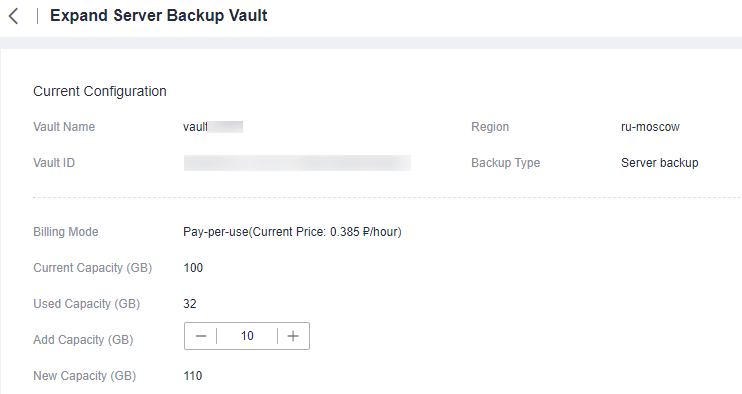
- Enter the capacity to be added. The minimum value is 1 GB.
- Click Next. Confirm the settings and click Submit.
- Go back to the vault list. If the vault capacity in the Vault Capacity (GB) column is greater than the original capacity, the vault capacity has been expanded.
Auto Capacity Expansion
If you want a vault to be automatically expanded when its capacity is used up, enable auto capacity expansion.
If this function is enabled, the vault capacity will be automatically expanded to 1.25 times its current capacity when its capacity is used up.
Auto capacity expansion does not take effect if it is enabled after the vault is full.
- Log in to the CBR console.
- In the upper left corner, click and select a region.
- Click and choose Storage > Cloud Backup and Recovery.
- In the upper left corner, click
- Locate the target vault and click its name.
- On the vault details page, enable Auto Capacity Expansion. By default, this feature is disabled. It becomes unavailable when the vault's used capacity reaches or exceeds 100% of the total capacity.
- Enabled: When the vault's used capacity reaches or exceeds the limit, the vault automatically expands to 1.25 times its current capacity.
- Disabled: The vault does expand automatically.
If Auto Capacity Expansion is turned on, the function is enabled.
- (Optional) Disable Auto Capacity Expansion if you no longer need this function.
If Auto Capacity Expansion is turned off, the function is disabled.
Parent topic: Vault Management