This section describes how to quickly create a cloud disk backup.
If the disk to be backed up is encrypted, the backup will also be automatically encrypted. The encryption attribute of backups cannot be changed.
Backing up a disk does not impact the disk performance.
The backup service experiences peak usage from 22:00 to 08:00, during which delays may occur. To ensure optimal performance, it is recommended that you evaluate your service types and stagger backups across discrete time periods.
Prerequisites
A disk can be backed up only when its status is Available or In-use. If you have performed operations such as expanding, attaching, detaching, or deleting a disk, refresh the page first to ensure that the operation is complete and then determine whether to back up the disk.
Procedure
- Log in to the CBR console.
- In the upper left corner, click
 and select a region.
 - Click
 and choose Storage > Cloud Backup and Recovery.
- In the upper left corner, click
- On the Cloud Disk Backups page, click the Vaults tab and find the vault with which the disk is associated.
- Perform backup in either of the following ways:
- Click Perform Backup in the Operation column. In the disk list, select the disk you want to back up. After a disk is selected, it is added to the list of selected disks.
Figure 1 Selecting the disk to be backed up

- Click the vault name to go to the vault details page. On the Associated Disks tab, locate the target disk and click Perform Backup in the Operation column.
Figure 2 Perform Backup
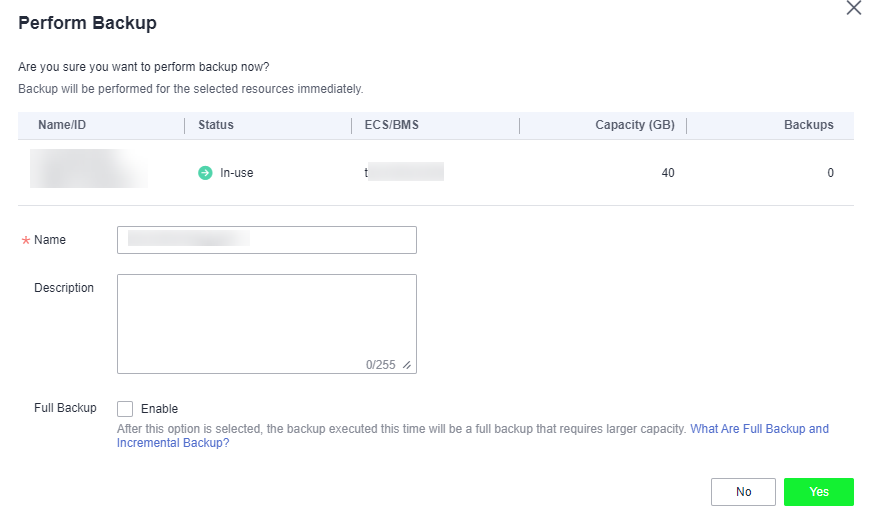
NoteCBR will identify whether the selected disk is encrypted. If it is encrypted, the backups will be automatically encrypted.
- Click Perform Backup in the Operation column. In the disk list, select the disk you want to back up. After a disk is selected, it is added to the list of selected disks.
- Set Name and Description for the backup.
Table 1 Parameter description Parameter
Description
Remarks
Name
Name of the backup you are creating.
The name can contain 1 to 64 characters. Only letters, digits, underscores (_), and hyphens (-) are allowed.
NOTE:You can also use the default name manualbk_xxxx.
If multiple disks are to be backed up, the system automatically adds suffixes to their backup names, for example, backup-0001 and backup-0002.
manualbk_d819
Description
Description of the backup.
It cannot exceed 255 characters.
--
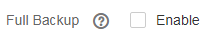
- Choose whether to enable full backup. If full backup is enabled, CBR performs a full backup on every associated disk. A full backup requires a larger capacity than an incremental backup.
Figure 3 Full Backup
- Click OK. CBR automatically creates a backup for the disk.
On the Backups tab, if the status of the backup is Available, the backup task is successful.
Note- If you delete data from the disk during the backup, the deleted data may not be backed up. To ensure data integrity, delete the target data after the backup is complete, and then perform the backup.
After the backup is complete, you can use the backup to restore disk data. For details, see Restoring from a Cloud Disk Backup.