Overview
A Cloud Bastion Host (CBH) instance corresponds to an independently running CBH O&M management system. To perform real-time, remote, and efficient O&M on your resources, create a CBH instance first, obtain an account on the CBH instance you got, log in to the CBH system mapped to the CBH instance, and configure the O&M system.
Scenarios
When purchasing a bastion host, which AZ you can select depends on the instance type (Single-node or Primary/Standby) you select.
- Single-node: As only one bastion host will be created after you create a CBH instance, you can select any AZ.
- Primary/Standby: As two bastion hosts will be created after you create a CBH instance, you need to select the primary AZ and standby AZ based on the disaster recovery (DR) or network latency requirements.
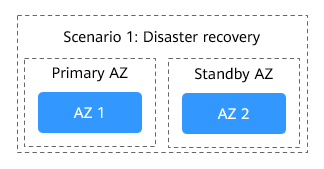
- Scenario 1: If DR is required, deploy the primary and standby instances in different AZs.
Example: Select AZ1 for Primary AZ and AZ2 for Standby AZ.
Figure 1 AZ selection for DR capability requirements
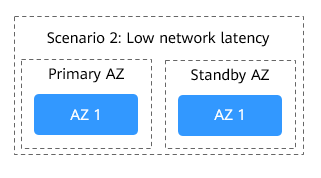
- Scenario 2: For lower network latency, deploy the primary and standby instances in the same AZ. Unlike DR scenarios, this configuration reduces latency significantly.
Example: Select AZ1 for both Primary AZ and Standby AZ.
Figure 2 AZ selection for low network latency
- Scenario 1: If DR is required, deploy the primary and standby instances in different AZs.
Prerequisites
- You have obtained the information about the resources to be managed in the CBH system, and the resources are in the region where CBH is available.
Procedure
- Log in to the management console.
- In the upper left corner of the page, select a region, click
 , and choose from Service List.
 - Click Create CBH Instance.
- Select CBH Instance for Service Type and specify other parameters as required. For more information, see Table 1.
Table 1 CBH instance parameters Parameter
Description
Billing Mode
The billing mode of the CBH instance. Currently, only Pay-per-use is supported.
Pay-per-use billing is a postpaid mode in which you pay for what you use by the hour.
NOTE:After the pay-per-use billing mode is enabled, the billing stops only when the target instance is deleted, regardless of the instance running status.
Region
Select the region where you want to deploy the bastion host. For low network latency and quick resource access, select the region nearest to your workloads.
Instance Type
Select a single-node or primary/standby instance type based on your service requirements.
- Single-node: Only one bastion host is available after the purchase.
- Primary/Standby: After the purchase, two bastion hosts are delivered to form a two-node cluster. Once the primary bastion host is unavailable, the standby one takes over the job immediately.NOTE:
If you buy a primary/standby instance, do not disable HA, or logins will fail.
AZ
An AZ is the location where the bastion host instance you create is deployed.
Instance Name
Name of the CBH instance.
Specifications
Specifications of your CBH instance.
CBH provides the standard and professional editions. You can select 50, 100, 200, 500, 1,000, 2,000, and 5,000 asset specifications.
Asset quantity indicates the maximum number of resources the instance you create can manage and the maximum number of concurrent connections your instance can establish. The vCPUs and the size of data and system disks vary depending on the asset quantity.
For example, if you select 100 assets, the number of resources your instance can manage and the maximum number of concurrent connections your instance can establish are both 100.
NOTE:Currently, primary/standby instances cannot manage public network resources using EIPs.
VPC
The Virtual Private Cloud (VPC) where your instance is located. Select a VPC in the current region.
If no VPC is available in the current region, click View VPC and create one.
NOTE:- By default, networks in VPCs in different regions or even in the same region are not connected. The network communications on these different networks are isolated from each other. This is not the case for different AZs on the same VPC. Two networks on the same VPC should be able to communicate with each other even if they are in different AZs.
- A CBH instance directly manages and allows access from resources, such as ECSs, in the same VPC in the same region. To manage resources such as ECSs in different VPCs in the same region, establish a VPC peering connection, use a VPN, or use other methods to connect networks. For details, see Creating a VPC Peering Connection. Managing ECSs across regions is not recommended.
Subnet
The subnet in the current VPC for your CBH instance.
NOTE:The selected subnet must be in the VPC network segment.
Assign IPv4 Address
Select Auto or Manual.
If you select Manual, you can view the used IP addresses.
Security Group
The security group for your CBH instance. The default security group is Sys-default in the current region.
If no security group is available, click Create Security Group to create or configure a new security group.
NOTE:- A security group provides access rules for the CBH instances and resources that have the same security protection requirements and are mutually trusted in the same VPC. CBH instances are protected by these access rules after being added the security group.
- CBH instances and ECSs can be added to the same security groups. They do not affect each other when implementing security group rules.
- For details about how to modify a security group, see Changing Security Groups.
- Before creating HA instances, ensure that the security group allows inbound traffic from ports 22, 31036, 31679, and 31873.
- When a bastion host instance is created, ports 80, 8080, 443, and 2222 are automatically enabled. If you do not need to use them, disable them immediately after the instance is created.
- During cross-version upgrade, ports 22, 31036, 31679, and 31873 are automatically enabled for the instance. After the upgrade, keep port 31679 enabled and disable other ports immediately if you do not need to use them.
EIP
(Optional) Select an EIP in the current region.
If no EIP is available in the current region, click Create EIP to create one.
NOTE:- If you select an EIP when creating an instance, but the EIP fails to be bound to the instance after the instance is in the running state, the EIP may have been bound to other servers while the instance is being created. In this case, bind another EIP to the instance by referring to Binding an EIP to a CBH Instance.
- An EIP can be bound to only one cloud resource. A CBH instance cannot share an EIP with other cloud resources. After you created a CBH instance, you are required to bind an EIP to the instance for logging in to the CBH system. You need to create at least one EIP for a CBH instance. You can bind an EIP to the CBH instance now or later by referring to Binding an EIP to a CBH Instance.
- To meet the requirements of the CBH system, set the EIP bandwidth to 5 Mbit/s or higher.
- After the CBH instance is created, you can unbind the original EIP from the instance and bind a new EIP to it.
Enterprise Project
Select the enterprise project the CBH instance you create belongs to.
The default enterprise project is selected by default.
Username
The default username admin is used.
admin is the system administrator account. This account has the highest operation permissions. Keep the account information secure.
Password
User-defined password of the admin user.
NOTE:- The password must:
- Contain 8 to 32 characters.
- Contain at least three of the following types of characters: uppercase letters (A to Z), lowercase letters (a to z), digits (0 to 9), and following special characters: !@$%^-_=+[{}]:,./?~#*
- Cannot contain the username or the username spelled backwards.
- Cannot contain more than two consecutive identical characters.
- Enter the same password in the Password and Confirm Password text boxes.
- The CBH system cannot obtain the password of system administrator admin. Keep your account information secure.
- When you log in to your CBH system as admin for the first time, change the password and configure mobile phone number as prompted. Otherwise, you cannot log in to the CBH system.
- If you forget the password of user admin of the instance after you create it, you can reset the password.
Tag
Tags: It is recommended that you use the TMS predefined tag function to add the same tag to different cloud resources.
If your organization has configured a tag policy for CBH, you need to add tags in compliance with the policy. If a tag does not comply with the tag policies, CBH instances may fail to be created. Contact your organization administrator to learn more about tag policies.
- Confirm details in the Current Configuration area and click Create Now.Note
When receiving a network restriction notification, click Enable to eliminate the network restrictions so that the instance you create can be issued.
You can view the rules in the security group and firewall ACL.
- Access to port 9443 is allowed in the outbound direction of the security group to which your CBH instance belongs.
- The subnet where the instance locates is not associated with the firewall ACL, or the ACL rule of the associated firewall allows the instance to access port 9443 in the outbound direction.
- On the displayed page, check the order details and click Submit.
- Return to the CBH instance list and check the new CBH instance you create.
The mapped CBH system is automatically created for you after you create a CBH instance. It takes about 10 minutes for the creation to complete.
NoteDo not unbind an EIP from a CBH instance before the mapped CBH system is created. If you unbind an EIP from an instance before its status changes to Running, the mapped CBH system may fail to be created.
Follow-up Procedure
- If the instance Status is Running, the CBH system is successfully created. Then, you can log in to the CBH system.
- If the instance Status is Failed to create, check the failure cause in the displayed dialog box.
- You need to configure and replace CBH system certificates in a timely manner.