Scenarios
You can automatically adjust your purchased EIP bandwidth and shared bandwidth using a bandwidth scaling policy. This section describes how to create a bandwidth scaling policy.
When creating a bandwidth scaling policy, you need to configure basic information. The system supports three types of bandwidth scaling policies: alarm-based, scheduled, and periodic.
The basic information for creating a bandwidth scaling policy includes the policy name, resource type, policy type, and trigger condition.
Creating an Alarm-based Bandwidth Scaling Policy
- Log in to the management console.
- Under Computing, click Auto Scaling. In the navigation pane on the left, choose Bandwidth Scaling.
- Click Create Bandwidth Scaling Policy.
- Set parameters, such as the policy name, policy type, and trigger condition. For details, see Table 1.
Table 1 Alarm policy parameters Parameter
Description
Example Value
Region
Select the region where the bandwidth scaling policy is applied.
-
Policy Name
Enter a name for the bandwidth scaling policy.
The name consists of only letters, digits, underscores (_), and hyphens (-).
-
Resource Type
Select the type of the bandwidth to be adjusted. You can select EIP or Shared bandwidth.
EIP
EIP
Select the EIP whose bandwidth needs to be scaled.
-
Policy Type
Select Alarm.
Alarm
Alarm Rule
You can use an existing alarm rule or create a new one. Alternatively, click Create Alarm Rule on the right side of the Rule Name parameter and create an alarm rule on the Alarm Rules page. For details, see Creating an Alarm Rule.
To create an alarm rule, configure the following parameters:
- Rule Name
Enter a name for the new alarm rule, for example, as-alarm-7o1u.
- Trigger Condition
Select a monitoring metric and trigger condition. Table 2 lists the supported monitoring metrics. An example value is Outbound Traffic Avg. > 100 bit/s.
- Monitoring Interval
Specifies the monitoring period for the metric, for example, 5 minutes.
- Consecutive Occurrences
Specifies the number of consecutive periods in which the triggering condition is met for triggering a scaling action.
-
Scaling Action
Specifies the execution action in the AS policy.
The following scaling action options are available:
- Add
When a scaling action is triggered, the bandwidth is increased.
- Reduce
When a scaling action is triggered, the bandwidth is decreased.
- Set to
The bandwidth is set to a fixed value.
NOTE:The step (minimum unit for bandwidth adjustment) varies depending on the bandwidth value range. The bandwidth will be automatically adjusted to the nearest value according to the actual step.
- If the bandwidth is less than or equal to 300 Mbit/s, the default step is 1 Mbit/s.
- If the bandwidth ranges from 300 Mbit/s to 1,000 Mbit/s, the default step is 50 Mbit/s.
- If the bandwidth is greater than 1,000 Mbit/s, the default step is 500 Mbit/s.
-
Cooldown Period
A cooldown period (in seconds) is the period of time between two scaling actions. AS recounts the cooldown period after a scaling action is complete. During the cooldown period, AS denies all scaling requests triggered by alarm-based policies. Scaling requests triggered manually or by scheduled or periodic policies are not affected.
300s
Table 2 Monitoring metrics supported by the alarm policy Metric
Description
Inbound Bandwidth
Indicates the network rate of inbound traffic.
Inbound Traffic
Indicates the network traffic going into the cloud platform.
Outbound Bandwidth
Indicates the network rate of outbound traffic.
Outbound Traffic
Indicates the network traffic going out of the cloud platform.
Outbound Bandwidth Usage
Indicates the usage of network rate of outbound traffic in the unit of percentage.
- Rule Name
- After setting the parameters, click Create Now.
The newly created bandwidth scaling policy is displayed on the Bandwidth Scaling page and is in Enabled state by default.
Creating an Alarm Rule
When creating an alarm-based bandwidth scaling policy, you can click Create Alarm Rule to the right of Rule Name to create an alarm rule. To do so, perform the following operations:
- Click Create Alarm Rule to the right of Rule Name to switch to the Alarm Rules page of Cloud Eye.
- On the Alarm Rules page, click Create Alarm Rule in the upper right corner.
- Set parameters based on Figure 1 and Table 3. For more information about how to set alarm rules, see Cloud Eye User Guide.
Figure 1 Creating an alarm rule
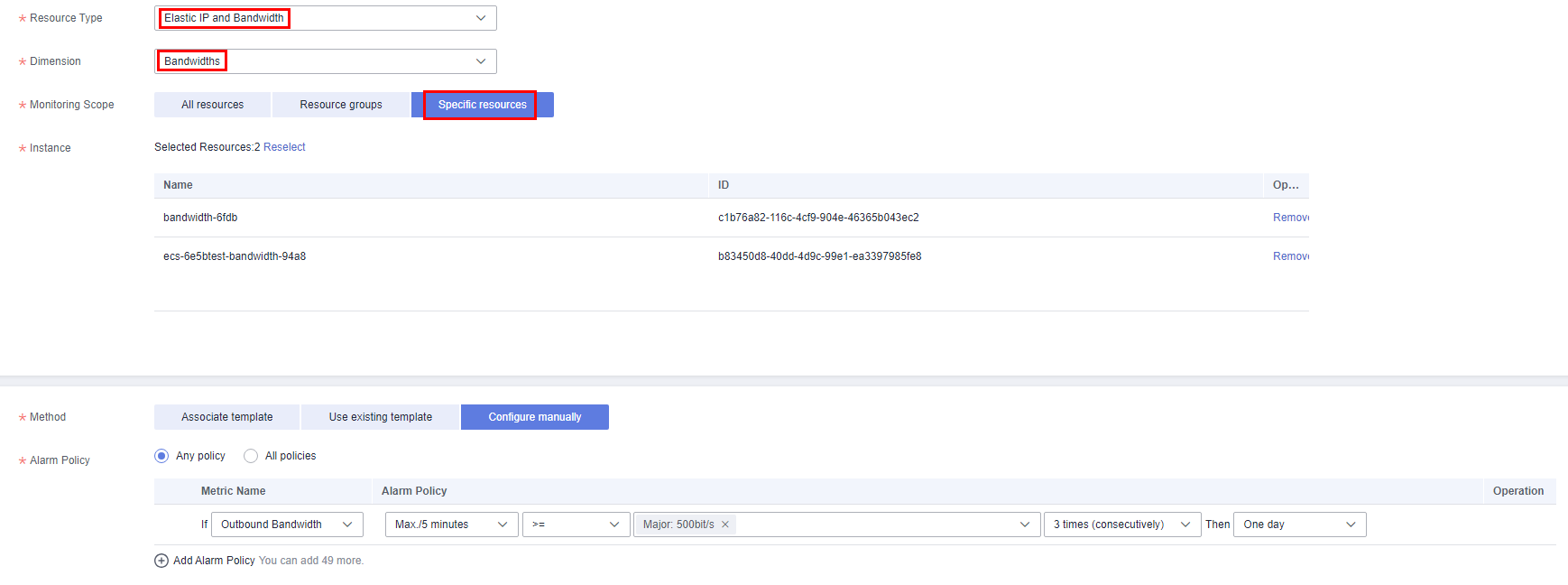
Table 3 Key parameters for creating an alarm rule Parameter
Description
Example Value
Name
Specifies the name of the alarm rule.
alarm-bandwidth
Enterprise Project
Specifies the enterprise project the alarm rule belongs to. Only users with the enterprise project permissions can view and manage the alarm rule.
default
Resource Type
Specifies the name of the service to which the alarm rule applies. Set this parameter to Elastic IP and Bandwidth.
Elastic IP and Bandwidth
Dimension
Specifies the item of the monitored service. Bandwidth scaling adjusts the bandwidth. Therefore, set this parameter to Bandwidths.
Bandwidths
Monitoring Scope
Specifies the resources to which the alarm rule applies. Set this parameter to Specific resources. Search for the bandwidth using its name or ID. The name and ID can be obtained from the EIP details.
Specific resources
Method
There are three options: Associate template, Use existing template, and Configure manually.
NOTE:After an associated template is modified, the policies contained in this alarm rule to be created will be modified accordingly.
Configure manually
Alarm Policy
Specifies the alarm policy for triggering the alarm rule. Set this parameter as required. For details about the monitoring metrics, see Table 2.
-
- After setting the parameters, click Create.
- On the Create Bandwidth Scaling Policy page, click
 to the right of Rule Name, and select the created alarm rule.
Alternatively, you can create an alarm rule on the Cloud Eye console page before creating a bandwidth scaling policy. Ensure that the EIP bandwidth you want to adjust is configured for the alarm rule. After the alarm rule is created, you can select the rule when creating a bandwidth scaling policy.
Creating a Scheduled or Periodic Bandwidth Scaling Policy
- Log in to the management console.
- Under Computing, click Auto Scaling. In the navigation pane on the left, choose Bandwidth Scaling.
- Click Create Bandwidth Scaling Policy.
- Set parameters, such as the policy name, resource type, policy type, and trigger condition. For details, see Table 4.
Table 4 Scheduled or periodic policy parameters Parameter
Description
Example Value
Region
Select the region where the bandwidth scaling policy is applied.
-
Policy Name
Enter a name for the bandwidth scaling policy.
The name consists of only letters, digits, underscores (_), and hyphens (-).
as-policy-p6g5
Resource Type
Select the type of the bandwidth to be adjusted. You can select EIP or Shared bandwidth.
EIP
EIP
Select the EIP whose bandwidth needs to be scaled. This parameter is mandatory when Resource Type is set to EIP.
-
Shared Bandwidth
Specifies the shared bandwidth to be scaled. This parameter is mandatory when Resource Type is set to Shared bandwidth.
-
Policy Type
Specifies the policy type. You can select a scheduled or periodic policy.
If you select Periodic, you are required to configure two more parameters:
- Time Range
Specifies the time range during which the AS policy can be triggered.
- Period
- Day
- Week
- Month
-
Triggered At
Specifies the time at which the AS policy is triggered.
-
Scaling Action
Specifies the action to be performed.
The following scaling action options are available:
- Add
When a scaling action is triggered, the bandwidth is increased.
- Reduce
When a scaling action is triggered, the bandwidth is decreased.
- Set to
The bandwidth is set to a fixed value.
NOTE:The step (minimum unit for bandwidth adjustment) varies depending on the bandwidth value range. The bandwidth will be automatically adjusted to the nearest value according to the actual step.
- If the bandwidth is less than or equal to 300 Mbit/s, the default step is 1 Mbit/s.
- If the bandwidth ranges from 300 Mbit/s to 1,000 Mbit/s, the default step is 50 Mbit/s.
- If the bandwidth is greater than 1,000 Mbit/s, the default step is 500 Mbit/s.
-
Cooldown Period
A cooldown period (in seconds) is the period of time between two scaling actions. AS recounts the cooldown period after a scaling action is complete. During the cooldown period, AS denies all scaling requests triggered by alarm-based policies. Scaling requests triggered manually or by scheduled or periodic policies are not affected.
300s
- Time Range
- After setting the parameters, click Create Now.