Как администратор, вы можете просматривать базовую информацию о пользователе IAM на его странице сведений, включая status, ID, access type, creation time, external identity ID и description. Можно изменять только базовую информацию о пользователе IAM. Информация об аккаунте не может быть изменена. username, user ID и creation time можно просматривать, но не изменять.
Просмотр базовой информации о пользователе IAM
- Войдите в консоль IAM как администратор.
- Нажмите
 справа от поля поиска, чтобы настроить отображаемые в списке столбцы. Столбцы Username, Status и Operation отображаются по умолчанию. Вы также можете выбрать Description, Last Login, Created, Access Type, Login Authentication, Virtual MFA Status, Password Age, Access Key (Status, Age, and AK) и External Identity ID.
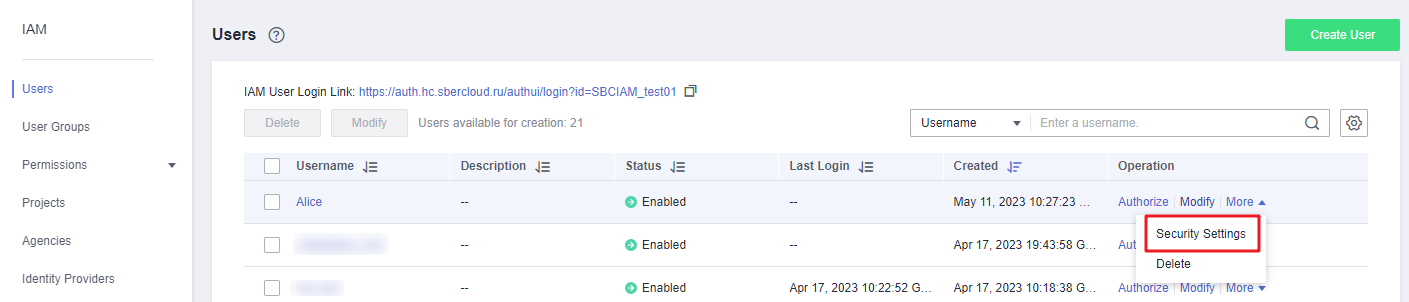
 - В списке пользователей нажмите username или нажмите Security Settings в столбце Operation, чтобы открыть страницу сведений о пользователе.
Figure 1 Переход к странице настроек безопасности пользователя IAM
- Просмотрите базовую информацию о пользователе IAM.
Изменение базовой информации о отдельном пользователе IAM
- Войдите в консоль IAM как администратор.
- В списке пользователей нажмите username или нажмите Security Settings в столбце Operation, чтобы открыть страницу сведений о пользователе.
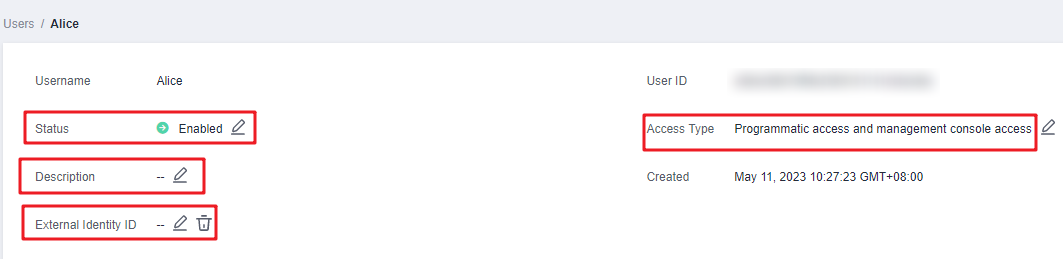
Figure 2 Изменение status, access type, description и external identity ID пользователя IAM
- Измените базовую информацию о пользователе IAM на его странице сведений как администратор.
- Status: Новые пользователи IAM включены по умолчанию. Вы можете установить Status в Disabled, чтобы отключить пользователя IAM. Отключённый пользователь больше не может входить в облачную платформу через консоль управления или программный доступ.
- Access Type: Вы можете изменить access type пользователя IAM.Note
- Обратите внимание на следующее при установке типа доступа пользователя IAM:
- Если пользователь получает доступ к облачным сервисам только через консоль управления, выберите Management console access для Access Type и Password для Credential Type.
- Если пользователь получает доступ к облачным сервисам только программными вызовами, выберите Programmatic access для Access Type и Access key для Credential Type.
- Если пользователю необходимо использовать пароль в качестве учётных данных для программного доступа к определённым API, выберите Programmatic access для Access Type и Password для Credential Type.
- Если пользователю необходимо выполнять проверку ключа доступа при использовании определённых сервисов в консоли, выберите Programmatic access и Management console access для Access Type, а также выберите Access Key и Password для Credential Type.
- Если тип доступа пользователя — Programmatic access или одновременно Programmatic access и Management console access, снятие выбора Programmatic access ограничит доступ пользователя к облачным сервисам. Будьте осторожны при выполнении этой операции.
- Обратите внимание на следующее при установке типа доступа пользователя IAM:
- Description: Вы можете изменить описание пользователя IAM.
- External Identity ID: Идентифицирует корпоративного пользователя в федеративном входе с использованием SSO.
Пакетное изменение информации о пользователе IAM
IAM позволяет пакетно изменять статус, тип доступа и метод проверки пользователей IAM. Ниже описано, как пакетно изменить статус пользователей IAM. Методы изменения другой информации о пользователях аналогичны этому методу.
- Войдите в консоль IAM. В панели навигации выберите Users.
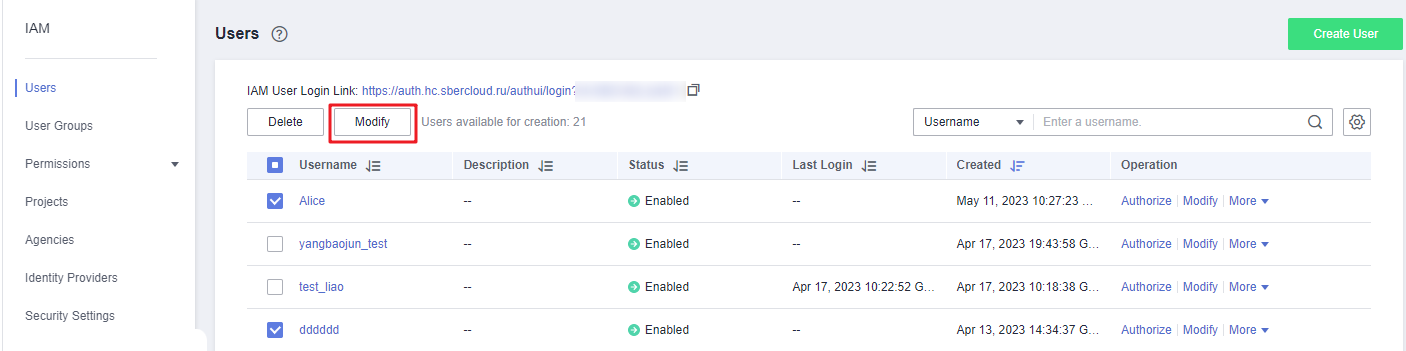
- В списке пользователей выберите пользователей, информацию о которых вы хотите изменить, и нажмите Modify над списком пользователей.
Figure 3 Изменение информации о пользователе
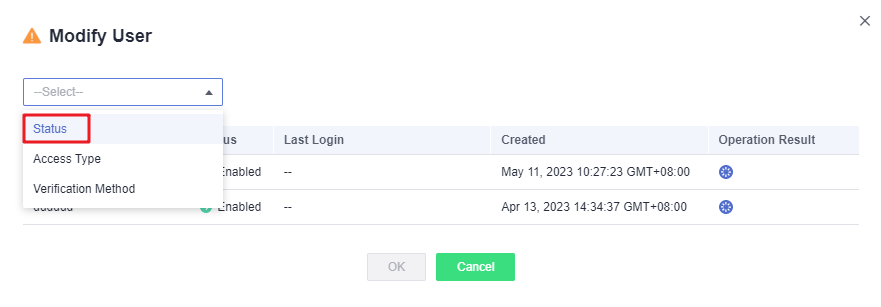
- Выберите свойство, которое нужно изменить. В этом примере выберите Status из раскрывающего списка.
Figure 4 Выбор свойства Status
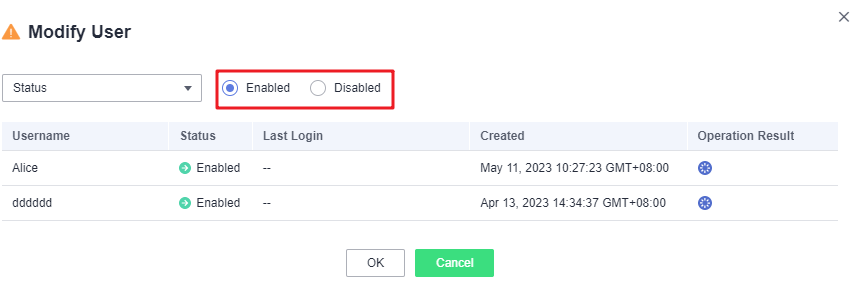
- Выберите целевой статус, который будет настроен для выбранных IAM users.
Figure 5 Выбор целевого статуса
 Note
NoteУбедитесь, что этот пользователь больше не используется. Отключение активного пользователя может повлиять на сервисы.
- Нажмите OK.
- В отображаемом диалоговом окне нажмите OK, чтобы подтвердить изменение.