What Is Sharing?
Вы можете поделиться Enterprise Router в своей учетной записи с другими учетными записями.
После того как вы поделитесь своим Enterprise Router с другими учетными записями, эти другие пользователи могут присоединять свои сетевые экземпляры к вашему Enterprise Router, чтобы их сетевые экземпляры могли получать доступ к вашему Enterprise Router.
Вы можете поделиться Enterprise Router в своей учетной записи с другими учетными записями, чтобы эти другие учетные записи могли присоединять свои VPC к вашему Enterprise Router.
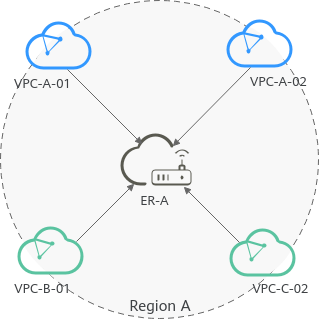
В этом примере используются учетные записи A, B и C, чтобы показать, как можно построить сеть с использованием одного Enterprise Router.Table 1 описывает ресурсы каждой учетной записи.
Если учетная запись A делится Enterprise Router (ER-A) с учетными записями B и C, VPC учетных записей B и C могут быть присоединены к ER-A.Figure 1 показывает сетевую схему.
Учетная запись | Enterprise Router | VPC |
|---|---|---|
A | ER-A | VPC-A-01 VPC-A-02 |
B | ER-B | VPC-B-01 |
C | ER-C | VPC-C-01 |
Figure 1 Attaching VPCs in different accounts to the same enterprise router
Allowed Operations by the Owner and Other Users
Владелец может выполнять все операции, но эти другие пользователи могут выполнять только некоторые операции.Table 2 перечисляет операции, которые могут выполнять другие пользователи.
Роль | Разрешенная операция | Описание |
|---|---|---|
Другие пользователи (учетные записи пользователей) | Другие пользователи могут просматривать: Имя общего Enterprise Router, за которым следует Shared with me. | |
Adding attachments to an enterprise router | Другие пользователи:
Для получения подробной информации о процессе создания присоединения к Enterprise Router в другой учетной записи см.Sharing an Enterprise Router with Other Users. | |
Другие пользователи: Не могут просматривать добавленные теги своих присоединений. | ||
Другие пользователи могут изменять названия своих присоединений, созданных для общего Enterprise Router. | ||
Другие пользователи могут удалять свои присоединения, созданные для общего Enterprise Router, без одобрения учетной записи владельца. |
Другие пользователи не могут просматривать Route Tables, Sharing, Flow Logs, and Tags вкладки Enterprise Router.
Sharing an Enterprise Router with Other Users
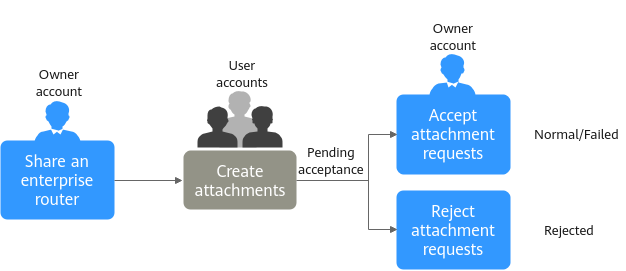
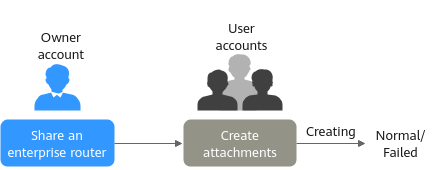
Как владелец, вы можете поделиться своим Enterprise Router с другими пользователями. Эти другие пользователи могут создавать присоединения к вашему Enterprise Router. Figure 2 Accepting or rejecting attachment creation requests No. Шаг Роль Описание 1 Владелец Владелец создает процесс совместного использования, чтобы поделиться Enterprise Router с другим пользователем. Этот пользователь может легко идентифицировать общий Enterprise Router, так как его имя сопровождается Shared with me. 2 Пользователь Пользователь создает присоединение к общему Enterprise Router. Присоединение будет находиться в состоянии Pending acceptance потому, что Auto Accept Shared Attachments отключено на Enterprise Router. 3 Владелец После создания присоединения вы можете выполнить Follow-up Procedure. Figure 3 Attachment requests automatically accepted No. Шаг Роль Описание 1 Владелец Владелец создает процесс совместного использования, чтобы поделиться Enterprise Router с другим пользователем. Этот пользователь может легко идентифицировать общий Enterprise Router, так как его имя сопровождается Shared with me. 2 Учетная запись пользователя Auto Accept Shared Attachments включено на Enterprise Router. Пользователь создает присоединение к общему Enterprise Router. Присоединение будет находиться в состоянии Creating состояние.